> ## Documentation Index
> Fetch the complete documentation index at: https://help.messagesync.ai/llms.txt
> Use this file to discover all available pages before exploring further.
# Change WhatsApp Group Participant
> The Change WhatsApp Group Participant action lets you add or remove a member from a WhatsApp group automatically from inside your CRM workflows — no manual group management required.
> Why it matters: Keeping WhatsApp groups up to date by hand is slow and error-prone. With this action you can automatically add new customers to a group when they convert, or remove them when they churn, cancel, or opt out — all triggered by any CRM event.
***
## Key Benefits[](#key-benefits "Direct link to Key Benefits")
**Automated Membership** - Add or remove members based on CRM events
**No Manual Group Management** - Stop adding and removing people by hand
**Workflow Integration** - Combine with any CRM trigger for powerful automation
**Dynamic Participants** - Use contact variables to target the right person every time
***
## Who Should Use It[](#who-should-use-it "Direct link to Who Should Use It")
**Sales Teams** - Add new customers to a VIP group the moment they convert
**Support Teams** - Remove members from a group once their case is closed
**Agencies** - Keep client community groups in sync with your CRM automatically
**Course Creators** - Add students to a cohort group on enrollment, remove on completion
***
## How to Set Up[](#how-to-set-up "Direct link to How to Set Up")
### Step 1: Add the Action[](#step-1-add-the-action "Direct link to Step 1: Add the Action")
Go to **Automation → Workflows**
Create a new workflow or edit an existing one
Add your desired trigger (Form Submitted, Tag Added, Appointment Booked, etc.)
Click **+** to add a new action, then select **Change WhatsApp Group Participant**
### Step 2: Configure the Action[](#step-2-configure-the-action "Direct link to Step 2: Configure the Action")
| Field | Required | Description |
| --------------- | -------- | -------------------------------------------------------------------------------------------------------------------- |
| **Action Name** | No | A label for this step in your workflow |
| **Action** | Yes | Choose **Add** or **Remove** |
| **Group** | Yes | Select a WhatsApp group, or use the Custom Value Picker. You can add new groups from the WhatsApp settings dashboard |
| **Participant** | Yes | The phone number of the member to add or remove |
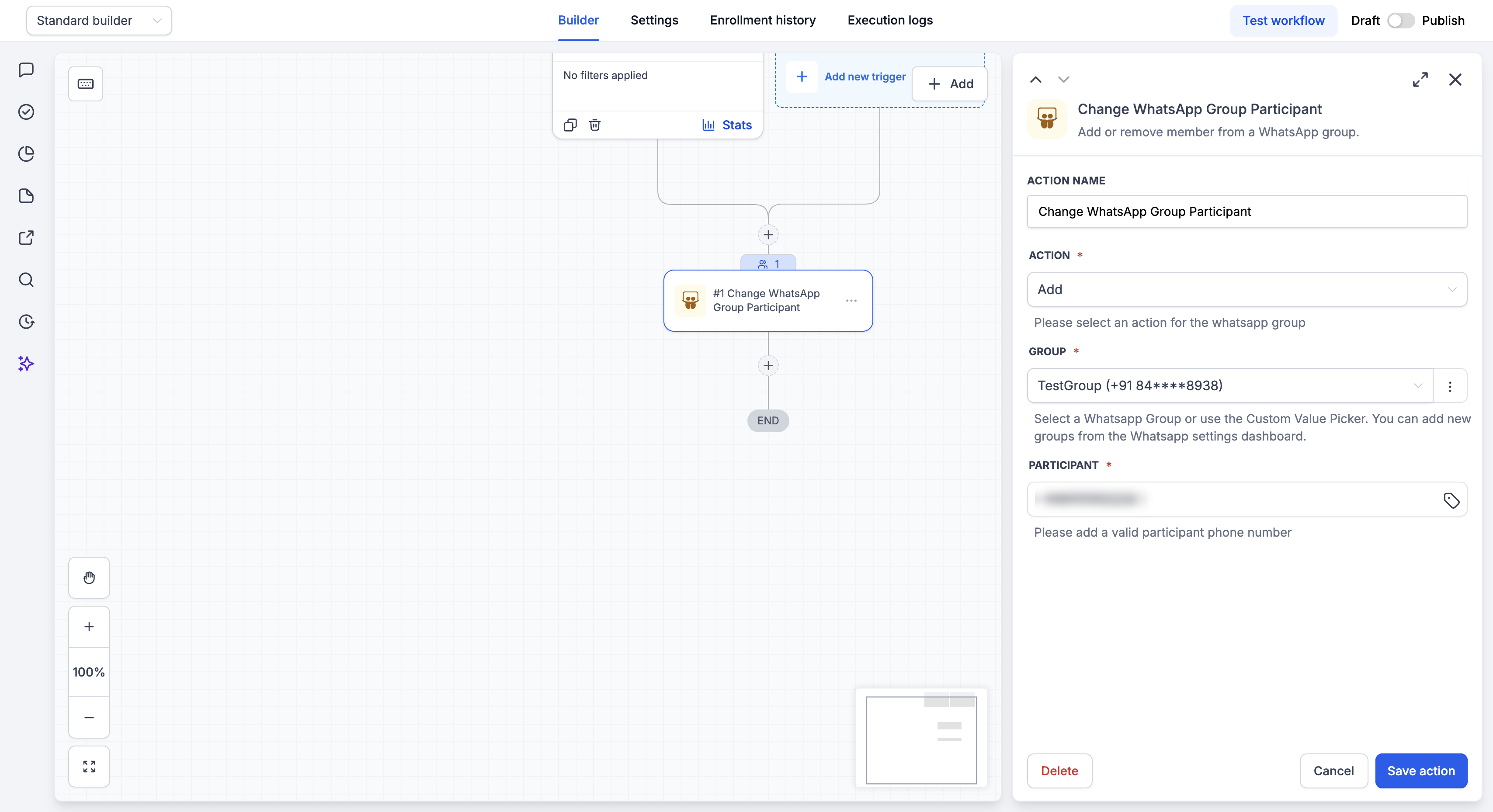 **The Participant number must include the country code.** Always enter the phone number in full international format with the country code (for example, `+14155552671`), or insert the `{{contact.raw_phone}}` custom value using the tag icon. A number without a country code — or a formatted field like `{{contact.phone}}` that may drop it — will fail to match a WhatsApp user, and the participant will not be added or removed.
### Step 3: Save and Publish[](#step-3-save-and-publish "Direct link to Step 3: Save and Publish")
Click **Save action**
Review your complete workflow
Toggle from **Draft** to **Published**
***
## Action Fields Explained[](#action-fields-explained "Direct link to Action Fields Explained")
### Action Field[](#action-field "Direct link to Action Field")
Choose what should happen to the participant:
* **Add** - Adds the participant to the selected group
* **Remove** - Removes the participant from the selected group
### Group Field[](#group-field "Direct link to Group Field")
Select the destination group from the dropdown, or use the Custom Value Picker to set it dynamically. If your group isn't listed, add it from the **WhatsApp settings dashboard** first.
### Participant Field[](#participant-field "Direct link to Participant Field")
Enter the phone number of the person to add or remove. This must be a **valid WhatsApp number in full international format**, including the country code.
**Recommended values:**
* A full number with country code, e.g. `+14155552671`
* The `{{contact.raw_phone}}` custom value — this stores the number in raw international format, including the country code
Do not enter a local number without the country code. WhatsApp identifies users by their full international number, so a missing country code means the action cannot find the person and silently does nothing.
***
## Action Output & Filters[](#action-output-and-filters "Direct link to Action Output & Filters")
After the action runs, it returns the following values. You can reference them in later steps or branch on them with an **If/Else** step to build reliable automations.
| Filter | Type | Description |
| ------------------------- | ------- | ---------------------------------------------------------------------------------------------------------------------------------------- |
| **Action's Status Code** | Number | The result code returned by WhatsApp (see the table below). Use this to branch your workflow — for example, send an invite link on `408` |
| **Is Member Added?** | Boolean | `true` or `false` — whether the member ended up added to the group |
| **Member's Phone Number** | Text | The participant number the action operated on |
| **Message** | Text | A human-readable description of the result |
### Action Status Codes[](#action-status-codes "Direct link to Action Status Codes")
Use **Action's Status Code** in an If/Else filter to react to each outcome.
| Status Code | Meaning | Message (Add) | Message (Remove) | What it means / what to do |
| ----------- | ------------------------- | ----------------------------------------------------------------------------- | ----------------------------------------------------------------- | ------------------------------------------------------------------------------------------------------------------------------------------------------------------------------------------- |
| **200** | Success | Added successfully | Removed successfully | Done. |
| **403** | Forbidden | Not allowed — user may have blocked this account or is not reachable | Not allowed — insufficient permissions to remove this participant | **Add:** the target user has blocked the sender or has strict privacy — try an invite link. **Remove:** usually means the target is an admin/creator and can't be removed by a non-creator. |
| **404** | Number not on WhatsApp | Phone number is not on WhatsApp | Phone number is not on WhatsApp | Verify the number. This is a hard fail — no retry will help. |
| **408** | Privacy restrictions | Can't be added directly due to privacy settings — send an invite link instead | *(n/a — only occurs on add)* | The contact can't be added directly. Send them a **WhatsApp message containing the group invite link** so they can join themselves. |
| **409** | Already in / not in group | Already in the group | Not in the group | Idempotency signal — safe to treat as success in most workflows. |
### Handling privacy-restricted adds (invite links)[](#handling-privacy-restricted-adds-invite-links "Direct link to Handling privacy-restricted adds (invite links)")
Some contacts can't be added to a group directly because of their WhatsApp privacy settings. When this happens the action returns **`408`** (or **`403`** on an add). Rather than treating this as a failure, branch on the status code and send them a WhatsApp message with the group invite link so they can join themselves:
Add an **If/Else** step after this action and check whether **Action's Status Code** is `408` (or `403`).
On that branch, add a **Send WhatsApp Message** action and send the contact a message that includes your group's **invite link**, so they can tap it and join on their own.
Optionally, tag the contact (e.g. `invite-sent`) so you can follow up later.
***
## Limitations[](#limitations "Direct link to Limitations")
Keep the following constraints in mind when using this action:
* **Add and remove only.** This action cannot promote or demote a participant to admin — it only handles adding and removing members.
* **Community containers are rejected.** Communities are meta-containers. Add/remove operates on the linked subgroups (the announcement or discussion group), not on the community itself.
* **Announce-only groups are supported.** Participants can still be added and removed by admins normally. The announce flag only restricts *who can send messages* — it does not restrict membership management.
* **Rate limits.** WhatsApp may throttle repeated participant operations on the same group. Space out bulk changes .
***
## Example Use Cases[](#example-use-cases "Direct link to Example Use Cases")
### Use Case 1: Add New Customers to a VIP Group[](#use-case-1 "Direct link to Use Case 1: Add New Customers to a VIP Group")
**Trigger:** Tag Added — `customer`
**Action:** Change WhatsApp Group Participant
* **Action:** Add
* **Group:** VIP Customers
* **Participant:** `{{contact.raw_phone}}`
### Use Case 2: Remove Members When They Cancel[](#use-case-2 "Direct link to Use Case 2: Remove Members When They Cancel")
**Trigger:** Tag Added — `cancelled`
**Action:** Change WhatsApp Group Participant
* **Action:** Remove
* **Group:** VIP Customers
* **Participant:** `{{contact.raw_phone}}`
***
## FAQs[](#faqs "Direct link to FAQs")
Always use the full international format with the country code — for example, `+14155552671`. The easiest and most reliable option is to insert the **`{{contact.raw_phone}}`** custom value, which already stores the number with its country code. A number entered without a country code will not match a WhatsApp user and the action will fail.
We recommend **`{{contact.raw_phone}}`**. Depending on how a contact was created, `{{contact.phone}}` may be formatted or stored without the country code, which causes the participant match to fail. `{{contact.raw_phone}}` keeps the number in full international format.
The most common cause is a phone number without a country code. Make sure the Participant field uses a full international number (e.g. `+14155552671`) or `{{contact.raw_phone}}`. Also confirm your WhatsApp number is connected and that the group is available in your WhatsApp settings.
Groups must be added and available in your WhatsApp settings dashboard first. Add the group there, then return to the workflow and refresh.
The action will fail to run. We recommend setting up the **WhatsApp Disconnected** trigger to get alerts when your number goes offline.
***
## Support[](#support "Direct link to Support")
If you need help with the setup or onboarding:
* Email: [**support@messagesync.ai**](mailto:support@messagesync.ai)
**The Participant number must include the country code.** Always enter the phone number in full international format with the country code (for example, `+14155552671`), or insert the `{{contact.raw_phone}}` custom value using the tag icon. A number without a country code — or a formatted field like `{{contact.phone}}` that may drop it — will fail to match a WhatsApp user, and the participant will not be added or removed.
### Step 3: Save and Publish[](#step-3-save-and-publish "Direct link to Step 3: Save and Publish")
Click **Save action**
Review your complete workflow
Toggle from **Draft** to **Published**
***
## Action Fields Explained[](#action-fields-explained "Direct link to Action Fields Explained")
### Action Field[](#action-field "Direct link to Action Field")
Choose what should happen to the participant:
* **Add** - Adds the participant to the selected group
* **Remove** - Removes the participant from the selected group
### Group Field[](#group-field "Direct link to Group Field")
Select the destination group from the dropdown, or use the Custom Value Picker to set it dynamically. If your group isn't listed, add it from the **WhatsApp settings dashboard** first.
### Participant Field[](#participant-field "Direct link to Participant Field")
Enter the phone number of the person to add or remove. This must be a **valid WhatsApp number in full international format**, including the country code.
**Recommended values:**
* A full number with country code, e.g. `+14155552671`
* The `{{contact.raw_phone}}` custom value — this stores the number in raw international format, including the country code
Do not enter a local number without the country code. WhatsApp identifies users by their full international number, so a missing country code means the action cannot find the person and silently does nothing.
***
## Action Output & Filters[](#action-output-and-filters "Direct link to Action Output & Filters")
After the action runs, it returns the following values. You can reference them in later steps or branch on them with an **If/Else** step to build reliable automations.
| Filter | Type | Description |
| ------------------------- | ------- | ---------------------------------------------------------------------------------------------------------------------------------------- |
| **Action's Status Code** | Number | The result code returned by WhatsApp (see the table below). Use this to branch your workflow — for example, send an invite link on `408` |
| **Is Member Added?** | Boolean | `true` or `false` — whether the member ended up added to the group |
| **Member's Phone Number** | Text | The participant number the action operated on |
| **Message** | Text | A human-readable description of the result |
### Action Status Codes[](#action-status-codes "Direct link to Action Status Codes")
Use **Action's Status Code** in an If/Else filter to react to each outcome.
| Status Code | Meaning | Message (Add) | Message (Remove) | What it means / what to do |
| ----------- | ------------------------- | ----------------------------------------------------------------------------- | ----------------------------------------------------------------- | ------------------------------------------------------------------------------------------------------------------------------------------------------------------------------------------- |
| **200** | Success | Added successfully | Removed successfully | Done. |
| **403** | Forbidden | Not allowed — user may have blocked this account or is not reachable | Not allowed — insufficient permissions to remove this participant | **Add:** the target user has blocked the sender or has strict privacy — try an invite link. **Remove:** usually means the target is an admin/creator and can't be removed by a non-creator. |
| **404** | Number not on WhatsApp | Phone number is not on WhatsApp | Phone number is not on WhatsApp | Verify the number. This is a hard fail — no retry will help. |
| **408** | Privacy restrictions | Can't be added directly due to privacy settings — send an invite link instead | *(n/a — only occurs on add)* | The contact can't be added directly. Send them a **WhatsApp message containing the group invite link** so they can join themselves. |
| **409** | Already in / not in group | Already in the group | Not in the group | Idempotency signal — safe to treat as success in most workflows. |
### Handling privacy-restricted adds (invite links)[](#handling-privacy-restricted-adds-invite-links "Direct link to Handling privacy-restricted adds (invite links)")
Some contacts can't be added to a group directly because of their WhatsApp privacy settings. When this happens the action returns **`408`** (or **`403`** on an add). Rather than treating this as a failure, branch on the status code and send them a WhatsApp message with the group invite link so they can join themselves:
Add an **If/Else** step after this action and check whether **Action's Status Code** is `408` (or `403`).
On that branch, add a **Send WhatsApp Message** action and send the contact a message that includes your group's **invite link**, so they can tap it and join on their own.
Optionally, tag the contact (e.g. `invite-sent`) so you can follow up later.
***
## Limitations[](#limitations "Direct link to Limitations")
Keep the following constraints in mind when using this action:
* **Add and remove only.** This action cannot promote or demote a participant to admin — it only handles adding and removing members.
* **Community containers are rejected.** Communities are meta-containers. Add/remove operates on the linked subgroups (the announcement or discussion group), not on the community itself.
* **Announce-only groups are supported.** Participants can still be added and removed by admins normally. The announce flag only restricts *who can send messages* — it does not restrict membership management.
* **Rate limits.** WhatsApp may throttle repeated participant operations on the same group. Space out bulk changes .
***
## Example Use Cases[](#example-use-cases "Direct link to Example Use Cases")
### Use Case 1: Add New Customers to a VIP Group[](#use-case-1 "Direct link to Use Case 1: Add New Customers to a VIP Group")
**Trigger:** Tag Added — `customer`
**Action:** Change WhatsApp Group Participant
* **Action:** Add
* **Group:** VIP Customers
* **Participant:** `{{contact.raw_phone}}`
### Use Case 2: Remove Members When They Cancel[](#use-case-2 "Direct link to Use Case 2: Remove Members When They Cancel")
**Trigger:** Tag Added — `cancelled`
**Action:** Change WhatsApp Group Participant
* **Action:** Remove
* **Group:** VIP Customers
* **Participant:** `{{contact.raw_phone}}`
***
## FAQs[](#faqs "Direct link to FAQs")
Always use the full international format with the country code — for example, `+14155552671`. The easiest and most reliable option is to insert the **`{{contact.raw_phone}}`** custom value, which already stores the number with its country code. A number entered without a country code will not match a WhatsApp user and the action will fail.
We recommend **`{{contact.raw_phone}}`**. Depending on how a contact was created, `{{contact.phone}}` may be formatted or stored without the country code, which causes the participant match to fail. `{{contact.raw_phone}}` keeps the number in full international format.
The most common cause is a phone number without a country code. Make sure the Participant field uses a full international number (e.g. `+14155552671`) or `{{contact.raw_phone}}`. Also confirm your WhatsApp number is connected and that the group is available in your WhatsApp settings.
Groups must be added and available in your WhatsApp settings dashboard first. Add the group there, then return to the workflow and refresh.
The action will fail to run. We recommend setting up the **WhatsApp Disconnected** trigger to get alerts when your number goes offline.
***
## Support[](#support "Direct link to Support")
If you need help with the setup or onboarding:
* Email: [**support@messagesync.ai**](mailto:support@messagesync.ai)