> ## Documentation Index
> Fetch the complete documentation index at: https://help.messagesync.ai/llms.txt
> Use this file to discover all available pages before exploring further.
# Send Internal WhatsApp Notification
> The Send Internal WhatsApp Notification action alerts the user(s) assigned to a contact directly from your CRM workflows. The notification is synced to both the CRM and an actual WhatsApp message - so your team is alerted wherever they are.
> Why it matters: When a workflow runs on a contact, the people responsible for that contact need to know. This action notifies the assigned user(s) automatically - delivered both as a CRM notification and as a real WhatsApp message - so nothing slips through the cracks.
***
## Key Benefits[](#key-benefits "Direct link to Key Benefits")
**Notify the Right People** - Message the user(s) assigned to the contact automatically
**Flexible Targeting** - Send to all assigned users, a specific user, or any phone number
**Synced Everywhere** - Delivered to both the CRM and an actual WhatsApp message
**Attachment Support** - Include a file with the notification
**Workflow Integration** - Combine with any CRM trigger for powerful automation
***
## Who Should Use It[](#who-should-use-it "Direct link to Who Should Use It")
**Sales Teams** - Alert the assigned rep the moment a contact takes action
**Support Teams** - Notify the contact owner about escalations
**Agencies** - Route internal alerts across client sub-accounts
**Operations** - Keep staff informed of status changes and hand-offs
***
## Requirements[](#requirements "Direct link to Requirements")
Before using this action:
**Update your WhatsApp provider app** to the latest version
* Go to **App Marketplace → Installed Apps → WhatsApp provider → Update**
**Connect a WhatsApp number**
* Use the **WhatsApp Settings dashboard** to connect one or more WhatsApp instances
***
## How to Set Up[](#how-to-set-up "Direct link to How to Set Up")
### Step 1: Create or Edit a Workflow[](#step-1-create-or-edit-a-workflow "Direct link to Step 1: Create or Edit a Workflow")
Go to **Automation → Workflows**
Create a new workflow or edit an existing one
Add your desired trigger (Form Submitted, WhatsApp Inbound, Appointment Booked, etc.)
### Step 2: Add the Action[](#step-2-add-the-action "Direct link to Step 2: Add the Action")
Click **+** or **Add New Action** after your trigger
Switch to the **Apps** tab
Click the **WhatsApp provider** app icon
Select **Send Internal WhatsApp Notification**
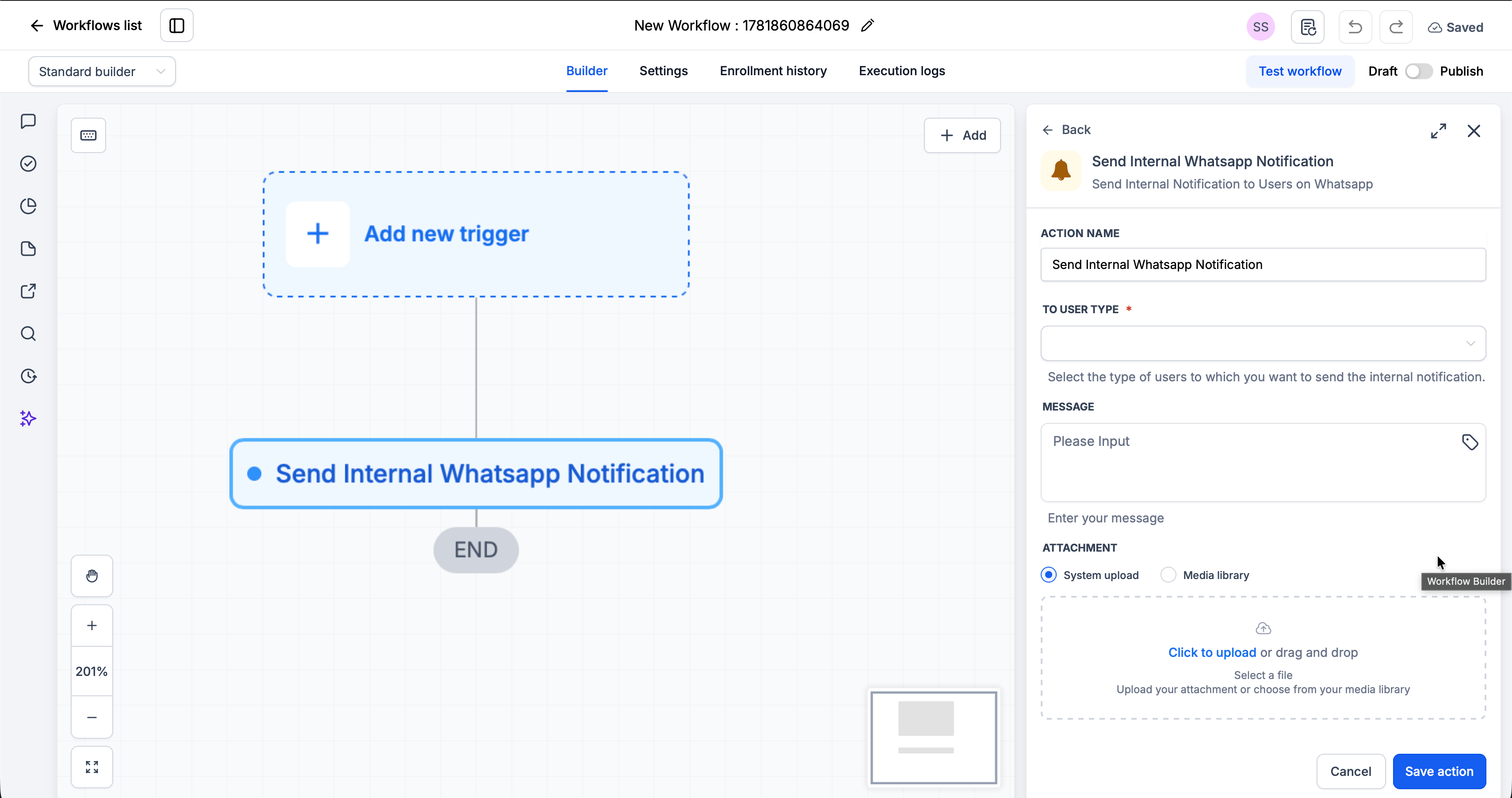 ### Step 3: Configure the Action[](#step-3-configure-the-action "Direct link to Step 3: Configure the Action")
| Field | Required | Description |
| ---------------- | -------- | ------------------------------------------------------------------------------------------------------------ |
| **To User Type** | Yes | Who receives the notification - **Assigned Users**, **Particular User**, or **Custom Number** |
| **Message** | No | The notification text to send (supports custom variables) |
| **Choose User** | No | Shown based on **To User Type** - select a specific user or enter a phone number (hidden for Assigned Users) |
| **Attachment** | No | Include a file with the notification |
### Step 4: Save and Publish[](#step-4-save-and-publish "Direct link to Step 4: Save and Publish")
Click **Save action**
Review your complete workflow
Toggle from **Draft** to **Published**
***
## Action Fields Explained[](#action-fields-explained "Direct link to Action Fields Explained")
### To User Type Field[](#to-user-type-field "Direct link to To User Type Field")
Choose who the notification goes to. This selection controls what the **Choose User** field becomes.
| Option | What it does |
| ------------------- | ------------------------------------------------------------------------------------------------------ |
| **Assigned Users** | Sends the notification to **every user assigned to the contact**. The **Choose User** field is hidden. |
| **Particular User** | Lets you pick **one specific user** from a dropdown. The **Choose User** field becomes that dropdown. |
| **Custom Number** | Lets you **enter any phone number** to notify. The **Choose User** field becomes a text input. |
### Choose User Field[](#choose-user-field "Direct link to Choose User Field")
This field adapts to your **To User Type** selection:
* **Assigned Users** → hidden (the action resolves the assigned users automatically)
* **Particular User** → a dropdown to select the user
* **Custom Number** → a text field to type the destination phone number
### Message Field[](#message-field "Direct link to Message Field")
Enter the notification text. You can:
* Type plain text
* Use **custom variables** (click the tag icon to insert)
* Include emojis
**Example with variables:**
```text theme={null}
New activity from {{contact.first_name}} {{contact.last_name}}. Please follow up.
```
### Attachment Field[](#attachment-field "Direct link to Attachment Field")
Attach a file to send with the notification. This field is optional.
***
## Example Use Cases[](#example-use-cases "Direct link to Example Use Cases")
### Use Case 1: Alert the Assigned Rep[](#use-case-1-alert-the-assigned-rep "Direct link to Use Case 1: Alert the Assigned Rep")
Notify whoever owns the contact when a new message comes in.
**Trigger:** WhatsApp Inbound
**Action:** Send Internal WhatsApp Notification
* **To User Type:** Assigned Users
* **Message:**
```text theme={null}
{{contact.first_name}} just replied. Jump back into the conversation when you can.
```
***
### Use Case 2: Notify a Specific Manager[](#use-case-2-notify-a-specific-manager "Direct link to Use Case 2: Notify a Specific Manager")
Escalate high-value leads to a fixed recipient.
**Trigger:** Form Submitted
**Action:** Send Internal WhatsApp Notification
* **To User Type:** Custom Number
* **Choose User:** +1 555 010 0000
* **Message:**
```text theme={null}
New high-value lead: {{contact.first_name}} {{contact.last_name}}.
```
***
## Important Notes[](#important-notes "Direct link to Important Notes")
### Technical Details[](#technical-details "Direct link to Technical Details")
* The notification is synced to **both the CRM and an actual WhatsApp message**
* **Assigned Users** sends to every user assigned to the contact that runs the workflow
* **Custom Number** can reach any phone number, even someone not assigned to the contact
* Works with all standard CRM workflow triggers
### Best Practices[](#best-practices "Direct link to Best Practices")
* Use **Assigned Users** so the right owner is always notified as assignments change
* Use **custom variables** to give recipients context at a glance
* Keep notifications concise
* Test before publishing
***
## FAQs[](#faqs "Direct link to FAQs")
It depends on **To User Type**: every user assigned to the contact (**Assigned Users**), one user you pick (**Particular User**), or any number you type (**Custom Number**).
Yes. Choose **Custom Number** and enter any phone number.
Yes. Use the **Attachment** field to include a file with the notification.
Yes. Click the tag icon in the Message field to insert custom variables like `{{contact.first_name}}`.
***
## Support[](#support "Direct link to Support")
If you need help with the setup or onboarding:
* Email: [**support@messagesync.ai**](mailto:support@messagesync.ai)
### Step 3: Configure the Action[](#step-3-configure-the-action "Direct link to Step 3: Configure the Action")
| Field | Required | Description |
| ---------------- | -------- | ------------------------------------------------------------------------------------------------------------ |
| **To User Type** | Yes | Who receives the notification - **Assigned Users**, **Particular User**, or **Custom Number** |
| **Message** | No | The notification text to send (supports custom variables) |
| **Choose User** | No | Shown based on **To User Type** - select a specific user or enter a phone number (hidden for Assigned Users) |
| **Attachment** | No | Include a file with the notification |
### Step 4: Save and Publish[](#step-4-save-and-publish "Direct link to Step 4: Save and Publish")
Click **Save action**
Review your complete workflow
Toggle from **Draft** to **Published**
***
## Action Fields Explained[](#action-fields-explained "Direct link to Action Fields Explained")
### To User Type Field[](#to-user-type-field "Direct link to To User Type Field")
Choose who the notification goes to. This selection controls what the **Choose User** field becomes.
| Option | What it does |
| ------------------- | ------------------------------------------------------------------------------------------------------ |
| **Assigned Users** | Sends the notification to **every user assigned to the contact**. The **Choose User** field is hidden. |
| **Particular User** | Lets you pick **one specific user** from a dropdown. The **Choose User** field becomes that dropdown. |
| **Custom Number** | Lets you **enter any phone number** to notify. The **Choose User** field becomes a text input. |
### Choose User Field[](#choose-user-field "Direct link to Choose User Field")
This field adapts to your **To User Type** selection:
* **Assigned Users** → hidden (the action resolves the assigned users automatically)
* **Particular User** → a dropdown to select the user
* **Custom Number** → a text field to type the destination phone number
### Message Field[](#message-field "Direct link to Message Field")
Enter the notification text. You can:
* Type plain text
* Use **custom variables** (click the tag icon to insert)
* Include emojis
**Example with variables:**
```text theme={null}
New activity from {{contact.first_name}} {{contact.last_name}}. Please follow up.
```
### Attachment Field[](#attachment-field "Direct link to Attachment Field")
Attach a file to send with the notification. This field is optional.
***
## Example Use Cases[](#example-use-cases "Direct link to Example Use Cases")
### Use Case 1: Alert the Assigned Rep[](#use-case-1-alert-the-assigned-rep "Direct link to Use Case 1: Alert the Assigned Rep")
Notify whoever owns the contact when a new message comes in.
**Trigger:** WhatsApp Inbound
**Action:** Send Internal WhatsApp Notification
* **To User Type:** Assigned Users
* **Message:**
```text theme={null}
{{contact.first_name}} just replied. Jump back into the conversation when you can.
```
***
### Use Case 2: Notify a Specific Manager[](#use-case-2-notify-a-specific-manager "Direct link to Use Case 2: Notify a Specific Manager")
Escalate high-value leads to a fixed recipient.
**Trigger:** Form Submitted
**Action:** Send Internal WhatsApp Notification
* **To User Type:** Custom Number
* **Choose User:** +1 555 010 0000
* **Message:**
```text theme={null}
New high-value lead: {{contact.first_name}} {{contact.last_name}}.
```
***
## Important Notes[](#important-notes "Direct link to Important Notes")
### Technical Details[](#technical-details "Direct link to Technical Details")
* The notification is synced to **both the CRM and an actual WhatsApp message**
* **Assigned Users** sends to every user assigned to the contact that runs the workflow
* **Custom Number** can reach any phone number, even someone not assigned to the contact
* Works with all standard CRM workflow triggers
### Best Practices[](#best-practices "Direct link to Best Practices")
* Use **Assigned Users** so the right owner is always notified as assignments change
* Use **custom variables** to give recipients context at a glance
* Keep notifications concise
* Test before publishing
***
## FAQs[](#faqs "Direct link to FAQs")
It depends on **To User Type**: every user assigned to the contact (**Assigned Users**), one user you pick (**Particular User**), or any number you type (**Custom Number**).
Yes. Choose **Custom Number** and enter any phone number.
Yes. Use the **Attachment** field to include a file with the notification.
Yes. Click the tag icon in the Message field to insert custom variables like `{{contact.first_name}}`.
***
## Support[](#support "Direct link to Support")
If you need help with the setup or onboarding:
* Email: [**support@messagesync.ai**](mailto:support@messagesync.ai)