> ## Documentation Index
> Fetch the complete documentation index at: https://help.messagesync.ai/llms.txt
> Use this file to discover all available pages before exploring further.
# Send WhatsApp Text to Speech Message
> The Send WhatsApp Text to Speech Message action is a custom WhatsApp provider workflow action that converts text into a natural-sounding voice note and sends it as a WhatsApp audio message - automatically, from any CRM workflow.
> Why it matters: Recording voice notes by hand doesn't scale. With this action you can send personalized audio messages triggered by any CRM event-new leads, appointments, form submissions, replies, and more-using AI-generated voices.
***
## Key Benefits[](#key-benefits "Direct link to Key Benefits")
**Automated Voice Notes** - Send WhatsApp voice messages automatically from any workflow
**Natural-Sounding Audio** - Convert text to lifelike speech using ElevenLabs voices
**Personalized Content** - Use custom variables to tailor every message
**Multi-Number Support** - Choose which connected WhatsApp number sends the message
**Workflow Integration** - Combine with any CRM trigger for powerful automation
***
## Who Should Use It[](#who-should-use-it "Direct link to Who Should Use It")
**Sales Teams** - Instantly follow up with new leads using a personal voice note
**Support Teams** - Send confirmations and updates automatically
**Agencies** - Automate client-facing messaging across sub-accounts
**Operations** - Send reminders, alerts, and status updates
**Marketers** - Deliver timely, personalized WhatsApp audio touches
***
## Requirements[](#requirements "Direct link to Requirements")
Before using this action:
**Update your WhatsApp provider app** to the latest version
* Go to **App Marketplace → Installed Apps → WhatsApp provider → Update**
**Connect a WhatsApp number**
* Use the **WhatsApp Settings dashboard** to connect one or more WhatsApp instances
**Enable Text-to-Speech**
* Add your **ElevenLabs API Key** and toggle **Enable Text-to-Speech** in **WhatsApp → Settings**. See the [Text-to-Speech setup guide](/features/text-to-speech) for details.
***
## How to Set Up[](#how-to-set-up "Direct link to How to Set Up")
### Step 1: Create or Edit a Workflow[](#step-1-create-or-edit-a-workflow "Direct link to Step 1: Create or Edit a Workflow")
Go to **Automation → Workflows**
Create a new workflow or edit an existing one
Add your desired trigger (Form Submitted, WhatsApp Inbound, Appointment Booked, etc.)
### Step 2: Add the Action[](#step-2-add-the-action "Direct link to Step 2: Add the Action")
Click **+** or **Add New Action** after your trigger
Switch to the **Apps** tab
Click the **WhatsApp provider** app icon
Select **Send WhatsApp Text to Speech Message**
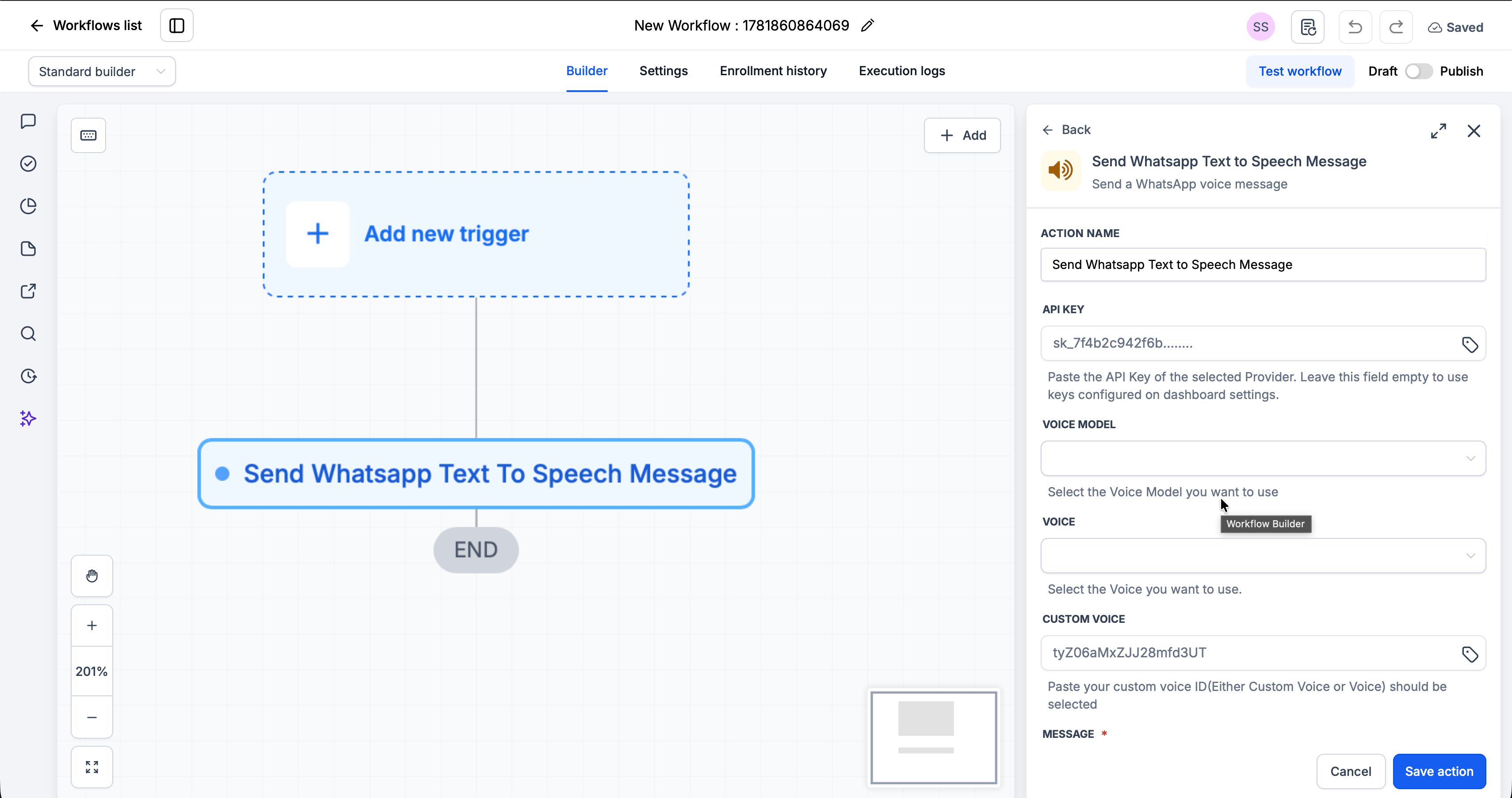 ### Step 3: Configure the Action[](#step-3-configure-the-action "Direct link to Step 3: Configure the Action")
| Field | Required | Description |
| ---------------------- | -------- | ------------------------------------------------------------------------------------------------------------------------- |
| **Connected WhatsApp** | No | The connected number to send from. Leave empty to use the number-selection priority configured in your dashboard settings |
| **API Key** | No | Your ElevenLabs API Key used to generate the audio. Leave empty to use the key configured in **WhatsApp → Settings** |
| **Voice Model** | No | The ElevenLabs voice model used for speech generation |
| **Voice** | No | The ElevenLabs voice that reads your message |
| **Custom Voice** | No | A custom (cloned) ElevenLabs Voice ID to use instead of a library voice |
| **Message** | Yes | The text to convert to speech (supports custom variables) |
### Step 4: Save and Publish[](#step-4-save-and-publish "Direct link to Step 4: Save and Publish")
Click **Save action**
Review your complete workflow
Toggle from **Draft** to **Published**
***
## Action Fields Explained[](#action-fields-explained "Direct link to Action Fields Explained")
### API Key Field[](#api-key-field "Direct link to API Key Field")
Your **ElevenLabs API Key**, used to generate the audio. This field is optional - leave it empty to use the API Key configured in **WhatsApp → Settings**. See the [Text-to-Speech setup guide](/features/text-to-speech#how-to-get-your-elevenlabs-api-key) for how to create one.
### Voice Model Field[](#voice-model-field "Direct link to Voice Model Field")
Select the **ElevenLabs voice model** used to generate the speech. Different models offer trade-offs between quality, speed, and language support.
### Voice Field[](#voice-field "Direct link to Voice Field")
Select the **ElevenLabs voice** that reads your message from the list of available voices.
### Custom Voice Field[](#custom-voice-field "Direct link to Custom Voice Field")
Provide a **custom (cloned) ElevenLabs Voice ID** to use instead of a library voice. Find Voice IDs in your [ElevenLabs Voice Library](https://elevenlabs.io/app/voice-library) - see [How to Find Voice IDs](/features/text-to-speech#how-to-find-voice-ids).
### Message Field[](#message-field "Direct link to Message Field")
Enter the text you want converted to speech. You can:
* Type plain text
* Use **custom variables** (click the tag icon to insert)
**Example with variables:**
```text theme={null}
Hi {{contact.first_name}}, your appointment is confirmed. We look forward to seeing you!
```
### Connected WhatsApp Field[](#connected-whatsapp-field "Direct link to Connected WhatsApp Field")
Choose which connected WhatsApp instance sends the message.
> **Connected WhatsApp instances.** Use the WhatsApp Settings dashboard to connect more WhatsApp instances. **Leave this field empty** to use the number-selection priority as configured in your dashboard settings.
***
## Example Use Cases[](#example-use-cases "Direct link to Example Use Cases")
### Use Case 1: Personalized Voice Welcome[](#use-case-1-personalized-voice-welcome "Direct link to Use Case 1: Personalized Voice Welcome")
Greet a new lead with a personal-sounding voice note the moment they submit a form.
**Trigger:** Form Submitted
**Action:** Send WhatsApp Text to Speech Message
* **Message:**
```text theme={null}
Hi {{contact.first_name}}! Thanks for your interest. We received your request and will be in touch shortly.
```
***
### Use Case 2: Appointment Reminder[](#use-case-2-appointment-reminder "Direct link to Use Case 2: Appointment Reminder")
Send a friendly voice reminder before an appointment.
**Trigger:** Appointment Reminder Time
**Action:** Send WhatsApp Text to Speech Message
* **Message:**
```text theme={null}
Hi {{contact.first_name}}, this is a reminder about your appointment on {{contact.appointment_date}}. See you soon!
```
***
## Important Notes[](#important-notes "Direct link to Important Notes")
### Technical Details[](#technical-details "Direct link to Technical Details")
* Audio is generated with the **ElevenLabs API** and sent as a WhatsApp voice note
* Requires a valid **ElevenLabs API Key** with **Text-to-Speech** and **Voices** permissions
* Leaving **WhatsApp Number** empty uses your dashboard's number-selection priority
* Works with all standard CRM workflow triggers
### Best Practices[](#best-practices "Direct link to Best Practices")
* Keep messages concise - we recommend under 2-3 minutes (approximately 300-450 words)
* Use relevant variables only
* Test before publishing
* Avoid over-messaging - too many messages cause fatigue
***
## FAQs[](#faqs "Direct link to FAQs")
The one you select in the **WhatsApp Number** field. If you leave it empty, it uses the number-selection priority configured in your WhatsApp dashboard settings.
From your [ElevenLabs Voice Library](https://elevenlabs.io/app/voice-library). Click any voice and copy its Voice ID. See [How to Find Voice IDs](/features/text-to-speech#how-to-find-voice-ids).
Yes. Click the tag icon in the Message field to insert custom variables like `{{contact.first_name}}`.
The message will fail to send. We recommend setting up the [WhatsApp Disconnected](/automation/triggers/whatsapp-disconnected) trigger to get alerts when your number goes offline.
***
## Support[](#support "Direct link to Support")
If you need help with the setup or onboarding:
* Email: [**support@messagesync.ai**](mailto:support@messagesync.ai)
### Step 3: Configure the Action[](#step-3-configure-the-action "Direct link to Step 3: Configure the Action")
| Field | Required | Description |
| ---------------------- | -------- | ------------------------------------------------------------------------------------------------------------------------- |
| **Connected WhatsApp** | No | The connected number to send from. Leave empty to use the number-selection priority configured in your dashboard settings |
| **API Key** | No | Your ElevenLabs API Key used to generate the audio. Leave empty to use the key configured in **WhatsApp → Settings** |
| **Voice Model** | No | The ElevenLabs voice model used for speech generation |
| **Voice** | No | The ElevenLabs voice that reads your message |
| **Custom Voice** | No | A custom (cloned) ElevenLabs Voice ID to use instead of a library voice |
| **Message** | Yes | The text to convert to speech (supports custom variables) |
### Step 4: Save and Publish[](#step-4-save-and-publish "Direct link to Step 4: Save and Publish")
Click **Save action**
Review your complete workflow
Toggle from **Draft** to **Published**
***
## Action Fields Explained[](#action-fields-explained "Direct link to Action Fields Explained")
### API Key Field[](#api-key-field "Direct link to API Key Field")
Your **ElevenLabs API Key**, used to generate the audio. This field is optional - leave it empty to use the API Key configured in **WhatsApp → Settings**. See the [Text-to-Speech setup guide](/features/text-to-speech#how-to-get-your-elevenlabs-api-key) for how to create one.
### Voice Model Field[](#voice-model-field "Direct link to Voice Model Field")
Select the **ElevenLabs voice model** used to generate the speech. Different models offer trade-offs between quality, speed, and language support.
### Voice Field[](#voice-field "Direct link to Voice Field")
Select the **ElevenLabs voice** that reads your message from the list of available voices.
### Custom Voice Field[](#custom-voice-field "Direct link to Custom Voice Field")
Provide a **custom (cloned) ElevenLabs Voice ID** to use instead of a library voice. Find Voice IDs in your [ElevenLabs Voice Library](https://elevenlabs.io/app/voice-library) - see [How to Find Voice IDs](/features/text-to-speech#how-to-find-voice-ids).
### Message Field[](#message-field "Direct link to Message Field")
Enter the text you want converted to speech. You can:
* Type plain text
* Use **custom variables** (click the tag icon to insert)
**Example with variables:**
```text theme={null}
Hi {{contact.first_name}}, your appointment is confirmed. We look forward to seeing you!
```
### Connected WhatsApp Field[](#connected-whatsapp-field "Direct link to Connected WhatsApp Field")
Choose which connected WhatsApp instance sends the message.
> **Connected WhatsApp instances.** Use the WhatsApp Settings dashboard to connect more WhatsApp instances. **Leave this field empty** to use the number-selection priority as configured in your dashboard settings.
***
## Example Use Cases[](#example-use-cases "Direct link to Example Use Cases")
### Use Case 1: Personalized Voice Welcome[](#use-case-1-personalized-voice-welcome "Direct link to Use Case 1: Personalized Voice Welcome")
Greet a new lead with a personal-sounding voice note the moment they submit a form.
**Trigger:** Form Submitted
**Action:** Send WhatsApp Text to Speech Message
* **Message:**
```text theme={null}
Hi {{contact.first_name}}! Thanks for your interest. We received your request and will be in touch shortly.
```
***
### Use Case 2: Appointment Reminder[](#use-case-2-appointment-reminder "Direct link to Use Case 2: Appointment Reminder")
Send a friendly voice reminder before an appointment.
**Trigger:** Appointment Reminder Time
**Action:** Send WhatsApp Text to Speech Message
* **Message:**
```text theme={null}
Hi {{contact.first_name}}, this is a reminder about your appointment on {{contact.appointment_date}}. See you soon!
```
***
## Important Notes[](#important-notes "Direct link to Important Notes")
### Technical Details[](#technical-details "Direct link to Technical Details")
* Audio is generated with the **ElevenLabs API** and sent as a WhatsApp voice note
* Requires a valid **ElevenLabs API Key** with **Text-to-Speech** and **Voices** permissions
* Leaving **WhatsApp Number** empty uses your dashboard's number-selection priority
* Works with all standard CRM workflow triggers
### Best Practices[](#best-practices "Direct link to Best Practices")
* Keep messages concise - we recommend under 2-3 minutes (approximately 300-450 words)
* Use relevant variables only
* Test before publishing
* Avoid over-messaging - too many messages cause fatigue
***
## FAQs[](#faqs "Direct link to FAQs")
The one you select in the **WhatsApp Number** field. If you leave it empty, it uses the number-selection priority configured in your WhatsApp dashboard settings.
From your [ElevenLabs Voice Library](https://elevenlabs.io/app/voice-library). Click any voice and copy its Voice ID. See [How to Find Voice IDs](/features/text-to-speech#how-to-find-voice-ids).
Yes. Click the tag icon in the Message field to insert custom variables like `{{contact.first_name}}`.
The message will fail to send. We recommend setting up the [WhatsApp Disconnected](/automation/triggers/whatsapp-disconnected) trigger to get alerts when your number goes offline.
***
## Support[](#support "Direct link to Support")
If you need help with the setup or onboarding:
* Email: [**support@messagesync.ai**](mailto:support@messagesync.ai)