> ## Documentation Index
> Fetch the complete documentation index at: https://help.messagesync.ai/llms.txt
> Use this file to discover all available pages before exploring further.
# Wait Step
> The Wait Step action is a custom Message provider workflow action that pauses a workflow for a contact until they reply on WhatsApp, iMessage, or SMS, or until a timeout you set elapses. Build conversational, reply-aware automations that branch on whether the contact responds.
> Why it matters: Most workflow steps fire and move on. The Wait Step lets a workflow pause and listen for the contact's next message, so you can confirm appointments, qualify leads, and run back-and-forth conversations that react to what the contact actually says-and fall back gracefully when they go quiet.
***
## How It Works[](#how-it-works "Direct link to How It Works")
When the workflow reaches the Wait Step, the contact is **parked** and the workflow stops advancing for them:
* If the contact **sends any message** on the selected channel (to the connected number you chose, or any connected number if you leave it blank), the workflow continues down the **Customer Responded** branch. Their message and any attachments are available to the steps that follow.
* If the **timeout elapses** with no reply, the workflow continues down the **Timeout** branch.
Only one branch ever runs-whichever happens first. A reply that arrives after the timeout, or a timeout that fires after a reply, is ignored.
The Wait Step resolves on **any** inbound message from the contact, not a specific keyword. To act on what they said (e.g. "YES" vs "NO"), add an **If/Else** step after the **Customer Responded** branch that checks the reply text.
***
## How to Set Up[](#how-to-set-up "Direct link to How to Set Up")
### Step 1: Create or Edit a Workflow[](#step-1-create-or-edit-a-workflow "Direct link to Step 1: Create or Edit a Workflow")
Go to **Automation → Workflows**
Create a new workflow or edit an existing one
Add a step that **sends the contact a message** before the wait (e.g. Send WhatsApp Message asking a question)
### Step 2: Add the Action[](#step-2-add-the-action "Direct link to Step 2: Add the Action")
Click **+** or **Add New Action** after your message step
Switch to the **Apps** tab
Click the **Message provider** app icon
Select **Wait Step**
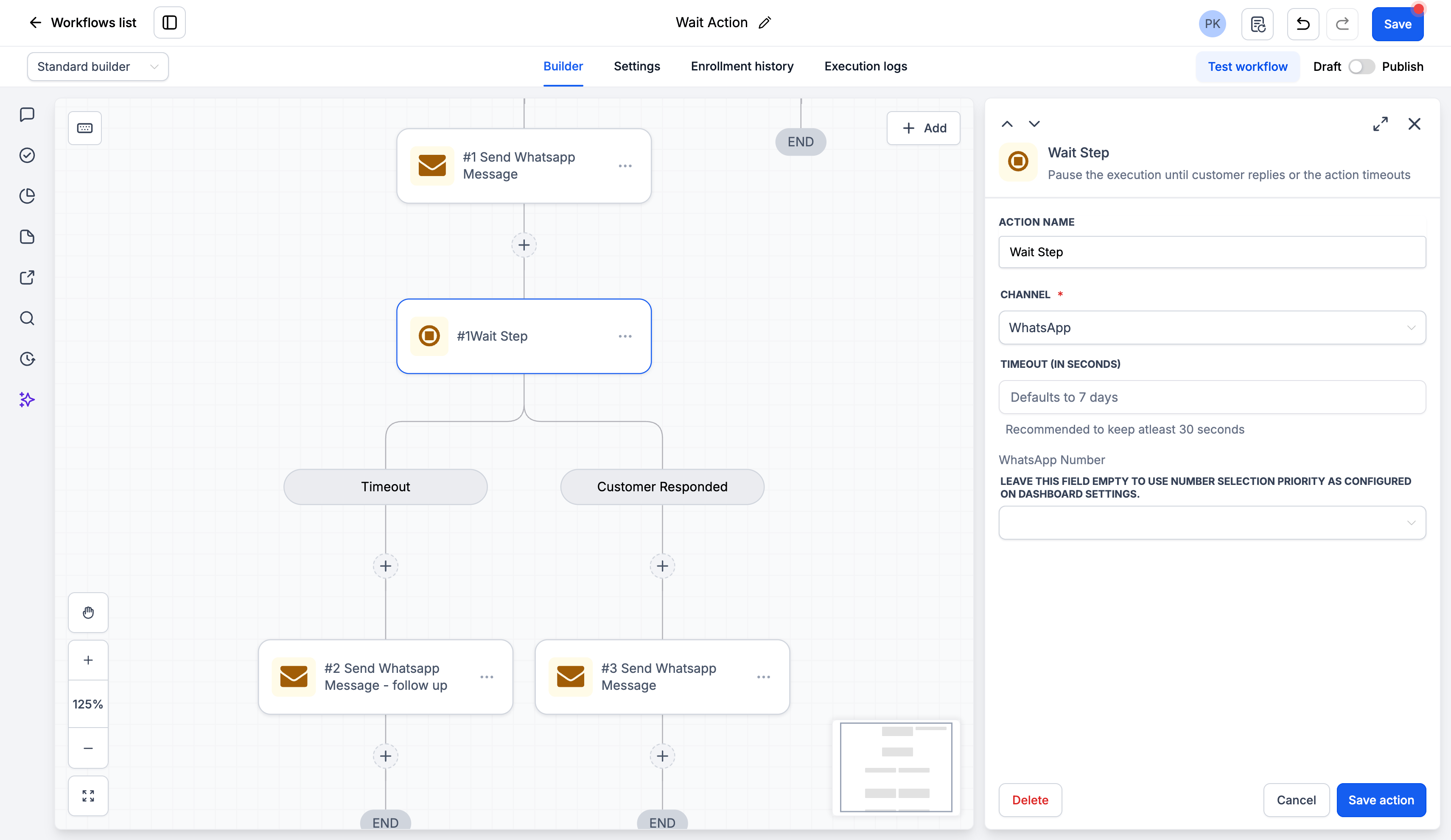 ### Step 3: Configure the Action[](#step-3-configure-the-action "Direct link to Step 3: Configure the Action")
| Field | Required | Description |
| -------------------- | -------- | -------------------------------------------------------------------------------------------------------------------------------- |
| **Action Name** | Yes | A label for this action in the workflow (e.g. "Wait for reply") |
| **Channel** | Yes | The channel to listen on: **WhatsApp**, **iMessage**, or **SMS** |
| **Connected Number** | No | The connected number to wait on. Leave empty to accept a reply to **any** of your connected numbers for this contact and channel |
| **Timeout** | No | How long to wait for a reply before taking the **Timeout** branch. Defaults to **7 days** if left empty |
### Step 4: Build the Branches[](#step-4-build-the-branches "Direct link to Step 4: Build the Branches")
After the Wait Step, the workflow splits into two pre-defined branches. Add the steps you want under each:
**Customer Responded** - runs when the contact replies. Add your follow-up (e.g. book the appointment, tag the contact, send a thank-you)
**Timeout** - runs when no reply arrives in time. Add your fallback (e.g. send a reminder, notify your team, mark the lead cold)
### Step 5: Save and Publish[](#step-5-save-and-publish "Direct link to Step 5: Save and Publish")
Click **Save action**
Review your complete workflow, including both branches
Toggle from **Draft** to **Published**
***
## Action Fields Explained[](#action-fields-explained "Direct link to Action Fields Explained")
### Channel Field[](#channel-field "Direct link to Channel Field")
Choose which channel the contact's reply must arrive on: **WhatsApp**, **iMessage**, or **SMS**. Only a reply on this channel resolves the wait. Match this to the channel you used to message the contact just before the Wait Step.
### Connected Number Field[](#connected-number-field "Direct link to Connected Number Field")
Choose which connected number the reply must come to.
> **Leave this field empty** to accept a reply to **any** of your connected numbers on the selected channel (for the same contact). Set it when you run multiple numbers and only want a reply to that specific line to satisfy the wait.
### Timeout Field[](#timeout-field "Direct link to Timeout Field")
Set how long the workflow should wait for a reply. When the timeout elapses with no reply, the **Timeout** branch runs.
* Leaving it empty applies the default of **7 days**, so a wait never parks indefinitely
* The timer starts the moment the workflow reaches the Wait Step
***
## Branches Explained[](#branches-explained "Direct link to Branches Explained")
### Customer Responded[](#customer-responded "Direct link to Customer Responded")
Runs as soon as the contact sends a message on the selected channel. The reply is passed forward, so downstream steps can use:
* The **message text** the contact sent
* Any **attachments** (images, media) they included
Use this to react to their answer, capture their response, or continue the conversation.
### Timeout[](#timeout "Direct link to Timeout")
Runs when the timeout elapses with no reply. Use it for reminders, escalations, or to move the contact into a different path when they don't respond.
***
## Example Use Cases[](#example-use-cases "Direct link to Example Use Cases")
### Use Case 1: Appointment Confirmation[](#use-case-1-appointment-confirmation "Direct link to Use Case 1: Appointment Confirmation")
Ask the contact to confirm, and chase them if they go quiet.
**Before the wait:** Send WhatsApp Message
* **Message:**
```text theme={null}
Reply YES to confirm your appointment tomorrow at 3 PM.
```
**Action:** Wait Step
* **Channel:** WhatsApp
* **Timeout:** 1 day
* **Customer Responded:** Add an If/Else on the reply, tag "Confirmed", send a confirmation
* **Timeout:** Send a reminder or notify the team to call
***
### Use Case 2: Lead Qualification[](#use-case-2-lead-qualification "Direct link to Use Case 2: Lead Qualification")
Ask a question and route based on whether they engage.
**Before the wait:** Send Android SMS
* **Message:**
```text theme={null}
Are you still looking for a quote? Reply and we'll get right on it.
```
**Action:** Wait Step
* **Channel:** SMS
* **Timeout:** 2 days
* **Customer Responded:** Assign to a rep and start the sales sequence
* **Timeout:** Move the contact into a long-term nurture campaign
***
### Use Case 3: Re-Engagement[](#use-case-3-re-engagement "Direct link to Use Case 3: Re-Engagement")
Give a cold contact a chance to respond before dropping them.
**Before the wait:** Send iMessage
* **Message:**
```text theme={null}
Haven't heard from you in a while, still interested?
```
**Action:** Wait Step
* **Channel:** iMessage
* **Timeout:** 3 days
* **Customer Responded:** Re-add to your active pipeline
* **Timeout:** Tag "Unresponsive" and stop messaging
***
## Important Notes[](#important-notes "Direct link to Important Notes")
### Technical Details[](#technical-details "Direct link to Technical Details")
* The wait resolves on **any** inbound message from the contact on the selected channel, not a specific keyword
* Match the **Channel** field to the channel you used to message the contact
* Leaving **Connected Number** empty accepts a reply to any of your connected numbers on that channel
* The default timeout is **7 days** when none is set
* Only one branch runs-whichever happens first; a late reply or late timeout is ignored
* The contact must have a phone number for replies to be matched
### Best Practices[](#best-practices "Direct link to Best Practices")
* Always send the contact a message **before** the Wait Step so they know to reply
* Add an **If/Else** after **Customer Responded** to act on specific answers
* Set a **Timeout** that matches your follow-up cadence-don't rely on the 7-day default unless that's intended
* Always build out the **Timeout** branch so unresponsive contacts aren't left in limbo
***
## FAQs[](#faqs "Direct link to FAQs")
Any inbound message from the contact on the selected channel (and the connected number, if you specified one). It doesn't have to contain a specific word. To branch on the content, add an If/Else after the Customer Responded branch.
The Timeout branch runs once the wait duration elapses. If you didn't set a timeout, the default is 7 days.
Yes. On the Customer Responded branch, the reply's message text and any attachments are passed forward for use in the steps that follow.
The one you pick in Connected Number. If you leave it empty, a reply to any of your connected numbers on the selected channel resolves the wait.
No. Resolution is atomic-only the first event (reply or timeout) advances the workflow. The other is ignored.
The action can't match replies without a phone number and will report an error. Make sure the contact has a valid phone before the Wait Step.
Yes. Set the Channel field to the same channel you used to message the contact-only a reply on that channel resolves the wait.
***
## Support[](#support "Direct link to Support")
If you need help with the setup or onboarding:
* Email: [**support@messagesync.ai**](mailto:support@messagesync.ai)
### Step 3: Configure the Action[](#step-3-configure-the-action "Direct link to Step 3: Configure the Action")
| Field | Required | Description |
| -------------------- | -------- | -------------------------------------------------------------------------------------------------------------------------------- |
| **Action Name** | Yes | A label for this action in the workflow (e.g. "Wait for reply") |
| **Channel** | Yes | The channel to listen on: **WhatsApp**, **iMessage**, or **SMS** |
| **Connected Number** | No | The connected number to wait on. Leave empty to accept a reply to **any** of your connected numbers for this contact and channel |
| **Timeout** | No | How long to wait for a reply before taking the **Timeout** branch. Defaults to **7 days** if left empty |
### Step 4: Build the Branches[](#step-4-build-the-branches "Direct link to Step 4: Build the Branches")
After the Wait Step, the workflow splits into two pre-defined branches. Add the steps you want under each:
**Customer Responded** - runs when the contact replies. Add your follow-up (e.g. book the appointment, tag the contact, send a thank-you)
**Timeout** - runs when no reply arrives in time. Add your fallback (e.g. send a reminder, notify your team, mark the lead cold)
### Step 5: Save and Publish[](#step-5-save-and-publish "Direct link to Step 5: Save and Publish")
Click **Save action**
Review your complete workflow, including both branches
Toggle from **Draft** to **Published**
***
## Action Fields Explained[](#action-fields-explained "Direct link to Action Fields Explained")
### Channel Field[](#channel-field "Direct link to Channel Field")
Choose which channel the contact's reply must arrive on: **WhatsApp**, **iMessage**, or **SMS**. Only a reply on this channel resolves the wait. Match this to the channel you used to message the contact just before the Wait Step.
### Connected Number Field[](#connected-number-field "Direct link to Connected Number Field")
Choose which connected number the reply must come to.
> **Leave this field empty** to accept a reply to **any** of your connected numbers on the selected channel (for the same contact). Set it when you run multiple numbers and only want a reply to that specific line to satisfy the wait.
### Timeout Field[](#timeout-field "Direct link to Timeout Field")
Set how long the workflow should wait for a reply. When the timeout elapses with no reply, the **Timeout** branch runs.
* Leaving it empty applies the default of **7 days**, so a wait never parks indefinitely
* The timer starts the moment the workflow reaches the Wait Step
***
## Branches Explained[](#branches-explained "Direct link to Branches Explained")
### Customer Responded[](#customer-responded "Direct link to Customer Responded")
Runs as soon as the contact sends a message on the selected channel. The reply is passed forward, so downstream steps can use:
* The **message text** the contact sent
* Any **attachments** (images, media) they included
Use this to react to their answer, capture their response, or continue the conversation.
### Timeout[](#timeout "Direct link to Timeout")
Runs when the timeout elapses with no reply. Use it for reminders, escalations, or to move the contact into a different path when they don't respond.
***
## Example Use Cases[](#example-use-cases "Direct link to Example Use Cases")
### Use Case 1: Appointment Confirmation[](#use-case-1-appointment-confirmation "Direct link to Use Case 1: Appointment Confirmation")
Ask the contact to confirm, and chase them if they go quiet.
**Before the wait:** Send WhatsApp Message
* **Message:**
```text theme={null}
Reply YES to confirm your appointment tomorrow at 3 PM.
```
**Action:** Wait Step
* **Channel:** WhatsApp
* **Timeout:** 1 day
* **Customer Responded:** Add an If/Else on the reply, tag "Confirmed", send a confirmation
* **Timeout:** Send a reminder or notify the team to call
***
### Use Case 2: Lead Qualification[](#use-case-2-lead-qualification "Direct link to Use Case 2: Lead Qualification")
Ask a question and route based on whether they engage.
**Before the wait:** Send Android SMS
* **Message:**
```text theme={null}
Are you still looking for a quote? Reply and we'll get right on it.
```
**Action:** Wait Step
* **Channel:** SMS
* **Timeout:** 2 days
* **Customer Responded:** Assign to a rep and start the sales sequence
* **Timeout:** Move the contact into a long-term nurture campaign
***
### Use Case 3: Re-Engagement[](#use-case-3-re-engagement "Direct link to Use Case 3: Re-Engagement")
Give a cold contact a chance to respond before dropping them.
**Before the wait:** Send iMessage
* **Message:**
```text theme={null}
Haven't heard from you in a while, still interested?
```
**Action:** Wait Step
* **Channel:** iMessage
* **Timeout:** 3 days
* **Customer Responded:** Re-add to your active pipeline
* **Timeout:** Tag "Unresponsive" and stop messaging
***
## Important Notes[](#important-notes "Direct link to Important Notes")
### Technical Details[](#technical-details "Direct link to Technical Details")
* The wait resolves on **any** inbound message from the contact on the selected channel, not a specific keyword
* Match the **Channel** field to the channel you used to message the contact
* Leaving **Connected Number** empty accepts a reply to any of your connected numbers on that channel
* The default timeout is **7 days** when none is set
* Only one branch runs-whichever happens first; a late reply or late timeout is ignored
* The contact must have a phone number for replies to be matched
### Best Practices[](#best-practices "Direct link to Best Practices")
* Always send the contact a message **before** the Wait Step so they know to reply
* Add an **If/Else** after **Customer Responded** to act on specific answers
* Set a **Timeout** that matches your follow-up cadence-don't rely on the 7-day default unless that's intended
* Always build out the **Timeout** branch so unresponsive contacts aren't left in limbo
***
## FAQs[](#faqs "Direct link to FAQs")
Any inbound message from the contact on the selected channel (and the connected number, if you specified one). It doesn't have to contain a specific word. To branch on the content, add an If/Else after the Customer Responded branch.
The Timeout branch runs once the wait duration elapses. If you didn't set a timeout, the default is 7 days.
Yes. On the Customer Responded branch, the reply's message text and any attachments are passed forward for use in the steps that follow.
The one you pick in Connected Number. If you leave it empty, a reply to any of your connected numbers on the selected channel resolves the wait.
No. Resolution is atomic-only the first event (reply or timeout) advances the workflow. The other is ignored.
The action can't match replies without a phone number and will report an error. Make sure the contact has a valid phone before the Wait Step.
Yes. Set the Channel field to the same channel you used to message the contact-only a reply on that channel resolves the wait.
***
## Support[](#support "Direct link to Support")
If you need help with the setup or onboarding:
* Email: [**support@messagesync.ai**](mailto:support@messagesync.ai)