> ## Documentation Index
> Fetch the complete documentation index at: https://help.messagesync.ai/llms.txt
> Use this file to discover all available pages before exploring further.
# iMessage Outbound
> The trigger is a custom workflow trigger that fires automatically whenever an from your connected number. Use it to log outgoing activity, schedule follow-ups after a reply goes out, or sync sent messages to other systems.
***
## Key Benefits[](#key-benefits "Direct link to Key Benefits")
**Activity Tracking** - Capture every outbound message automatically
**Automated Follow-Up** - Schedule the next step the moment a reply is sent
**Source Awareness** - Distinguish manual replies from automated sends
**Filtered Automation** - Trigger only on messages that match your criteria
**Zero Manual Logging** - No need to record outgoing activity by hand
***
## Who Should Use It[](#who-should-use-it "Direct link to Who Should Use It")
**Sales teams** - Trigger follow-up sequences after a rep replies
**Support teams** - Log outbound responses for reporting and SLAs
**Agencies** - Audit outbound messaging across client sub-accounts
**Operations teams** - Sync sent-message data into reporting tools
***
## Requirements[](#requirements "Direct link to Requirements")
Before using this trigger, update your messaging provider app to the latest version:
Go to **App Marketplace → Installed Apps**
Find your **iMessage provider** app
Click **Update** if available
***
## How to Set Up[](#how-to-set-up "Direct link to How to Set Up")
### Step 1: Create a New Workflow[](#step-1-create-a-new-workflow "Direct link to Step 1: Create a New Workflow")
Go to **Automation → Workflows**
Click **Create Workflow** or **+ Add**
Select **Start from Scratch**
### Step 2: Add the Trigger[](#step-2-add-the-trigger "Direct link to Step 2: Add the Trigger")
Click **Add New Trigger**
Switch to the **Apps** tab (not the default triggers)
Find and click your **iMessage provider** app icon
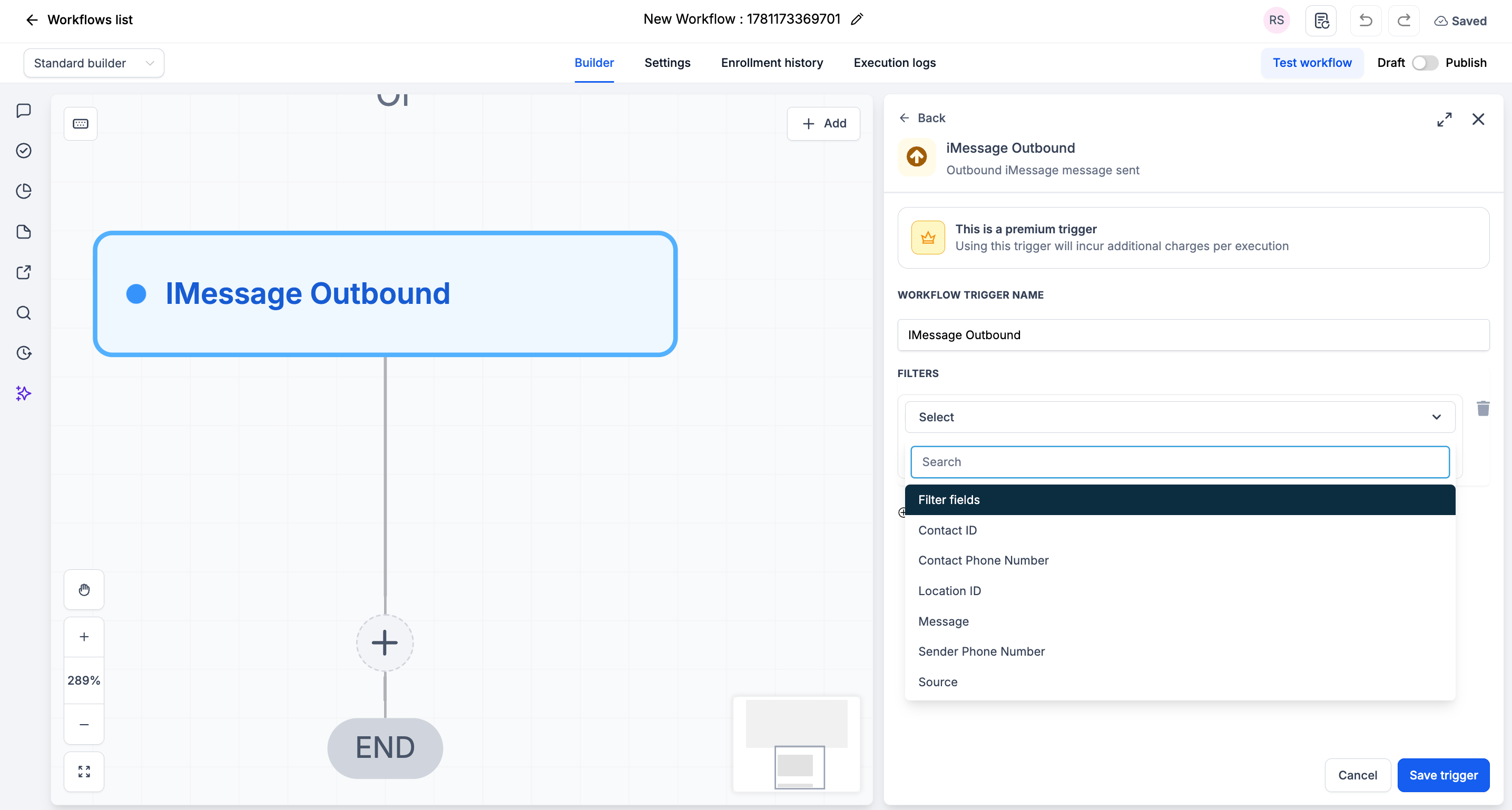
Select **iMessage Outbound** from the dropdown
(Optional) Add **Filters** to narrow when the trigger fires
Click **Save trigger**
 ### Step 3: Add Your Actions[](#step-3-add-your-actions "Direct link to Step 3: Add Your Actions")
Add any actions you want to execute when an outbound iMessage is sent:
* **Wait + Send Follow-Up** → Schedule the next message
* **Create Task** → Queue a check-in
* **Update Contact / Custom Field** → Record last-contacted info
* **Send Internal Notification** → Notify a manager of the send
### Step 4: Save and Publish[](#step-4-save-and-publish "Direct link to Step 4: Save and Publish")
Review your workflow
Click **Save**
Toggle workflow from **Draft** to **Published**
***
## Available Filters[](#available-filters "Direct link to Available Filters")
Use filters to control exactly which outbound iMessages start the workflow. Each filter can be paired with an operator (equals, contains, etc.).
| Filter | Description |
| -------------------- | ----------------------------------------------------------- |
| Contact ID | The unique ID of the contact the message was sent to |
| Contact Phone Number | The phone number of the contact the message was sent to |
| Location ID | The CRM location (sub-account) the message was sent from |
| Message | The text content of the outbound message |
| Sender Phone Number | The number the message was sent from (your iMessage number) |
| Source | The origin of the message (e.g. manual send vs. automation) |
***
## Example Use Cases[](#example-use-cases "Direct link to Example Use Cases")
### Use Case 1: Follow-Up After a Reply[](#use-case-1-follow-up-after-a-reply "Direct link to Use Case 1: Follow-Up After a Reply")
Keep the conversation moving automatically.
**Trigger:** iMessage Outbound
**Action:** Wait 1 day, then send a follow-up if the contact hasn't replied.
***
### Use Case 2: Log Manual Replies Only[](#use-case-2-log-manual-replies-only "Direct link to Use Case 2: Log Manual Replies Only")
Track only the messages your team sends by hand.
**Trigger:** iMessage Outbound **Filter:** Source **equals** manual
**Action:** Update a "Last Manual Contact" custom field on the contact.
***
## Important Notes[](#important-notes "Direct link to Important Notes")
### Technical Details[](#technical-details "Direct link to Technical Details")
* The trigger fires **once per outbound message**
* Filters are optional - leave them blank to fire on every outbound iMessage
* The **Source** filter helps separate manual sends from automated ones
### Best Practices[](#best-practices "Direct link to Best Practices")
* Use the **Source** filter to avoid follow-up loops triggered by your own automations
* Use the **Contact ID** filter for contact-specific flows
* Test your workflow by sending a message from your connected number
***
## FAQs[](#faqs "Direct link to FAQs")
Yes. Outbound messages sent by automations can also fire this trigger. Use the **Source** filter to separate manual sends from automated ones and avoid loops.
No. Filters are optional. Without them, the trigger fires on every outbound iMessage.
***
## Support[](#support "Direct link to Support")
If you need help with the setup or onboarding:
* Email: [**support@messagesync.ai**](mailto:support@messagesync.ai)
### Step 3: Add Your Actions[](#step-3-add-your-actions "Direct link to Step 3: Add Your Actions")
Add any actions you want to execute when an outbound iMessage is sent:
* **Wait + Send Follow-Up** → Schedule the next message
* **Create Task** → Queue a check-in
* **Update Contact / Custom Field** → Record last-contacted info
* **Send Internal Notification** → Notify a manager of the send
### Step 4: Save and Publish[](#step-4-save-and-publish "Direct link to Step 4: Save and Publish")
Review your workflow
Click **Save**
Toggle workflow from **Draft** to **Published**
***
## Available Filters[](#available-filters "Direct link to Available Filters")
Use filters to control exactly which outbound iMessages start the workflow. Each filter can be paired with an operator (equals, contains, etc.).
| Filter | Description |
| -------------------- | ----------------------------------------------------------- |
| Contact ID | The unique ID of the contact the message was sent to |
| Contact Phone Number | The phone number of the contact the message was sent to |
| Location ID | The CRM location (sub-account) the message was sent from |
| Message | The text content of the outbound message |
| Sender Phone Number | The number the message was sent from (your iMessage number) |
| Source | The origin of the message (e.g. manual send vs. automation) |
***
## Example Use Cases[](#example-use-cases "Direct link to Example Use Cases")
### Use Case 1: Follow-Up After a Reply[](#use-case-1-follow-up-after-a-reply "Direct link to Use Case 1: Follow-Up After a Reply")
Keep the conversation moving automatically.
**Trigger:** iMessage Outbound
**Action:** Wait 1 day, then send a follow-up if the contact hasn't replied.
***
### Use Case 2: Log Manual Replies Only[](#use-case-2-log-manual-replies-only "Direct link to Use Case 2: Log Manual Replies Only")
Track only the messages your team sends by hand.
**Trigger:** iMessage Outbound **Filter:** Source **equals** manual
**Action:** Update a "Last Manual Contact" custom field on the contact.
***
## Important Notes[](#important-notes "Direct link to Important Notes")
### Technical Details[](#technical-details "Direct link to Technical Details")
* The trigger fires **once per outbound message**
* Filters are optional - leave them blank to fire on every outbound iMessage
* The **Source** filter helps separate manual sends from automated ones
### Best Practices[](#best-practices "Direct link to Best Practices")
* Use the **Source** filter to avoid follow-up loops triggered by your own automations
* Use the **Contact ID** filter for contact-specific flows
* Test your workflow by sending a message from your connected number
***
## FAQs[](#faqs "Direct link to FAQs")
Yes. Outbound messages sent by automations can also fire this trigger. Use the **Source** filter to separate manual sends from automated ones and avoid loops.
No. Filters are optional. Without them, the trigger fires on every outbound iMessage.
***
## Support[](#support "Direct link to Support")
If you need help with the setup or onboarding:
* Email: [**support@messagesync.ai**](mailto:support@messagesync.ai)