> ## Documentation Index
> Fetch the complete documentation index at: https://help.messagesync.ai/llms.txt
> Use this file to discover all available pages before exploring further.
# Message Failed Trigger
> The Message Failed trigger is a custom workflow trigger that fires automatically whenever a message fails to be delivered. It works across all messaging channels - WhatsApp, iMessage, and Android SMS - so you can react to delivery failures, alert your team, or retry sends automatically.
***
## Key Benefits[](#key-benefits "Direct link to Key Benefits")
**Catch Failures Instantly** - React the moment a message fails to deliver
**Channel Agnostic** - Works across WhatsApp, iMessage, and Android SMS
**Smart Recovery** - Automate retries, fallbacks, or alerts on failure
**Filtered Automation** - Trigger only on the error codes or channels you care about
**Zero Manual Monitoring** - No need to watch logs for failed sends
***
## Who Should Use It[](#who-should-use-it "Direct link to Who Should Use It")
**Sales teams** - Get notified the instant an outreach message fails
**Support teams** - Catch undelivered replies before they cost you a customer
**Agencies** - Monitor delivery health across client sub-accounts
**Operations teams** - Trigger fallbacks and clean up bad contact data automatically
***
## Requirements[](#requirements "Direct link to Requirements")
Before using this trigger, update your messaging provider app to the latest version:
Go to **App Marketplace → Installed Apps**
Find your messaging provider app (**WhatsApp provider**, **iMessage provider**, or **SMS(Android) provider**)
Click **Update** if available
***
## How to Set Up[](#how-to-set-up "Direct link to How to Set Up")
### Step 1: Create a New Workflow[](#step-1-create-a-new-workflow "Direct link to Step 1: Create a New Workflow")
Go to **Automation → Workflows**
Click **Create Workflow** or **+ Add**
Select **Start from Scratch**
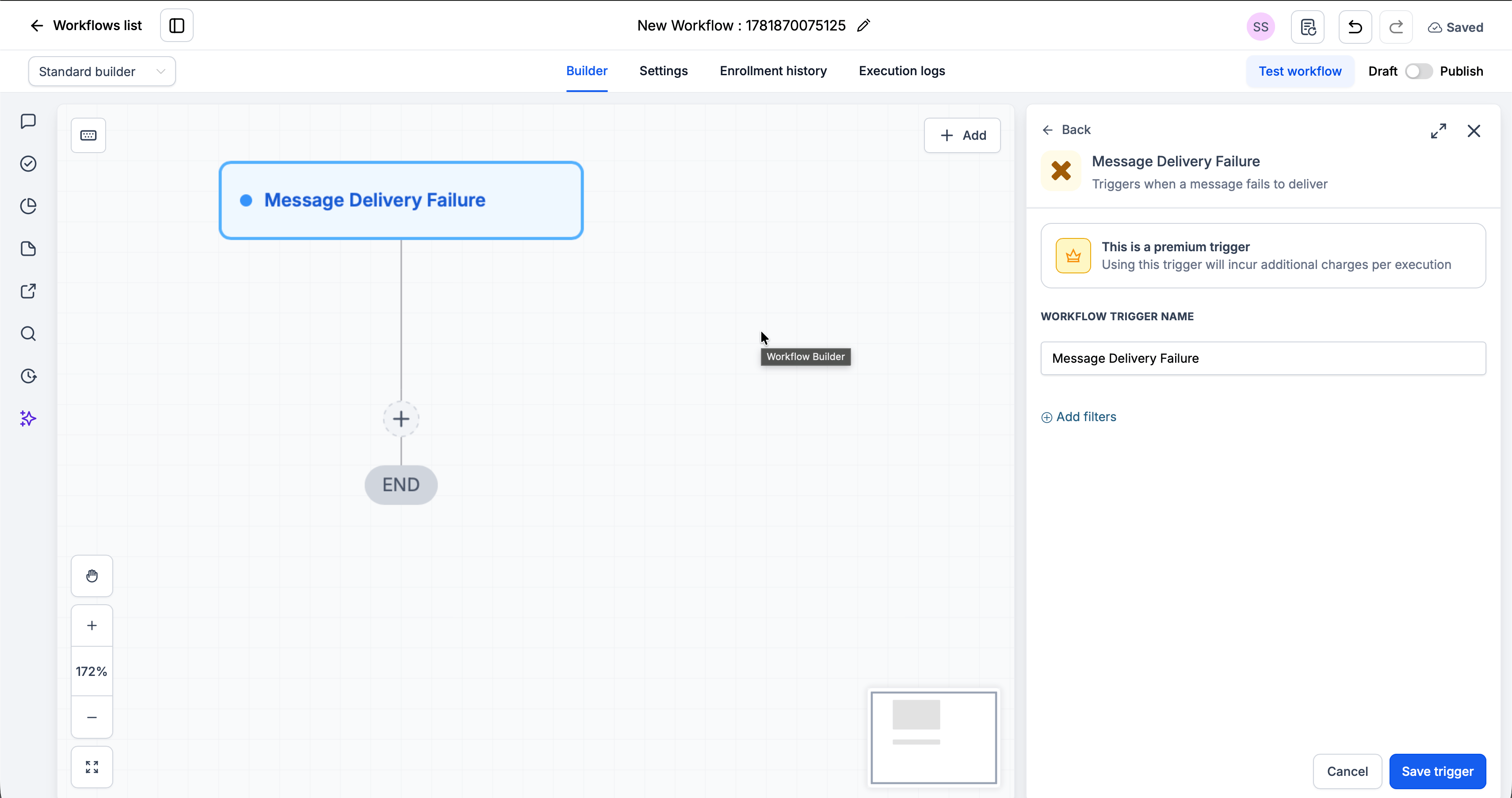
### Step 2: Add the Trigger[](#step-2-add-the-trigger "Direct link to Step 2: Add the Trigger")
Click **Add New Trigger**
Switch to the **Apps** tab (not the default triggers)
Find and click your messaging provider app icon
Select **Message Failed** from the dropdown
(Optional) Add **Filters** to narrow when the trigger fires
Click **Save trigger**
 ### Step 3: Add Your Actions[](#step-3-add-your-actions "Direct link to Step 3: Add Your Actions")
Add any actions you want to execute when a message fails:
* **Send Internal Notification** → Alert your team inside the CRM
* **Wait + Resend** → Retry the message after a delay
* **Update Contact / Custom Field** → Flag the contact for review
* **Create Task** → Queue a manual follow-up
### Step 4: Save and Publish[](#step-4-save-and-publish "Direct link to Step 4: Save and Publish")
Review your workflow
Click **Save**
Toggle workflow from **Draft** to **Published**
***
## Available Filters[](#available-filters "Direct link to Available Filters")
Use filters to control exactly which failed messages start the workflow. Each filter can be paired with an operator (equals, contains, etc.).
| Filter | Description |
| ----------------------- | ----------------------------------------------------------------------------------------------- |
| Contact ID | The unique ID of the contact the message was sent to |
| Location ID | The CRM location (sub-account) where the message failed |
| Error Code | The specific failure code returned (see [Error Codes](#error-codes) below). Choose one or more. |
| Error Type | The category of failure returned. Choose one or more. |
| Channel Type | The channel the message was sent on (e.g. whatsApp, imessage, sms) |
| Contact Phone Number | The phone number of the contact the message was sent to |
| Whatsapp Instance Index | The index of the WhatsApp instance that attempted the send |
| Phone Number Used | The number the message was sent from |
***
## Error Codes[](#error-codes "Direct link to Error Codes")
Use these codes with the **Error Code** filter to build precise recovery flows.
| Code | What It Means |
| ---- | ----------------------------------------------------------------------------------------------------------------- |
| 101 | No connected WhatsApp instances exist for the location. Nothing can send. |
| 102 | A manual override `{WA#N}` was used in the message body, but instance N does not exist. |
| 103 | A manual override `{WA#N}` was used, but that instance is currently not connected. |
| 104 | The contact has a `wa:` tag, but that WhatsApp number is not connected. |
| 105 | The contact's assigned user owns a WhatsApp instance, but it is not connected. |
| 106 | All sender-selection rules were tried; no connected instance was available. |
| 107 | The logged-in user's WhatsApp instance is not connected. |
| 108 | The workflow specified a sender number that exists but is currently offline. The system retried before failing. |
| 109 | The WhatsApp API rejected the message after multiple retries. |
| 110 | The recipient does not have a WhatsApp account. The contact is also auto-tagged with **Invalid WhatsApp Number**. |
| 111 | The workflow specified a sender number that is not registered for this location at all. |
***
## Example Use Cases[](#example-use-cases "Direct link to Example Use Cases")
### Use Case 1: Alert the Team on a Failed Send[](#use-case-1-alert-the-team-on-a-failed-send "Direct link to Use Case 1: Alert the Team on a Failed Send")
Know the moment an outbound message doesn't go through.
**Trigger:** Message Failed
**Action:** Send an internal notification to the assigned user.
***
### Use Case 2: Clean Up Invalid Numbers[](#use-case-2-clean-up-invalid-numbers "Direct link to Use Case 2: Clean Up Invalid Numbers")
Flag contacts that can't receive messages.
**Trigger:** Message Failed **Filter:** Error Code **is** 110
**Action:** Add a tag and move the contact out of active outreach.
***
## Important Notes[](#important-notes "Direct link to Important Notes")
### Technical Details[](#technical-details "Direct link to Technical Details")
* The trigger fires **once per failed message**
* Filters are optional - leave them blank to fire on every failed message
* **Error Code** and **Error Type** support selecting multiple values
* Use the **Channel Type** filter to scope the workflow to a single channel
### Best Practices[](#best-practices "Direct link to Best Practices")
* Use the **Error Code** filter to build targeted recovery flows (e.g. retry on 108, tag on 110)
* Use the **Channel Type** filter when handling channels differently
* Test your workflow by forcing a failure (e.g. sending to a disconnected number)
***
## FAQs[](#faqs "Direct link to FAQs")
All of them - WhatsApp, iMessage, and Android SMS. Use the **Channel Type** filter to narrow to one channel.
Yes. The **Error Code** and **Error Type** filters are multi-select, so you can fire on one or several failure conditions.
No. Filters are optional. Without them, the trigger fires on every failed message.
***
## Support[](#support "Direct link to Support")
If you need help with the setup or onboarding:
* Email: [**support@messagesync.ai**](mailto:support@messagesync.ai)
### Step 3: Add Your Actions[](#step-3-add-your-actions "Direct link to Step 3: Add Your Actions")
Add any actions you want to execute when a message fails:
* **Send Internal Notification** → Alert your team inside the CRM
* **Wait + Resend** → Retry the message after a delay
* **Update Contact / Custom Field** → Flag the contact for review
* **Create Task** → Queue a manual follow-up
### Step 4: Save and Publish[](#step-4-save-and-publish "Direct link to Step 4: Save and Publish")
Review your workflow
Click **Save**
Toggle workflow from **Draft** to **Published**
***
## Available Filters[](#available-filters "Direct link to Available Filters")
Use filters to control exactly which failed messages start the workflow. Each filter can be paired with an operator (equals, contains, etc.).
| Filter | Description |
| ----------------------- | ----------------------------------------------------------------------------------------------- |
| Contact ID | The unique ID of the contact the message was sent to |
| Location ID | The CRM location (sub-account) where the message failed |
| Error Code | The specific failure code returned (see [Error Codes](#error-codes) below). Choose one or more. |
| Error Type | The category of failure returned. Choose one or more. |
| Channel Type | The channel the message was sent on (e.g. whatsApp, imessage, sms) |
| Contact Phone Number | The phone number of the contact the message was sent to |
| Whatsapp Instance Index | The index of the WhatsApp instance that attempted the send |
| Phone Number Used | The number the message was sent from |
***
## Error Codes[](#error-codes "Direct link to Error Codes")
Use these codes with the **Error Code** filter to build precise recovery flows.
| Code | What It Means |
| ---- | ----------------------------------------------------------------------------------------------------------------- |
| 101 | No connected WhatsApp instances exist for the location. Nothing can send. |
| 102 | A manual override `{WA#N}` was used in the message body, but instance N does not exist. |
| 103 | A manual override `{WA#N}` was used, but that instance is currently not connected. |
| 104 | The contact has a `wa:` tag, but that WhatsApp number is not connected. |
| 105 | The contact's assigned user owns a WhatsApp instance, but it is not connected. |
| 106 | All sender-selection rules were tried; no connected instance was available. |
| 107 | The logged-in user's WhatsApp instance is not connected. |
| 108 | The workflow specified a sender number that exists but is currently offline. The system retried before failing. |
| 109 | The WhatsApp API rejected the message after multiple retries. |
| 110 | The recipient does not have a WhatsApp account. The contact is also auto-tagged with **Invalid WhatsApp Number**. |
| 111 | The workflow specified a sender number that is not registered for this location at all. |
***
## Example Use Cases[](#example-use-cases "Direct link to Example Use Cases")
### Use Case 1: Alert the Team on a Failed Send[](#use-case-1-alert-the-team-on-a-failed-send "Direct link to Use Case 1: Alert the Team on a Failed Send")
Know the moment an outbound message doesn't go through.
**Trigger:** Message Failed
**Action:** Send an internal notification to the assigned user.
***
### Use Case 2: Clean Up Invalid Numbers[](#use-case-2-clean-up-invalid-numbers "Direct link to Use Case 2: Clean Up Invalid Numbers")
Flag contacts that can't receive messages.
**Trigger:** Message Failed **Filter:** Error Code **is** 110
**Action:** Add a tag and move the contact out of active outreach.
***
## Important Notes[](#important-notes "Direct link to Important Notes")
### Technical Details[](#technical-details "Direct link to Technical Details")
* The trigger fires **once per failed message**
* Filters are optional - leave them blank to fire on every failed message
* **Error Code** and **Error Type** support selecting multiple values
* Use the **Channel Type** filter to scope the workflow to a single channel
### Best Practices[](#best-practices "Direct link to Best Practices")
* Use the **Error Code** filter to build targeted recovery flows (e.g. retry on 108, tag on 110)
* Use the **Channel Type** filter when handling channels differently
* Test your workflow by forcing a failure (e.g. sending to a disconnected number)
***
## FAQs[](#faqs "Direct link to FAQs")
All of them - WhatsApp, iMessage, and Android SMS. Use the **Channel Type** filter to narrow to one channel.
Yes. The **Error Code** and **Error Type** filters are multi-select, so you can fire on one or several failure conditions.
No. Filters are optional. Without them, the trigger fires on every failed message.
***
## Support[](#support "Direct link to Support")
If you need help with the setup or onboarding:
* Email: [**support@messagesync.ai**](mailto:support@messagesync.ai)