> ## Documentation Index
> Fetch the complete documentation index at: https://help.messagesync.ai/llms.txt
> Use this file to discover all available pages before exploring further.
# WhatsApp Missed Call
> The trigger is a custom Whatsapp provider workflow trigger that fires automatically whenever a on your connected number. Use it to send an instant follow-up message, create a call-back task, or alert your team so no opportunity slips through.
***
## Key Benefits[](#key-benefits "Direct link to Key Benefits")
**Instant Call-Back** - Reach out the moment a call is missed
**Lead Recovery** - Turn missed calls into booked conversations
**Team Alerts** - Notify the right rep immediately
**Filtered Automation** - Trigger only on calls that match your criteria
**Zero Manual Monitoring** - No need to watch the call log
***
## Who Should Use It[](#who-should-use-it "Direct link to Who Should Use It")
**Sales teams** - Auto-respond to missed calls before the lead moves on
**Support teams** - Queue call-backs and track response times
**Agencies** - Ensure missed calls are handled across client sub-accounts
**High-volume operations** - Recover missed calls automatically at scale
***
## Requirements[](#requirements "Direct link to Requirements")
Before using this trigger, update your Whatsapp provider app to the latest version:
Go to **App Marketplace → Installed Apps**
Find **Whatsapp provider**
Click **Update** if available
***
## How to Set Up[](#how-to-set-up "Direct link to How to Set Up")
### Step 1: Create a New Workflow[](#step-1-create-a-new-workflow "Direct link to Step 1: Create a New Workflow")
Go to **Automation → Workflows**
Click **Create Workflow** or **+ Add**
Select **Start from Scratch**
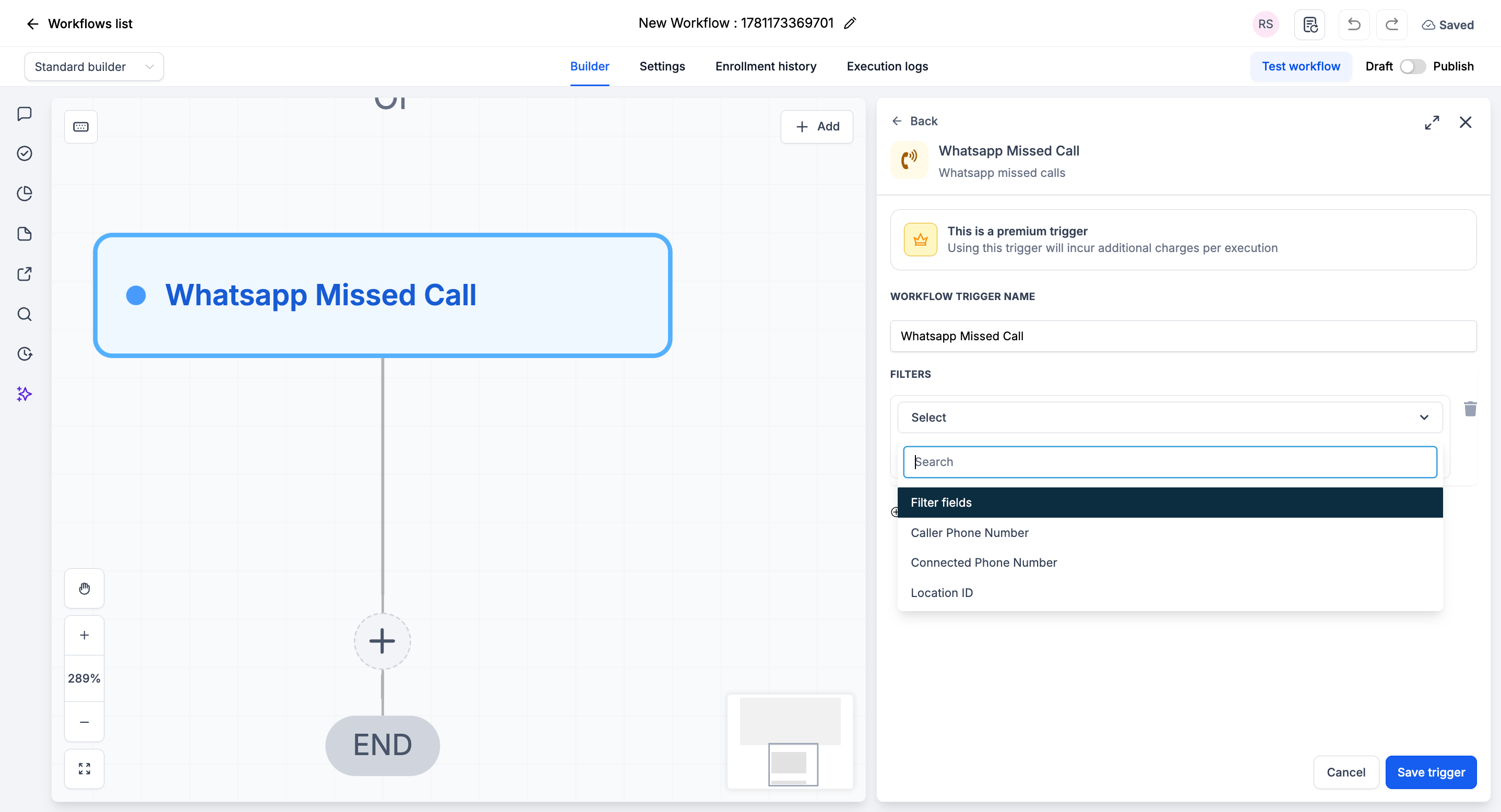
### Step 2: Add the Trigger[](#step-2-add-the-trigger "Direct link to Step 2: Add the Trigger")
Click **Add New Trigger**
Switch to the **Apps** tab (not the default triggers)
Find and click the **Whatsapp provider** app icon
Select **WhatsApp Missed Call** from the dropdown
(Optional) Add **Filters** to narrow when the trigger fires
Click **Save trigger**
 ### Step 3: Add Your Actions[](#step-3-add-your-actions "Direct link to Step 3: Add Your Actions")
Add any actions you want to execute when a WhatsApp call is missed:
* **Send WhatsApp / SMS Message** → "Sorry we missed your call - how can we help?"
* **Create Task** → Assign a call-back to the right rep
* **Send Internal Notification** → Alert your team channel
* **Add to Workflow / Pipeline** → Start a lead-recovery sequence
### Step 4: Save and Publish[](#step-4-save-and-publish "Direct link to Step 4: Save and Publish")
Review your workflow
Click **Save**
Toggle workflow from **Draft** to **Published**
***
## Available Filters[](#available-filters "Direct link to Available Filters")
Use filters to control exactly which missed calls start the workflow. Each filter can be paired with an operator (equals, contains, etc.).
| Filter | Description |
| ---------------------- | -------------------------------------------------------- |
| Caller Phone Number | The phone number of the person who called |
| Connected Phone Number | Your WhatsApp number that received the call |
| Location ID | The CRM location (sub-account) where the call was missed |
***
## Example Use Cases[](#example-use-cases "Direct link to Example Use Cases")
### Use Case 1: Instant Missed-Call Text Back[](#use-case-1-instant-missed-call-text-back "Direct link to Use Case 1: Instant Missed-Call Text Back")
Never let a missed call go silent.
**Trigger:** WhatsApp Missed Call
**Action:** Send a WhatsApp message: "Sorry we missed your call! Reply here and we'll help right away."
***
### Use Case 2: Assign a Call-Back Task[](#use-case-2-assign-a-call-back-task "Direct link to Use Case 2: Assign a Call-Back Task")
Make sure someone follows up.
**Trigger:** WhatsApp Missed Call
**Action:** Create a high-priority task to call `Caller Phone Number` back within 15 minutes.
***
## Important Notes[](#important-notes "Direct link to Important Notes")
### Technical Details[](#technical-details "Direct link to Technical Details")
* The trigger fires **once per missed call**
* Filters are optional - leave them blank to fire on every missed WhatsApp call
* Executes immediately when the missed call is detected
### Best Practices[](#best-practices "Direct link to Best Practices")
* Pair this trigger with an **immediate text-back** for the fastest recovery
* Use the **Connected Phone Number** filter when running multiple numbers
* Test by placing a call to your connected number and letting it go unanswered
***
## FAQs[](#faqs "Direct link to FAQs")
The trigger fires when a call is registered as missed (unanswered). Behavior for declined calls depends on how the call is reported by WhatsApp.
No. Filters are optional. Without them, the trigger fires on every missed WhatsApp call.
***
## Support[](#support "Direct link to Support")
If you need help with the setup or onboarding:
* Email: [**support@messagesync.ai**](mailto:support@messagesync.ai)
### Step 3: Add Your Actions[](#step-3-add-your-actions "Direct link to Step 3: Add Your Actions")
Add any actions you want to execute when a WhatsApp call is missed:
* **Send WhatsApp / SMS Message** → "Sorry we missed your call - how can we help?"
* **Create Task** → Assign a call-back to the right rep
* **Send Internal Notification** → Alert your team channel
* **Add to Workflow / Pipeline** → Start a lead-recovery sequence
### Step 4: Save and Publish[](#step-4-save-and-publish "Direct link to Step 4: Save and Publish")
Review your workflow
Click **Save**
Toggle workflow from **Draft** to **Published**
***
## Available Filters[](#available-filters "Direct link to Available Filters")
Use filters to control exactly which missed calls start the workflow. Each filter can be paired with an operator (equals, contains, etc.).
| Filter | Description |
| ---------------------- | -------------------------------------------------------- |
| Caller Phone Number | The phone number of the person who called |
| Connected Phone Number | Your WhatsApp number that received the call |
| Location ID | The CRM location (sub-account) where the call was missed |
***
## Example Use Cases[](#example-use-cases "Direct link to Example Use Cases")
### Use Case 1: Instant Missed-Call Text Back[](#use-case-1-instant-missed-call-text-back "Direct link to Use Case 1: Instant Missed-Call Text Back")
Never let a missed call go silent.
**Trigger:** WhatsApp Missed Call
**Action:** Send a WhatsApp message: "Sorry we missed your call! Reply here and we'll help right away."
***
### Use Case 2: Assign a Call-Back Task[](#use-case-2-assign-a-call-back-task "Direct link to Use Case 2: Assign a Call-Back Task")
Make sure someone follows up.
**Trigger:** WhatsApp Missed Call
**Action:** Create a high-priority task to call `Caller Phone Number` back within 15 minutes.
***
## Important Notes[](#important-notes "Direct link to Important Notes")
### Technical Details[](#technical-details "Direct link to Technical Details")
* The trigger fires **once per missed call**
* Filters are optional - leave them blank to fire on every missed WhatsApp call
* Executes immediately when the missed call is detected
### Best Practices[](#best-practices "Direct link to Best Practices")
* Pair this trigger with an **immediate text-back** for the fastest recovery
* Use the **Connected Phone Number** filter when running multiple numbers
* Test by placing a call to your connected number and letting it go unanswered
***
## FAQs[](#faqs "Direct link to FAQs")
The trigger fires when a call is registered as missed (unanswered). Behavior for declined calls depends on how the call is reported by WhatsApp.
No. Filters are optional. Without them, the trigger fires on every missed WhatsApp call.
***
## Support[](#support "Direct link to Support")
If you need help with the setup or onboarding:
* Email: [**support@messagesync.ai**](mailto:support@messagesync.ai)