> ## Documentation Index
> Fetch the complete documentation index at: https://help.messagesync.ai/llms.txt
> Use this file to discover all available pages before exploring further.
# Voice Notes Feature
## What It Does[](#what-it-does "Direct link to What It Does")
The **Voice Notes** feature allows you to record and send audio messages directly from your CRM dashboard to WhatsApp. With this, you don’t have to switch devices or apps - you can manage client communication in one place while adding a more personal, human touch to your outreach.
### Key Benefits[](#key-benefits "Direct link to Key Benefits")
* Send voice messages directly from the CRM conversation tab.
* Keep all communication (text + audio) inside your CRM.
* Provide a personal experience for your clients while saving time.
* Available for all sub-accounts once enabled.
***
## Who Can Use It[](#who-can-use-it "Direct link to Who Can Use It")
* Agencies who want to offer their clients a more interactive communication channel.
* Sales teams that prefer sending voice updates instead of long texts.
* Support teams that need to quickly respond with explanations.
* Coaches, consultants, and realtors who use WhatsApp daily for client communication.
***
## How to Use[](#how-to-use "Direct link to How to Use")
Go to the **Conversations** tab inside your CRM dashboard.
Select a WhatsApp conversation.
You’ll now see a microphone button in the message input bar.
Click it, record your voice note, and send directly to your client.
***
## How to Send Voice Notes Using Workflows[](#how-to-send-voice-notes-using-workflows "Direct link to How to Send Voice Notes Using Workflows")
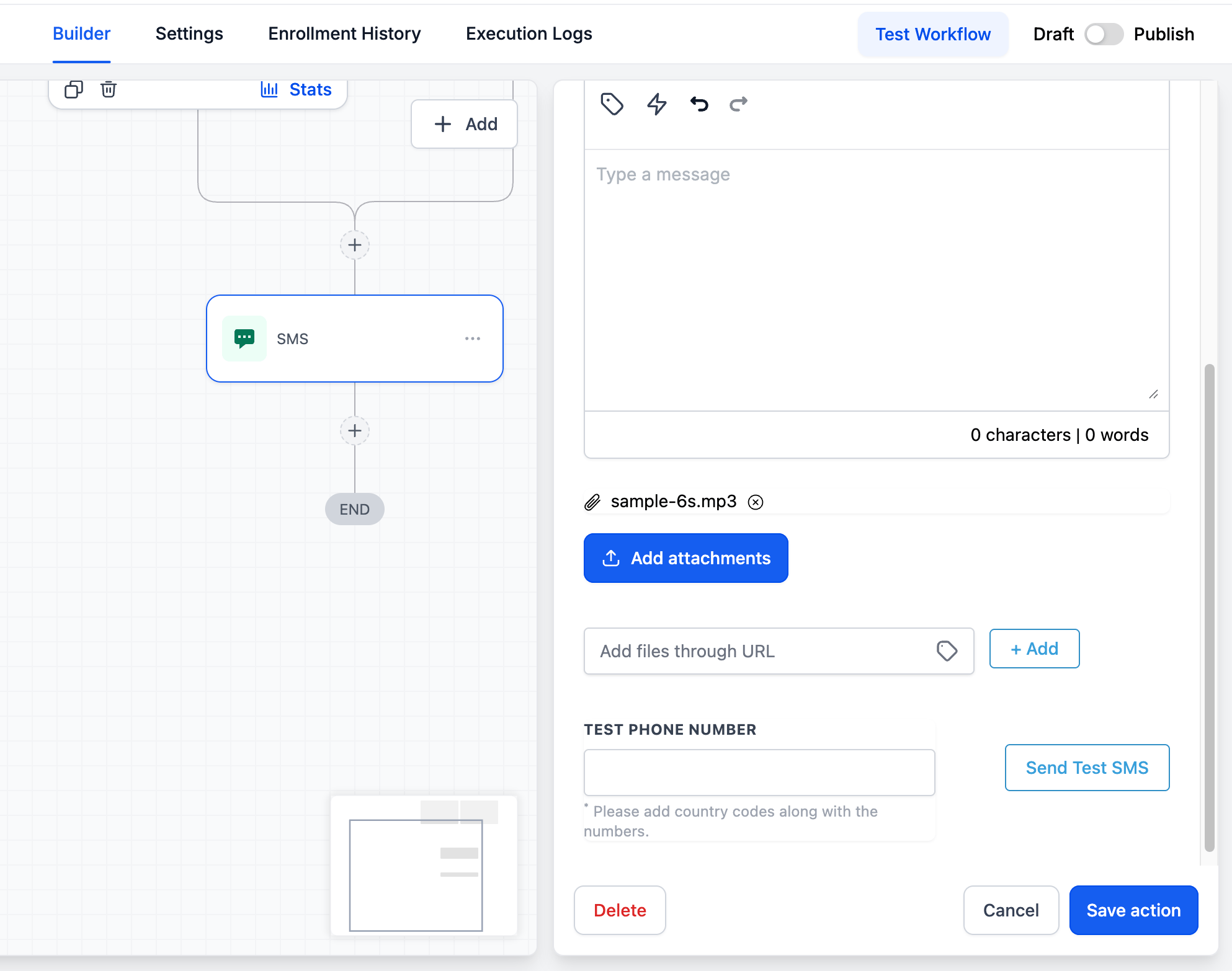
You can also send pre-recorded voice notes automatically using CRM Workflows. This is useful for automated follow-ups, welcome messages, or drip campaigns where you want to add a personal touch without manual effort.
### Steps[](#steps "Direct link to Steps")
Go to **Automation → Workflows** in your CRM dashboard.
Click **Create Workflow** (or open an existing one).
Add a **Trigger** based on your use case (e.g., form submission, tag added, appointment booked).
Click the **+** button to add a new action step.
Choose **SMS** as the action type.
Inside the SMS action, click on **Add Attachments**.
Upload or select your pre-recorded voice note file.
Click **Save Action**.
**Save** and **Publish** the workflow.
That's it! Your voice note will now be sent automatically whenever the workflow is triggered.
 Record your voice note in advance and keep it short (under 60 seconds) for the best engagement.
***
## Support[](#support "Direct link to Support")
If you face any issues while setting this up or need help onboarding your team, reach out to us via:
* Email: [**support@messagesync.ai**](mailto:support@messagesync.ai)
Tip: If you are looking to transcribe voice notes using your custom GPT key, [click here](/features/speech-to-text).
***
## FAQs[](#faqs "Direct link to FAQs")
Inside the Conversations tab message input bar. It appears as a microphone icon after enabling the feature.
Yes. Voice notes complement your existing text messages and workflows inside CRM.
Remove or override the custom JS at the agency level if you need to disable globally. For per-location control, contact support.
Record your voice note in advance and keep it short (under 60 seconds) for the best engagement.
***
## Support[](#support "Direct link to Support")
If you face any issues while setting this up or need help onboarding your team, reach out to us via:
* Email: [**support@messagesync.ai**](mailto:support@messagesync.ai)
Tip: If you are looking to transcribe voice notes using your custom GPT key, [click here](/features/speech-to-text).
***
## FAQs[](#faqs "Direct link to FAQs")
Inside the Conversations tab message input bar. It appears as a microphone icon after enabling the feature.
Yes. Voice notes complement your existing text messages and workflows inside CRM.
Remove or override the custom JS at the agency level if you need to disable globally. For per-location control, contact support.