> ## Documentation Index
> Fetch the complete documentation index at: https://help.messagesync.ai/llms.txt
> Use this file to discover all available pages before exploring further.
# Webhooks
> Subscribe external systems to the events—inbound/outbound WhatsApp, iMessage, SMS, and system events.
Webhooks let you push real-time events to any external endpoint. Use them to sync messages to your CRM, trigger automations in n8n/Make/Zapier, or build custom backends.
## Create a Webhook Subscription
Go to **Dashboard → Locations** and select the location you want to subscribe to.
Click the **Settings** tab for that location.
Scroll to the **Webhooks** section and click **Create subscription**.
Complete the **Create subscription** dialog (see fields below).
Click **Create subscription** to save. If "Send a test ping" is enabled, a dummy event will be POSTed to your endpoint to verify it works.
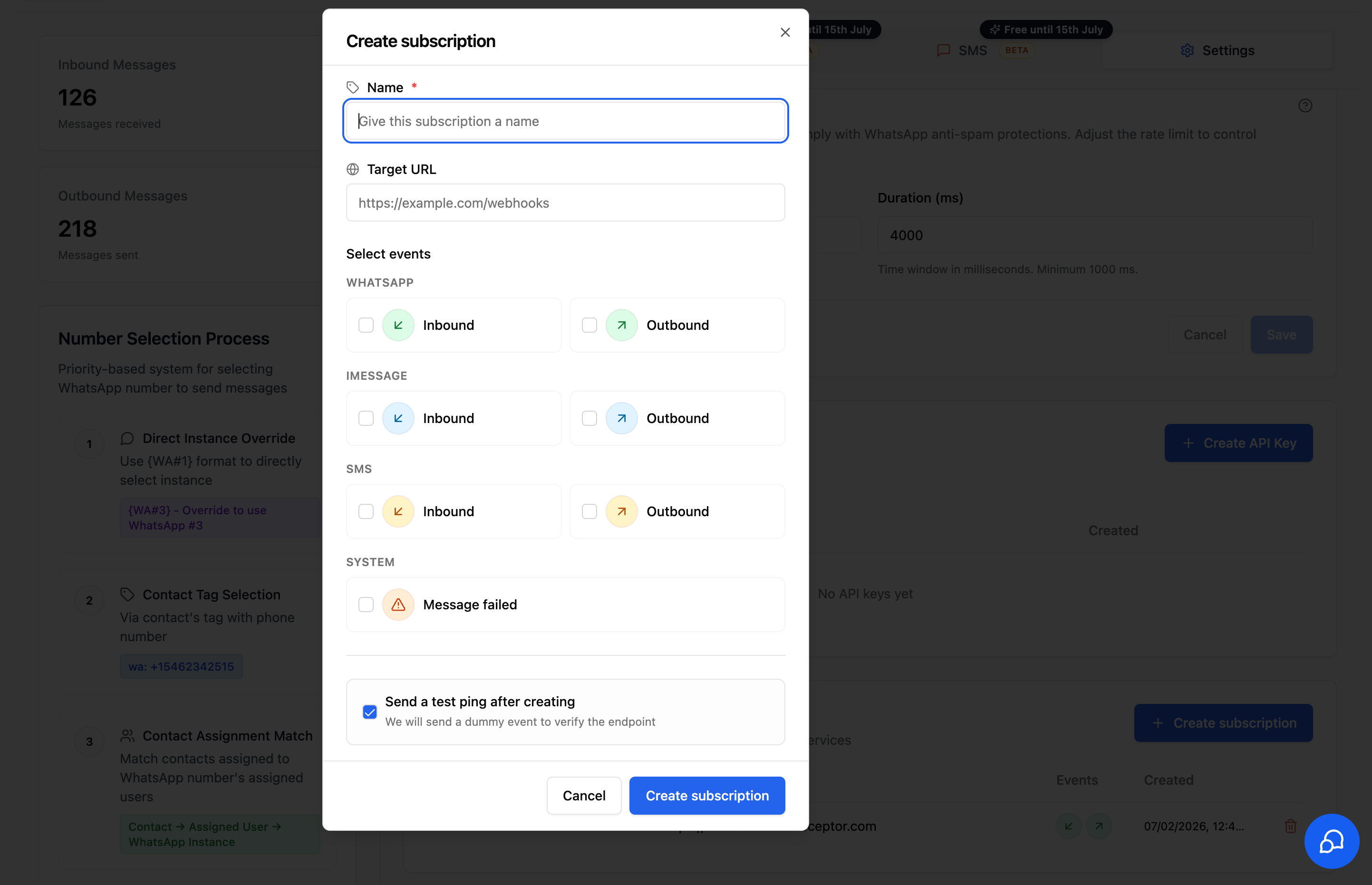 ## Subscription Fields
### Name *(required)*
A human-readable label so you can identify the subscription later (e.g., `CRM Sync`, `n8n Inbound Handler`).
### Target URL
The HTTPS endpoint that will receive event payloads.
```text theme={null}
https://example.com/webhooks
```
Your endpoint must respond with a `2xx` status code. Non-2xx responses are treated as failures.
### Select events
Pick exactly which events should trigger a webhook. You can mix channels in a single subscription.
#### WhatsApp
* **Inbound** — a WhatsApp message is received
* **Outbound** — a WhatsApp message is sent
#### iMessage
* **Inbound** — an iMessage is received
* **Outbound** — an iMessage is sent
#### SMS
* **Inbound** — an SMS is received
* **Outbound** — an SMS is sent
#### System
* **Message failed** — a message could not be delivered (use this for retry logic or alerting)
### Send a test ping after creating
When enabled, the system will POST a dummy event to your **Target URL** immediately after the subscription is created. Use this to confirm your endpoint is reachable and your handler parses payloads correctly.
Leave this **on** for the first subscription you create against a new endpoint.
## Best Practices
* **Use one subscription per integration.** Keeps logs and rotation simple.
* **Verify with the test ping** before relying on a subscription in production.
* **Return `2xx` quickly** — push slow work onto a background queue in your handler.
* **Be idempotent.** Webhooks can occasionally be re-delivered.
* **Scope by channel.** Don't subscribe to events you won't process.
## Managing Subscriptions
From the **Webhooks** section in Location Settings you can:
* View all active subscriptions, and creation date
* Delete a subscription you no longer need
* Create additional subscriptions for separate endpoints
## Troubleshooting
* Confirm your endpoint is publicly reachable (no localhost / private IPs)
* Check that it accepts `POST` and returns `2xx`
* Verify firewall/WAF rules aren't blocking the IP
* Make sure the subscription wasn't deleted
* Confirm the location still has a connected instance for the channel
* Check your endpoint logs for `5xx` responses (repeated failures may disable delivery)
Webhooks are at-least-once. Use the event ID in the payload to deduplicate on your side.
## Subscription Fields
### Name *(required)*
A human-readable label so you can identify the subscription later (e.g., `CRM Sync`, `n8n Inbound Handler`).
### Target URL
The HTTPS endpoint that will receive event payloads.
```text theme={null}
https://example.com/webhooks
```
Your endpoint must respond with a `2xx` status code. Non-2xx responses are treated as failures.
### Select events
Pick exactly which events should trigger a webhook. You can mix channels in a single subscription.
#### WhatsApp
* **Inbound** — a WhatsApp message is received
* **Outbound** — a WhatsApp message is sent
#### iMessage
* **Inbound** — an iMessage is received
* **Outbound** — an iMessage is sent
#### SMS
* **Inbound** — an SMS is received
* **Outbound** — an SMS is sent
#### System
* **Message failed** — a message could not be delivered (use this for retry logic or alerting)
### Send a test ping after creating
When enabled, the system will POST a dummy event to your **Target URL** immediately after the subscription is created. Use this to confirm your endpoint is reachable and your handler parses payloads correctly.
Leave this **on** for the first subscription you create against a new endpoint.
## Best Practices
* **Use one subscription per integration.** Keeps logs and rotation simple.
* **Verify with the test ping** before relying on a subscription in production.
* **Return `2xx` quickly** — push slow work onto a background queue in your handler.
* **Be idempotent.** Webhooks can occasionally be re-delivered.
* **Scope by channel.** Don't subscribe to events you won't process.
## Managing Subscriptions
From the **Webhooks** section in Location Settings you can:
* View all active subscriptions, and creation date
* Delete a subscription you no longer need
* Create additional subscriptions for separate endpoints
## Troubleshooting
* Confirm your endpoint is publicly reachable (no localhost / private IPs)
* Check that it accepts `POST` and returns `2xx`
* Verify firewall/WAF rules aren't blocking the IP
* Make sure the subscription wasn't deleted
* Confirm the location still has a connected instance for the channel
* Check your endpoint logs for `5xx` responses (repeated failures may disable delivery)
Webhooks are at-least-once. Use the event ID in the payload to deduplicate on your side.