> ## Documentation Index
> Fetch the complete documentation index at: https://help.messagesync.ai/llms.txt
> Use this file to discover all available pages before exploring further.
# n8n Integration
> MessageSync n8n integration allows you to connect your WhatsApp messaging layer directly with . This enables advanced automation such as message-based triggers, outbound messaging, syncing conversations, and building custom logic that goes beyond standard CRM workflows.
With this integration, you can:
* Trigger workflows on inbound or outbound WhatsApp messages
* Send WhatsApp messages programmatically
* Build complex automation logic using n8n’s ecosystem
* Combine messaging with external tools, APIs, CRMs, and databases
***
## Prerequisites[](#prerequisites "Direct link to Prerequisites")
Before getting started, ensure you have:
* An active account
* Access to **n8n** (self-hosted)
* Permission to create API keys in integration dashboard
***
## Step 1: Install the MessageSync Community Node in n8n[](#step-1-install-the-messagesync-community-node-in-n8n "Direct link to Step 1: Install the MessageSync Community Node in n8n")
Log in to your **n8n dashboard**
Open **Settings**
Navigate to **Community Nodes**
Click **Install**
Paste the following package name:
```text theme={null}
n8n-nodes-message-sync-ai
```
Complete the installation and restart n8n if prompted
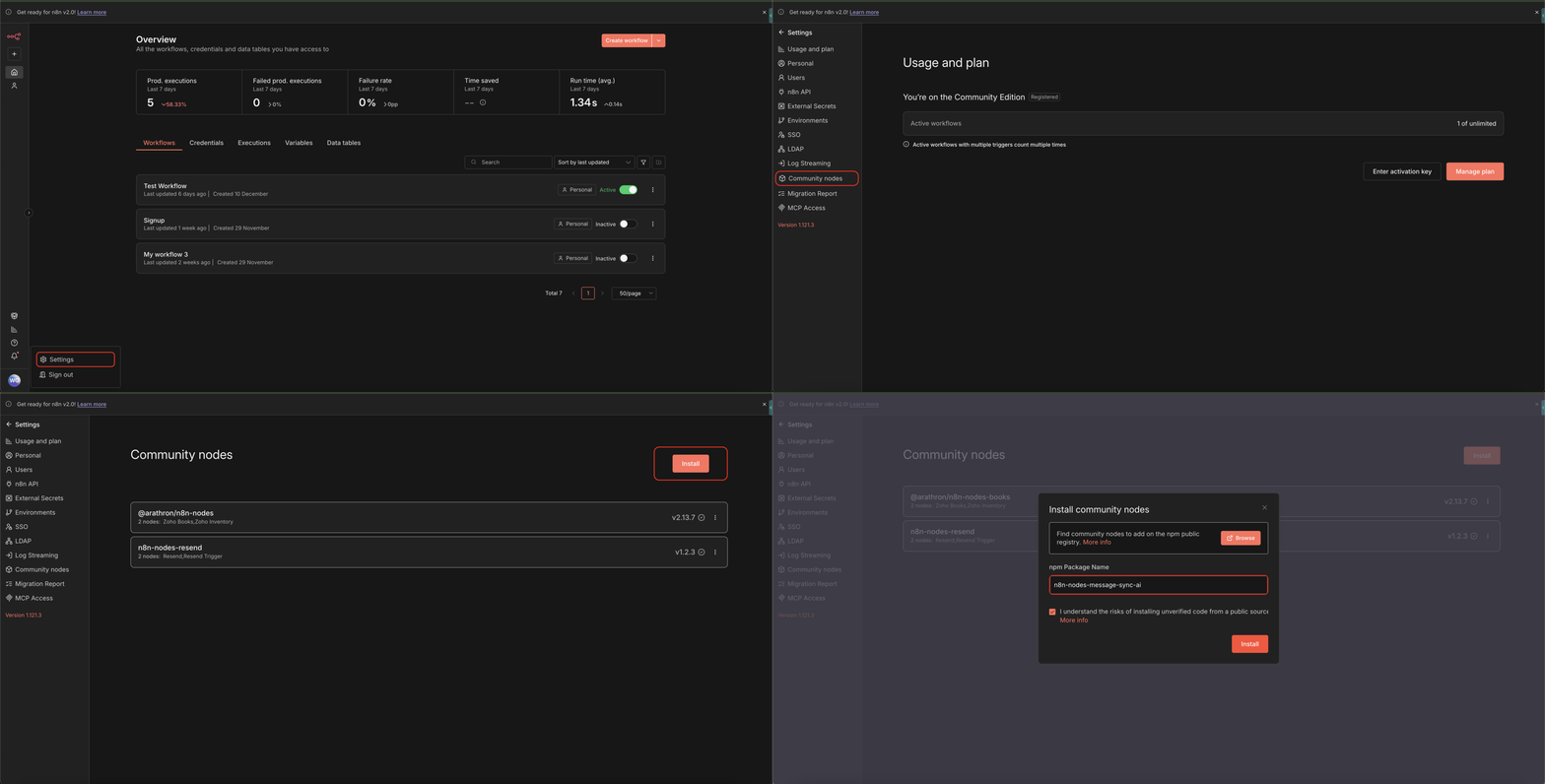 Quickly add the MessageSync.ai Community Node to your n8n instance via the Community Nodes panel.
***
## Step 2: Create Credentials in n8n[](#step-2-create-credentials-in-n8n "Direct link to Step 2: Create Credentials in n8n")
Once the package is installed, you need to configure credentials.
Go to **Credentials** in n8n
Click on **MessageSync.ai** or Add Credential and search for MessageSync.ai
Open the **MessageSync.ai Account** credential
Quickly add the MessageSync.ai Community Node to your n8n instance via the Community Nodes panel.
***
## Step 2: Create Credentials in n8n[](#step-2-create-credentials-in-n8n "Direct link to Step 2: Create Credentials in n8n")
Once the package is installed, you need to configure credentials.
Go to **Credentials** in n8n
Click on **MessageSync.ai** or Add Credential and search for MessageSync.ai
Open the **MessageSync.ai Account** credential
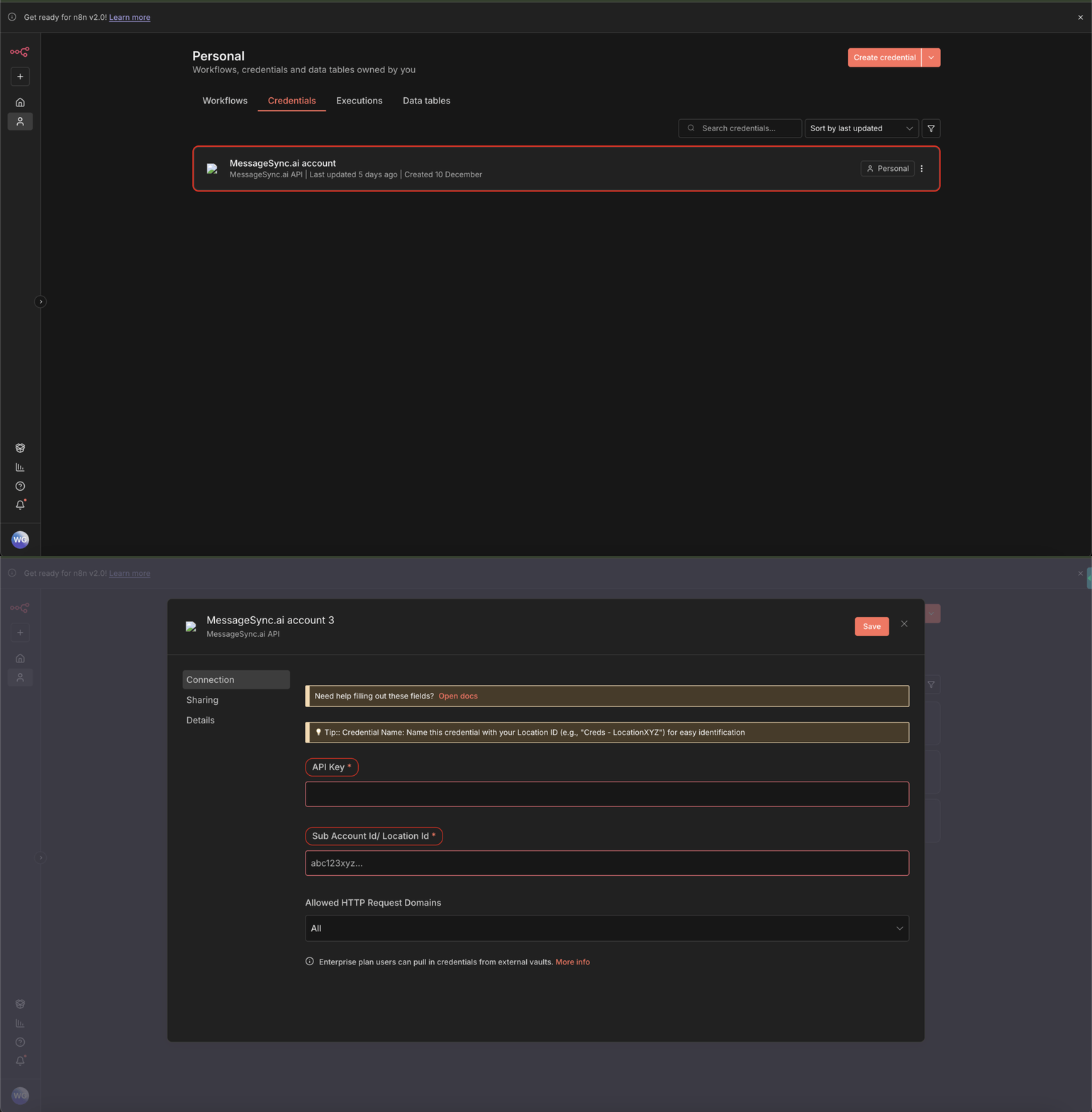 Open the MessageSync.ai credential panel in n8n to begin setup.
***
## Step 3: Generate API Key from the instance setting[](#step-3-generate-api-key-from-the-instance-setting "Direct link to Step 3: Generate API Key from the instance setting")
Now you’ll generate the API key required for n8n.
Go to **Settings**
Scroll down to **API Keys** Section
Create a new **API Key** for n8n
Copy:
* **API Key**
* **Sub-account ID**
Open the MessageSync.ai credential panel in n8n to begin setup.
***
## Step 3: Generate API Key from the instance setting[](#step-3-generate-api-key-from-the-instance-setting "Direct link to Step 3: Generate API Key from the instance setting")
Now you’ll generate the API key required for n8n.
Go to **Settings**
Scroll down to **API Keys** Section
Create a new **API Key** for n8n
Copy:
* **API Key**
* **Sub-account ID**
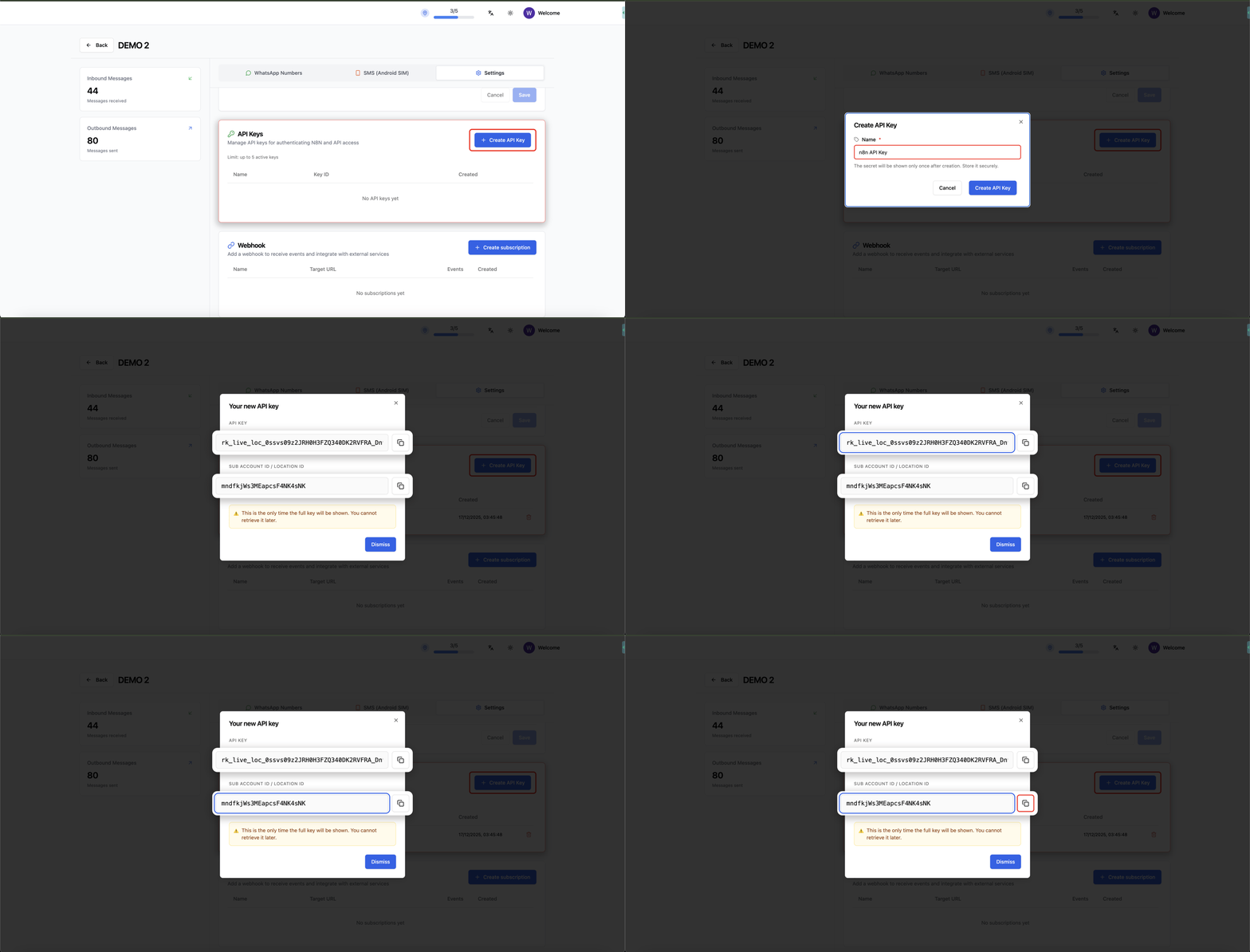 Open your dashboard and copy the API Key and Sub-account ID in MessageSync.ai credential panel from n8n's dashboard.
***
## Step 4: Configure Credentials in n8n[](#step-4-configure-credentials-in-n8n "Direct link to Step 4: Configure Credentials in n8n")
Return to the **MessageSync.ai credential** in n8n
Paste:
* API Key
* Sub-account ID
Save the credential
Open your dashboard and copy the API Key and Sub-account ID in MessageSync.ai credential panel from n8n's dashboard.
***
## Step 4: Configure Credentials in n8n[](#step-4-configure-credentials-in-n8n "Direct link to Step 4: Configure Credentials in n8n")
Return to the **MessageSync.ai credential** in n8n
Paste:
* API Key
* Sub-account ID
Save the credential
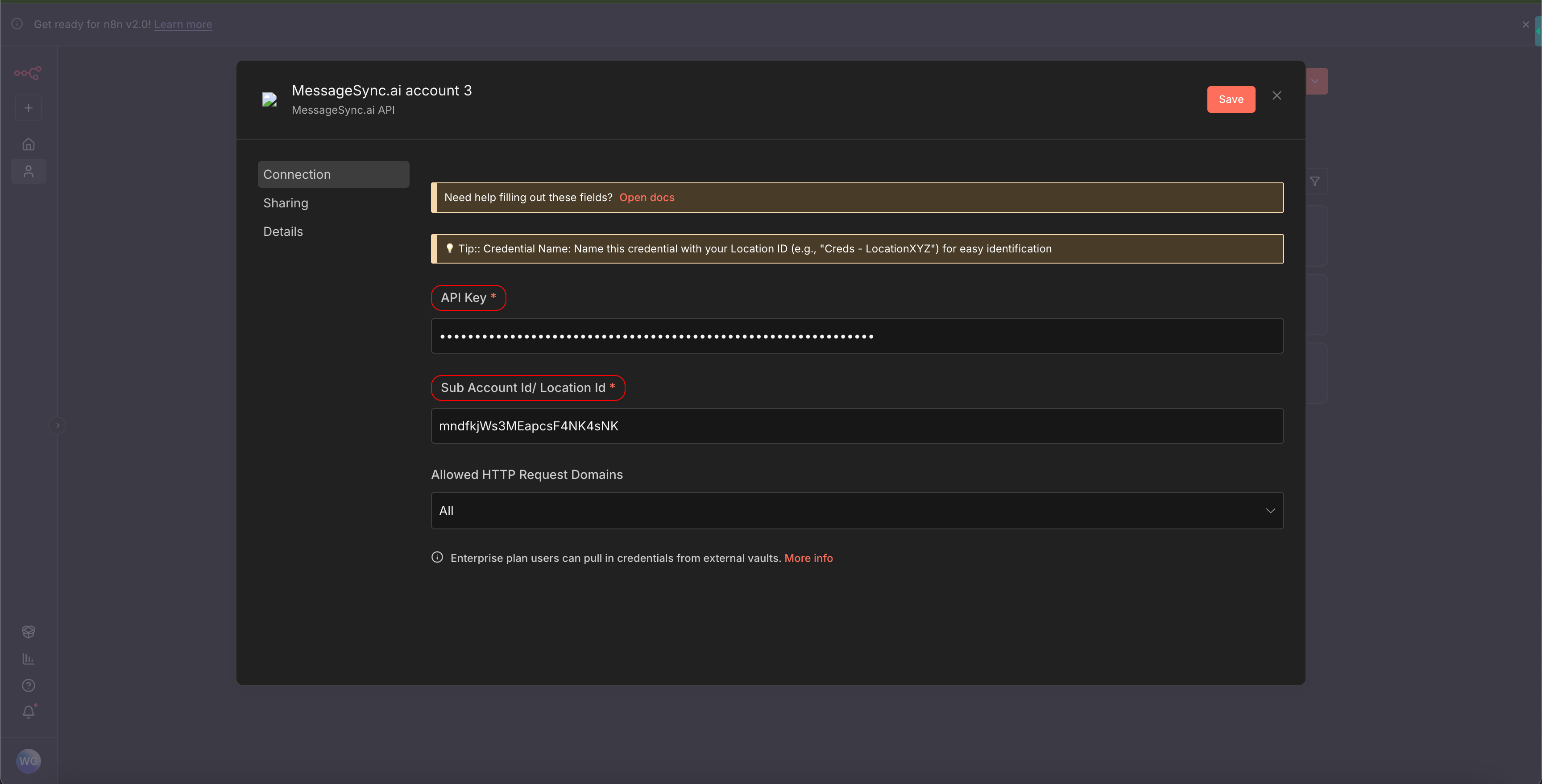 Paste your API Key and Sub-account ID into the MessageSync.ai credential panel in n8n and save to complete integration.
Once saved, your account is now securely connected to n8n.
***
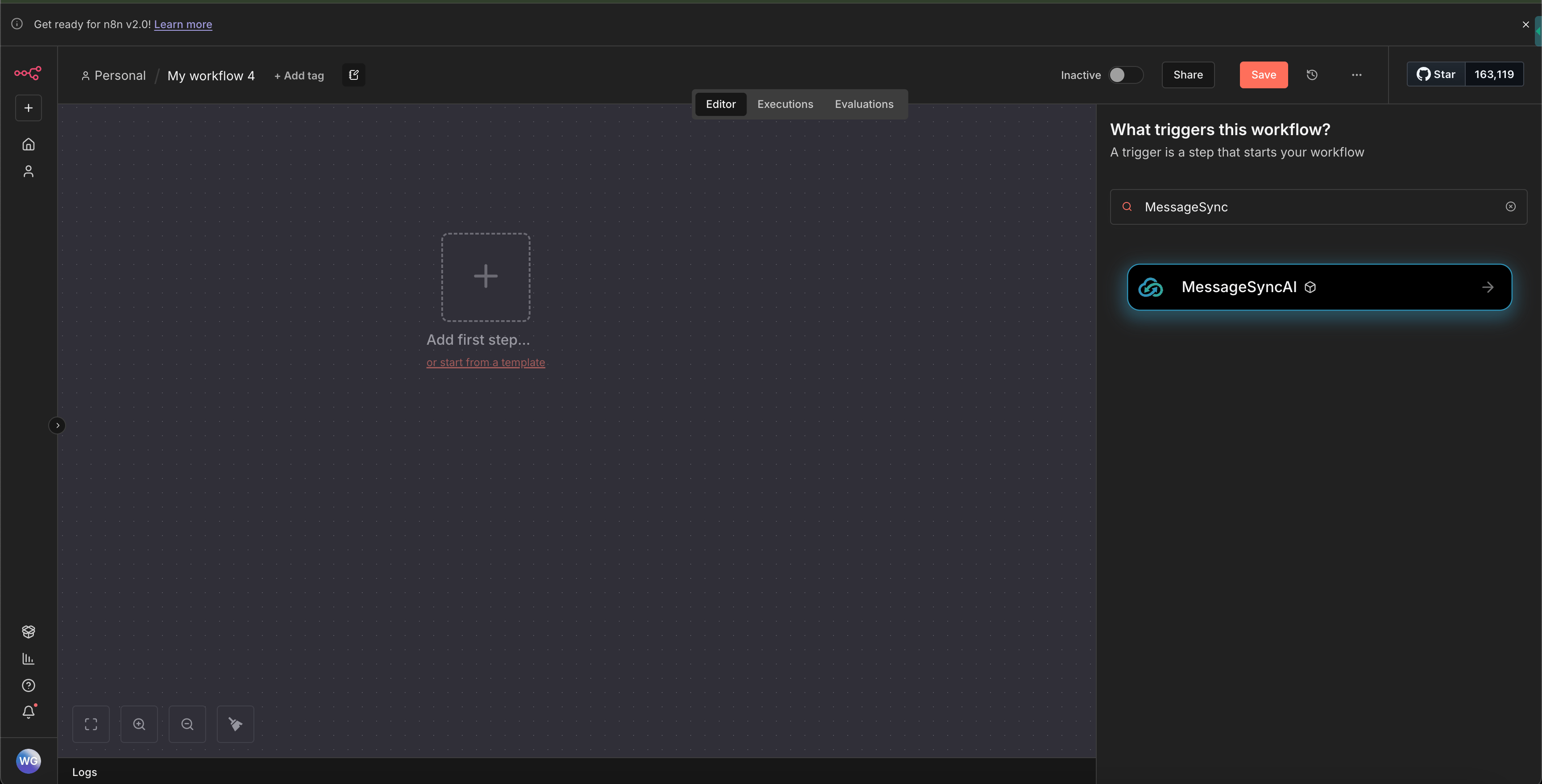
## Step 5: Create Your First Workflow[](#step-5-create-your-first-workflow "Direct link to Step 5: Create Your First Workflow")
Go to **Workflows**
Click **Create Workflow**
Click **Add Node**
Search for **MessageSync**
Paste your API Key and Sub-account ID into the MessageSync.ai credential panel in n8n and save to complete integration.
Once saved, your account is now securely connected to n8n.
***
## Step 5: Create Your First Workflow[](#step-5-create-your-first-workflow "Direct link to Step 5: Create Your First Workflow")
Go to **Workflows**
Click **Create Workflow**
Click **Add Node**
Search for **MessageSync**
 ***
## Available Triggers[](#available-triggers "Direct link to Available Triggers")
You can start workflows using the following triggers:
### Inbound Message Trigger[](#inbound-message-trigger "Direct link to Inbound Message Trigger")
Triggers when a WhatsApp message is received.
Use cases:
* Auto-replies
* Lead qualification
* Webhook forwarding
* CRM updates
### Outbound Message Trigger[](#outbound-message-trigger "Direct link to Outbound Message Trigger")
Triggers when a WhatsApp message is sent.
Use cases:
* Logging messages
* Analytics
* Syncing to external systems
***
## Available Triggers[](#available-triggers "Direct link to Available Triggers")
You can start workflows using the following triggers:
### Inbound Message Trigger[](#inbound-message-trigger "Direct link to Inbound Message Trigger")
Triggers when a WhatsApp message is received.
Use cases:
* Auto-replies
* Lead qualification
* Webhook forwarding
* CRM updates
### Outbound Message Trigger[](#outbound-message-trigger "Direct link to Outbound Message Trigger")
Triggers when a WhatsApp message is sent.
Use cases:
* Logging messages
* Analytics
* Syncing to external systems
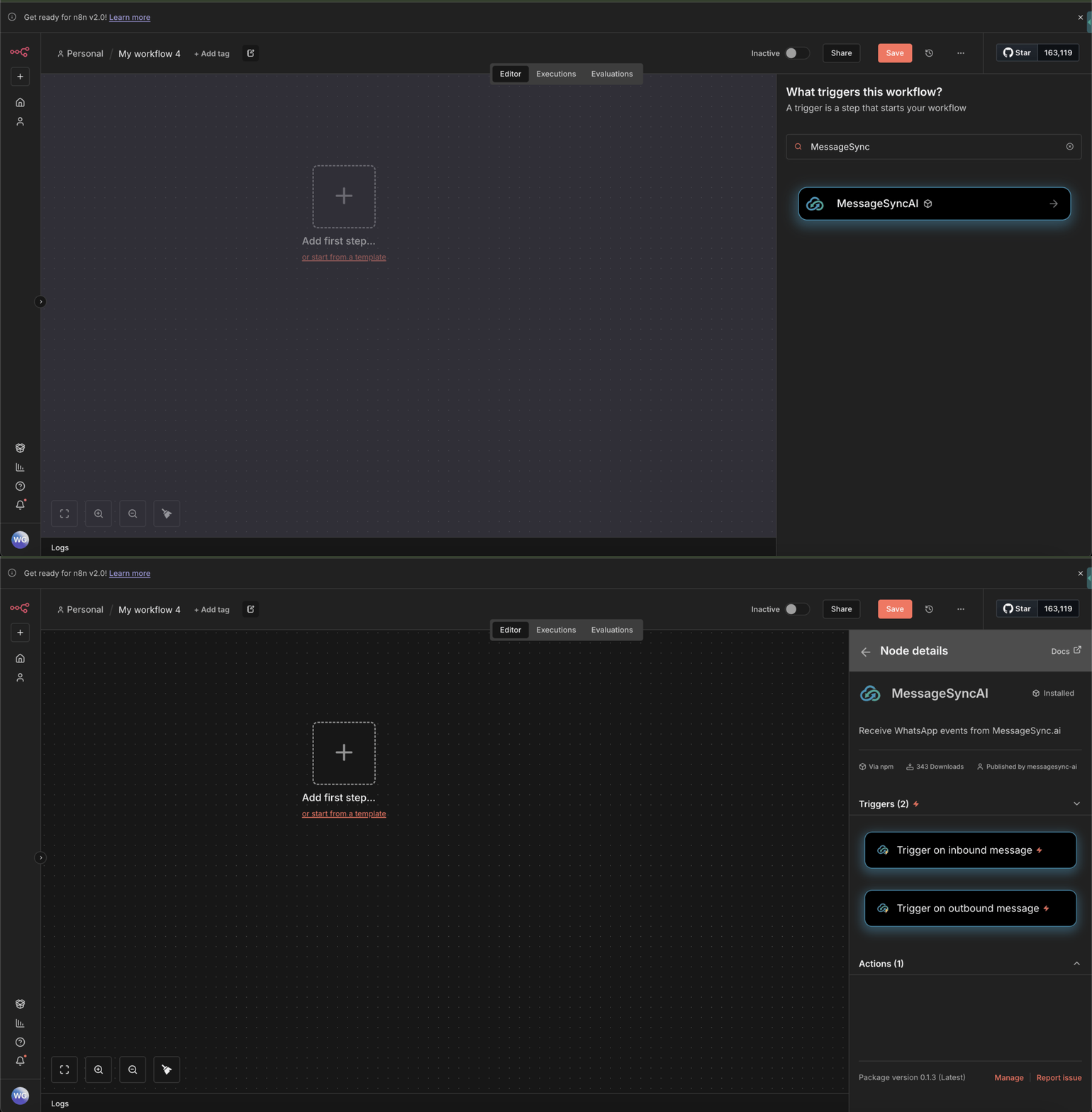 Example Triggers: Set up automation that starts when you receive or send a WhatsApp message using the MessageSync.ai node in n8n.
***
## Sending a Message Using n8n[](#sending-a-message-using-n8n "Direct link to Sending a Message Using n8n")
You can also send WhatsApp messages directly from n8n.
Add a **MessageSync → Send Message** node
Select your configured credentials
Provide required fields:
* Contact ID (from CRM) or Phone Number
* Message content
Example Triggers: Set up automation that starts when you receive or send a WhatsApp message using the MessageSync.ai node in n8n.
***
## Sending a Message Using n8n[](#sending-a-message-using-n8n "Direct link to Sending a Message Using n8n")
You can also send WhatsApp messages directly from n8n.
Add a **MessageSync → Send Message** node
Select your configured credentials
Provide required fields:
* Contact ID (from CRM) or Phone Number
* Message content
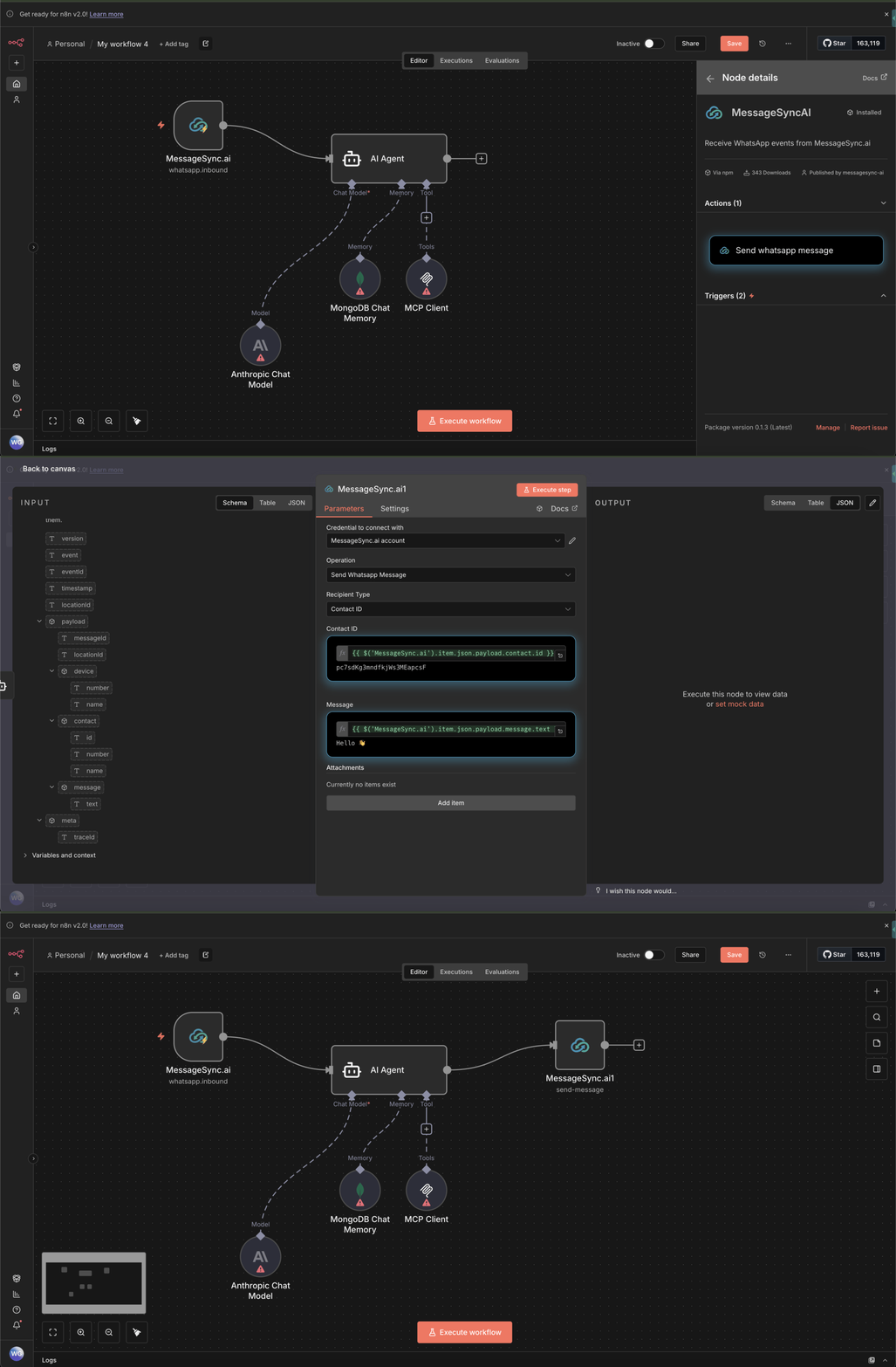 Send a WhatsApp message by setting contact ID (or Phone Number) and message in the MessageSync.ai node.
### Example: Send Message Using CRM Contact ID[](#example-send-message-using-crm-contact-id "Direct link to Example: Send Message Using CRM Contact ID")
This allows you to:
* Send messages to existing contacts
* Trigger WhatsApp messages from any n8n logic
* Combine with webhooks, forms, or databases
***
## Best Practices[](#best-practices "Direct link to Best Practices")
* Use inbound triggers for event-driven automations
* Keep API keys scoped to specific sub-accounts
* Log workflows during testing to avoid duplicate sends
* Combine n8n logic with drip and rate-limiting features
***
## Troubleshooting[](#troubleshooting "Direct link to Troubleshooting")
**Node not visible after install**
* Restart n8n
* Ensure community nodes are enabled
**Authentication error**
* Re-check API key and sub-account ID
* Ensure the key is active in dashboard
**Messages not sending**
* Confirm the contact exists in CRM
* Validate the WhatsApp number is connected
***
## Support[](#support "Direct link to Support")
If you need help setting this up or building workflows:
* Reach out via **WhatsApp Chat**
* Contact [**support@messagesync.ai**](mailto:support@messagesync.ai)
We’re happy to help you design workflows or debug configurations.
***
## FAQ[](#faq "Direct link to FAQ")
Yes. Each sub-account requires its own API key and credential.
No. n8n complements CRM workflows and enables advanced automation.
***
You’re now ready to build powerful WhatsApp automations using **MessageSync + n8n**.
Send a WhatsApp message by setting contact ID (or Phone Number) and message in the MessageSync.ai node.
### Example: Send Message Using CRM Contact ID[](#example-send-message-using-crm-contact-id "Direct link to Example: Send Message Using CRM Contact ID")
This allows you to:
* Send messages to existing contacts
* Trigger WhatsApp messages from any n8n logic
* Combine with webhooks, forms, or databases
***
## Best Practices[](#best-practices "Direct link to Best Practices")
* Use inbound triggers for event-driven automations
* Keep API keys scoped to specific sub-accounts
* Log workflows during testing to avoid duplicate sends
* Combine n8n logic with drip and rate-limiting features
***
## Troubleshooting[](#troubleshooting "Direct link to Troubleshooting")
**Node not visible after install**
* Restart n8n
* Ensure community nodes are enabled
**Authentication error**
* Re-check API key and sub-account ID
* Ensure the key is active in dashboard
**Messages not sending**
* Confirm the contact exists in CRM
* Validate the WhatsApp number is connected
***
## Support[](#support "Direct link to Support")
If you need help setting this up or building workflows:
* Reach out via **WhatsApp Chat**
* Contact [**support@messagesync.ai**](mailto:support@messagesync.ai)
We’re happy to help you design workflows or debug configurations.
***
## FAQ[](#faq "Direct link to FAQ")
Yes. Each sub-account requires its own API key and credential.
No. n8n complements CRM workflows and enables advanced automation.
***
You’re now ready to build powerful WhatsApp automations using **MessageSync + n8n**.