> ## Documentation Index
> Fetch the complete documentation index at: https://help.messagesync.ai/llms.txt
> Use this file to discover all available pages before exploring further.
# Meta and Google Ad Tags & Details
> When someone clicks a or a and sends you a message, the system automatically:
* **Tags the contact** so you can instantly identify ad leads
* **Saves ad metadata to custom fields** on the contact *(Meta ads only)*
* **Appends all available ad metadata** to the first WhatsApp message
This makes it easy to see which ad generated the lead, build automations, and attribute revenue back to campaigns.
***
## What Gets Added?
### 1. Contact Tags (Meta Ads)
For **Meta Click-to-WhatsApp** leads, we automatically add:
* `instagram-ad-lead-whatsapp` – when the lead comes from an Instagram ad
* `fb-ad-lead-whatsapp` – when the lead comes from a Facebook ad
Use these tags in smart lists, workflows, pipelines, and reporting.
***
### 2. Ad Details Appended to Message
Along with the lead's message, we append the ad metadata directly into the WhatsApp message:
```text theme={null}
Hola, me interesa el tratamiento Plasma IQsourceApp: facebooksourceType: adsourceId: 1234567890campaignName: Plasma IQ Lead Gen – MXadSetName: Lookalike 1% – Women 25–45adName: Video Test 3 – Hook AmediaType: VIDEO...
```
> The exact fields depend on what Meta/Google send. We forward everything we receive so you don't lose attribution data.
***
## Custom Fields (Meta Ads - New Feature)
When a contact messages through a Meta Ad, we automatically extract ad data and save it as **custom fields** on the contact. This lets you track which ad, campaign, and platform drove each lead directly in your CRM.
### How It Works
Contact clicks a Meta Ad → WhatsApp opens → they send a message
Meta attaches ad metadata to that message
Our system extracts the metadata and saves it to custom fields
If a custom field exists → it gets populated
If it doesn't exist → it's silently skipped
> No setup needed on our side. You just create the custom fields you want.
### Available Custom Fields
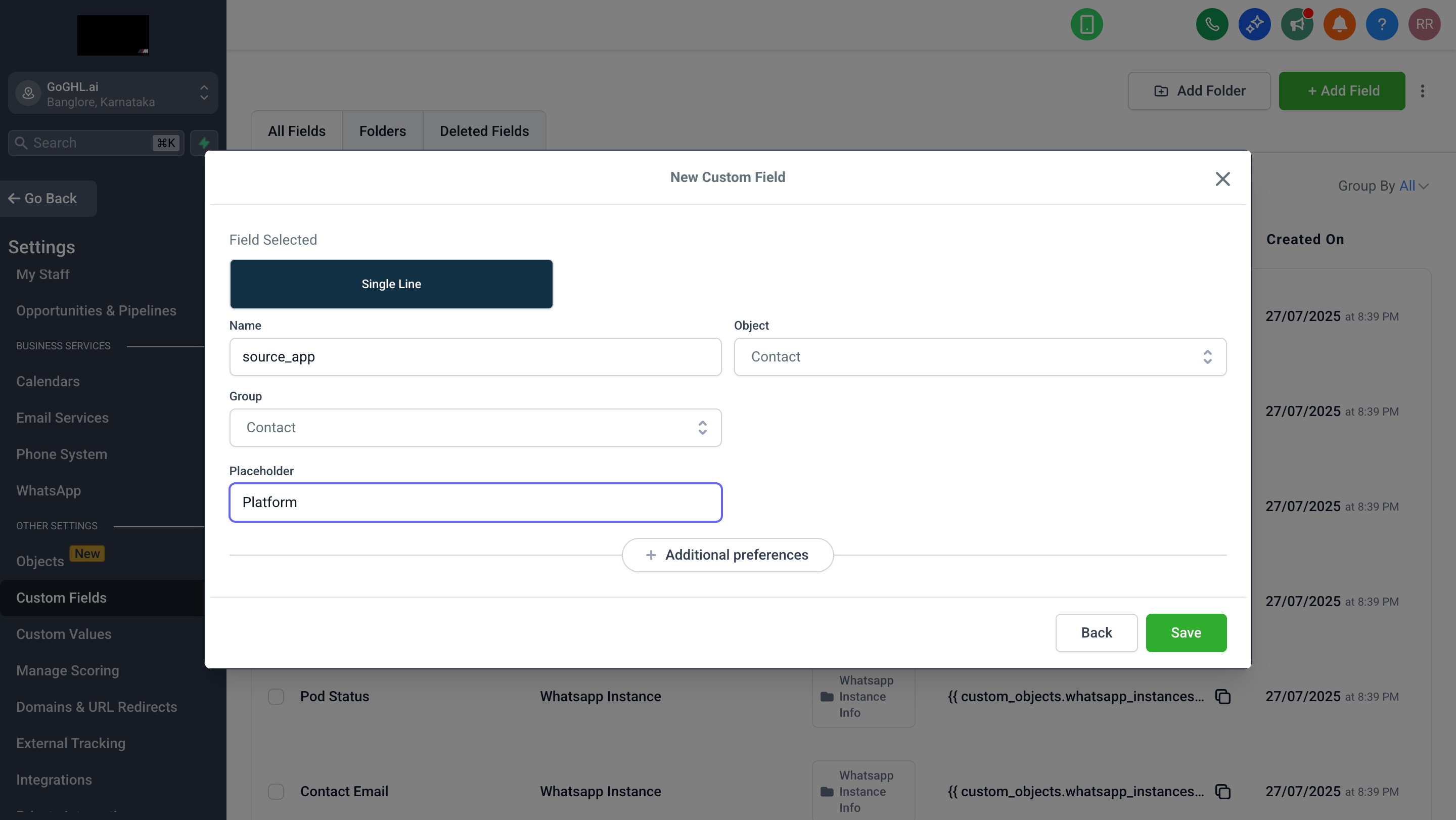
Create fields in **Settings → Custom Fields → Add Field**. The field key must match exactly:
 | Field name | Type | Description | Example |
| ----------------------- | ------------ | ---------------------- | ------------------------------------------ |
| `source_app` | Text | Platform the ad ran on | `facebook`, `instagram` |
| `source_url` | Text | URL of the ad/post | `https://www.instagram.com/p/DSYeWccjKJP/` |
| `source_id` | Text | Meta's unique ad ID | `120240271425200365` |
| `title` | Text | Ad headline/title | `¡Oportunidad Única! ` |
| `body` | Text (Large) | Ad body text | Full ad copy |
| `source_type` | Text | Type of source | `ad` |
| `media_type` | Text | Media format | `IMAGE`, `VIDEO` |
| `ctwa_clid` | Text | Click tracking ID | `Afe9mAvBPUVos1-QSGjl4h...` |
| `greeting_message_body` | Text (Large) | Auto-greeting message | `Hola, gracias por tu interés...` |
### Setup Instructions
Go to **Settings → Custom Fields → Add Field**
Create the fields you want using the exact keys above
Choose the appropriate field type (**Text** or **Text Large**)
Save
That's it. Next time a contact messages via Meta Ad, fields auto-populate.
### Important Notes
* **Create only the fields you want.** Most users only need `source_app`, `source_url`, `source_id`, and `title`
* **Fields update on every CTWA message.** New ad data overwrites previous values
* **Works for Facebook and Instagram.** The `source_app` field tells you which platform
* **No impact on existing functionality.** Message body appending still works as before
***
## How to Use This Data in Workflows
### Using Tags
* **Trigger:** Contact Tag Added → `fb-ad-lead-whatsapp` OR `instagram-ad-lead-whatsapp`
* **Actions:**
* Create Opportunity in specific pipeline
* Assign to sales rep
* Send tailored follow-up sequence
* Notify team in Slack/Email
### Using Custom Fields (Recommended)
**Example 1: Route by platform**
* **Trigger:** Contact Created or Updated
* **Filter:** Custom Field `source_app` = `instagram`
* **Actions:**
* Assign to the Instagram specialist
* Send an Instagram-specific welcome
* Add to the Instagram leads pipeline
**Example 2: Advanced targeting**
* **Trigger:** Contact Created
* **Filter:** Custom Field `title` contains `Retargeting`
* **Actions:**
* Send urgency-based follow-up
* Add to the hot leads pipeline
* Schedule an immediate call
### Using Message Content
Parse the appended message data using webhooks or automation tools (n8n, Make, Zapier) to extract campaign/adset/ad names for advanced routing.
***
## Where to See This Data
**Contact Custom Fields:**
Go to **Contacts**
Open a contact from a Meta ad
Scroll to the **Custom Fields** section
View populated ad fields
**Conversation Message:**
Go to **Conversations**
Open a conversation from an ad
Look at the first message
See appended metadata at bottom
***
## Connection Requirements
For Meta Ads messages to sync reliably:
* Phone must be **online with active internet**
* WhatsApp app must be **running** (can be in background)
* **Stable connection** recommended (WiFi or reliable mobile data)
> If your phone is offline, messages may delay or not sync. Use a dedicated device for your business number to ensure 24/7 syncing.
***
## Requirements
* Meta or Google campaign configured as **Click-to-WhatsApp**
* WhatsApp number connected via our platform
* For custom fields: Create fields in CRM with matching keys
* Phone online with stable connection
***
## Best Practices
* **Name campaigns clearly** – Use meaningful names (e.g., `MX | Plasma IQ | IG Story | Warm`) for easy identification
* **Create needed custom fields** – Most users only need `source_app`, `source_url`, `source_id`, `title`
* **Build dedicated workflows** – Route Facebook, Instagram, and Google leads differently
* **Use tags for organisation** – Combine ad tags with internal tags (`hot-lead`, `consult-booked`)
* **Keep phone connected** – Stable internet ensures real-time message delivery
***
## FAQ
Yes. Tags differentiate them:
* `fb-ad-lead-whatsapp` → Facebook
* `instagram-ad-lead-whatsapp` → Instagram
The `source_app` custom field also shows `facebook` or `instagram`.
Yes, for **Google Click-to-WhatsApp ads**. Ad data is appended to the message body.
> **Note:** Custom fields are currently only for Meta Ads. Google data appears in message body only.
No. Create only the fields you want. Common ones are `source_app`, `source_url`, `source_id`, and `title`. Fields you don't create are ignored.
Custom fields populate only on new messages. Existing contacts won't be retroactively updated. If they click a new ad and message again, fields will populate then.
Tagging and message appending are always on to preserve attribution data. Custom fields are optional - don't create them if you don't want them.
No. Tags, custom fields, and ad details only apply to Meta/Google Click-to-WhatsApp ads. Organic messages are unaffected.
WhatsApp queues the message and delivers when your phone is online. However, CRM sync may be delayed. Keep your phone connected for real-time delivery.
Yes. Create smart lists filtering by `source_app`, `title`, or any other custom field to segment ad leads.
Yes. Custom fields export along with other contact data.
***
## Support[](#support "Direct link to Support")
If you need help with the setup or onboarding:
* Email: [**support@messagesync.ai**](mailto:support@messagesync.ai)
| Field name | Type | Description | Example |
| ----------------------- | ------------ | ---------------------- | ------------------------------------------ |
| `source_app` | Text | Platform the ad ran on | `facebook`, `instagram` |
| `source_url` | Text | URL of the ad/post | `https://www.instagram.com/p/DSYeWccjKJP/` |
| `source_id` | Text | Meta's unique ad ID | `120240271425200365` |
| `title` | Text | Ad headline/title | `¡Oportunidad Única! ` |
| `body` | Text (Large) | Ad body text | Full ad copy |
| `source_type` | Text | Type of source | `ad` |
| `media_type` | Text | Media format | `IMAGE`, `VIDEO` |
| `ctwa_clid` | Text | Click tracking ID | `Afe9mAvBPUVos1-QSGjl4h...` |
| `greeting_message_body` | Text (Large) | Auto-greeting message | `Hola, gracias por tu interés...` |
### Setup Instructions
Go to **Settings → Custom Fields → Add Field**
Create the fields you want using the exact keys above
Choose the appropriate field type (**Text** or **Text Large**)
Save
That's it. Next time a contact messages via Meta Ad, fields auto-populate.
### Important Notes
* **Create only the fields you want.** Most users only need `source_app`, `source_url`, `source_id`, and `title`
* **Fields update on every CTWA message.** New ad data overwrites previous values
* **Works for Facebook and Instagram.** The `source_app` field tells you which platform
* **No impact on existing functionality.** Message body appending still works as before
***
## How to Use This Data in Workflows
### Using Tags
* **Trigger:** Contact Tag Added → `fb-ad-lead-whatsapp` OR `instagram-ad-lead-whatsapp`
* **Actions:**
* Create Opportunity in specific pipeline
* Assign to sales rep
* Send tailored follow-up sequence
* Notify team in Slack/Email
### Using Custom Fields (Recommended)
**Example 1: Route by platform**
* **Trigger:** Contact Created or Updated
* **Filter:** Custom Field `source_app` = `instagram`
* **Actions:**
* Assign to the Instagram specialist
* Send an Instagram-specific welcome
* Add to the Instagram leads pipeline
**Example 2: Advanced targeting**
* **Trigger:** Contact Created
* **Filter:** Custom Field `title` contains `Retargeting`
* **Actions:**
* Send urgency-based follow-up
* Add to the hot leads pipeline
* Schedule an immediate call
### Using Message Content
Parse the appended message data using webhooks or automation tools (n8n, Make, Zapier) to extract campaign/adset/ad names for advanced routing.
***
## Where to See This Data
**Contact Custom Fields:**
Go to **Contacts**
Open a contact from a Meta ad
Scroll to the **Custom Fields** section
View populated ad fields
**Conversation Message:**
Go to **Conversations**
Open a conversation from an ad
Look at the first message
See appended metadata at bottom
***
## Connection Requirements
For Meta Ads messages to sync reliably:
* Phone must be **online with active internet**
* WhatsApp app must be **running** (can be in background)
* **Stable connection** recommended (WiFi or reliable mobile data)
> If your phone is offline, messages may delay or not sync. Use a dedicated device for your business number to ensure 24/7 syncing.
***
## Requirements
* Meta or Google campaign configured as **Click-to-WhatsApp**
* WhatsApp number connected via our platform
* For custom fields: Create fields in CRM with matching keys
* Phone online with stable connection
***
## Best Practices
* **Name campaigns clearly** – Use meaningful names (e.g., `MX | Plasma IQ | IG Story | Warm`) for easy identification
* **Create needed custom fields** – Most users only need `source_app`, `source_url`, `source_id`, `title`
* **Build dedicated workflows** – Route Facebook, Instagram, and Google leads differently
* **Use tags for organisation** – Combine ad tags with internal tags (`hot-lead`, `consult-booked`)
* **Keep phone connected** – Stable internet ensures real-time message delivery
***
## FAQ
Yes. Tags differentiate them:
* `fb-ad-lead-whatsapp` → Facebook
* `instagram-ad-lead-whatsapp` → Instagram
The `source_app` custom field also shows `facebook` or `instagram`.
Yes, for **Google Click-to-WhatsApp ads**. Ad data is appended to the message body.
> **Note:** Custom fields are currently only for Meta Ads. Google data appears in message body only.
No. Create only the fields you want. Common ones are `source_app`, `source_url`, `source_id`, and `title`. Fields you don't create are ignored.
Custom fields populate only on new messages. Existing contacts won't be retroactively updated. If they click a new ad and message again, fields will populate then.
Tagging and message appending are always on to preserve attribution data. Custom fields are optional - don't create them if you don't want them.
No. Tags, custom fields, and ad details only apply to Meta/Google Click-to-WhatsApp ads. Organic messages are unaffected.
WhatsApp queues the message and delivers when your phone is online. However, CRM sync may be delayed. Keep your phone connected for real-time delivery.
Yes. Create smart lists filtering by `source_app`, `title`, or any other custom field to segment ad leads.
Yes. Custom fields export along with other contact data.
***
## Support[](#support "Direct link to Support")
If you need help with the setup or onboarding:
* Email: [**support@messagesync.ai**](mailto:support@messagesync.ai)