> ## Documentation Index
> Fetch the complete documentation index at: https://help.messagesync.ai/llms.txt
> Use this file to discover all available pages before exploring further.
# Disconnection Notifications
> Stay informed when your WhatsApp instances go offline with automated disconnection notifications.
## Overview
WhatsApp disconnection notifications help you maintain messaging continuity by alerting you immediately when your WhatsApp instances lose connection. This ensures you can take quick action to restore service and minimize disruptions to your customer communications.
 ## Notification Channels
We support two reliable communication channels for disconnection alerts:
### Email Notifications
Receive disconnection alerts directly in your email inbox. Perfect for:
* Detailed notification logs
* Persistent notification history
### WhatsApp Notifications
Get instant WhatsApp messages about disconnections. Ideal for:
* Immediate mobile alerts
* Real-time notifications
* Quick acknowledgment and response
* On-the-go monitoring
**WhatsApp notifications are automatically sent to:**
* **Connected WhatsApp number** (the number that got disconnected)
* **Logged-in user's number** (your account's primary WhatsApp number)
* **Optional additional number** (configurable in Location Settings)
## Getting Started
Setting up disconnection notifications takes just a few minutes:
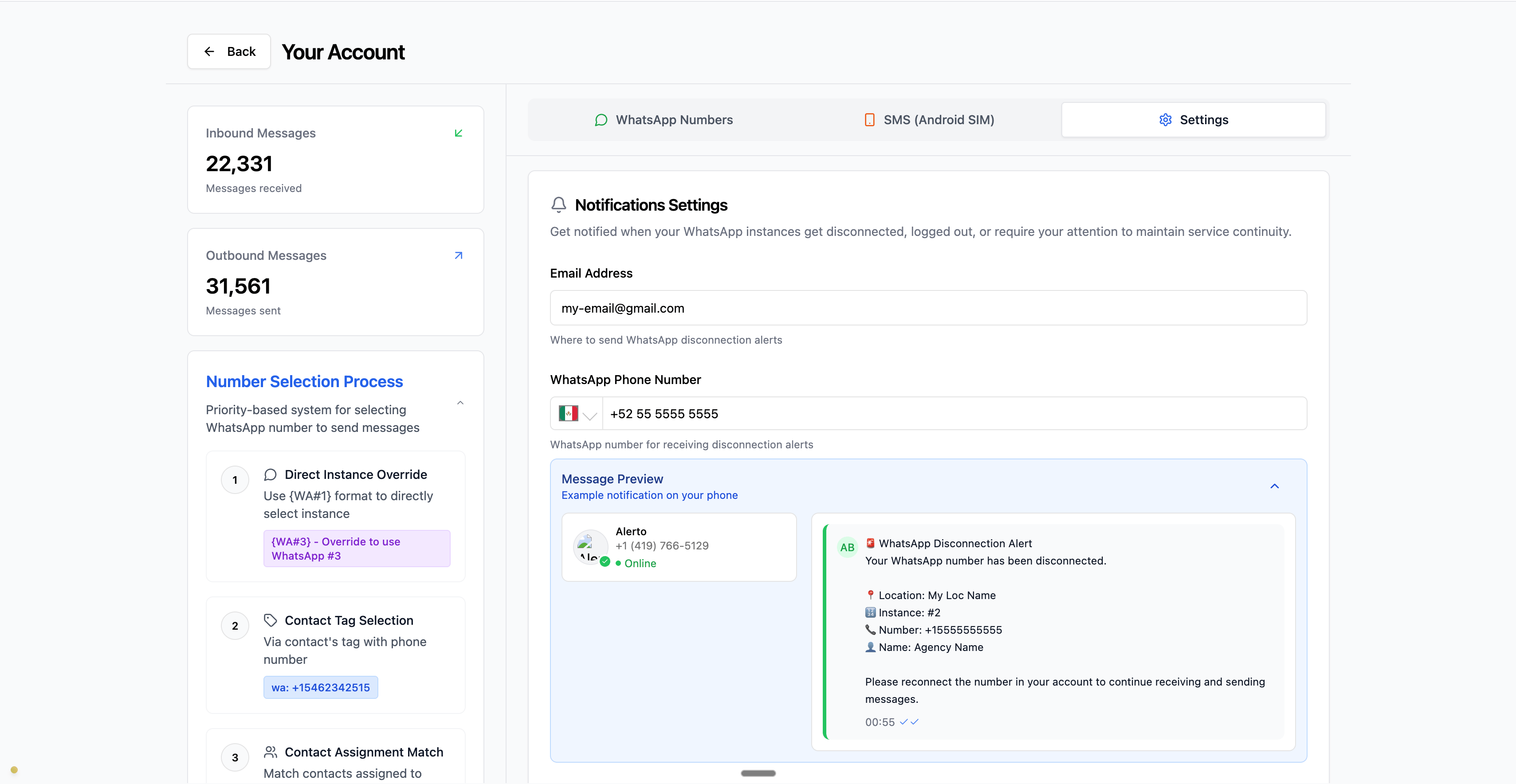
**Go to Message Hub Tab** - Click on the message hub tab on your CRM sidebar
**Open Settins Tab** - Click on the settings Tab
**Go to Notification Settings Card** - Look for the Notifications Card on the Settings tab
**Add your email and Whatsapp number** - Set up email, WhatsApp, or both
We recommend setting up both email and WhatsApp notifications for maximum reliability. This ensures you'll receive alerts even if one channel experiences issues.
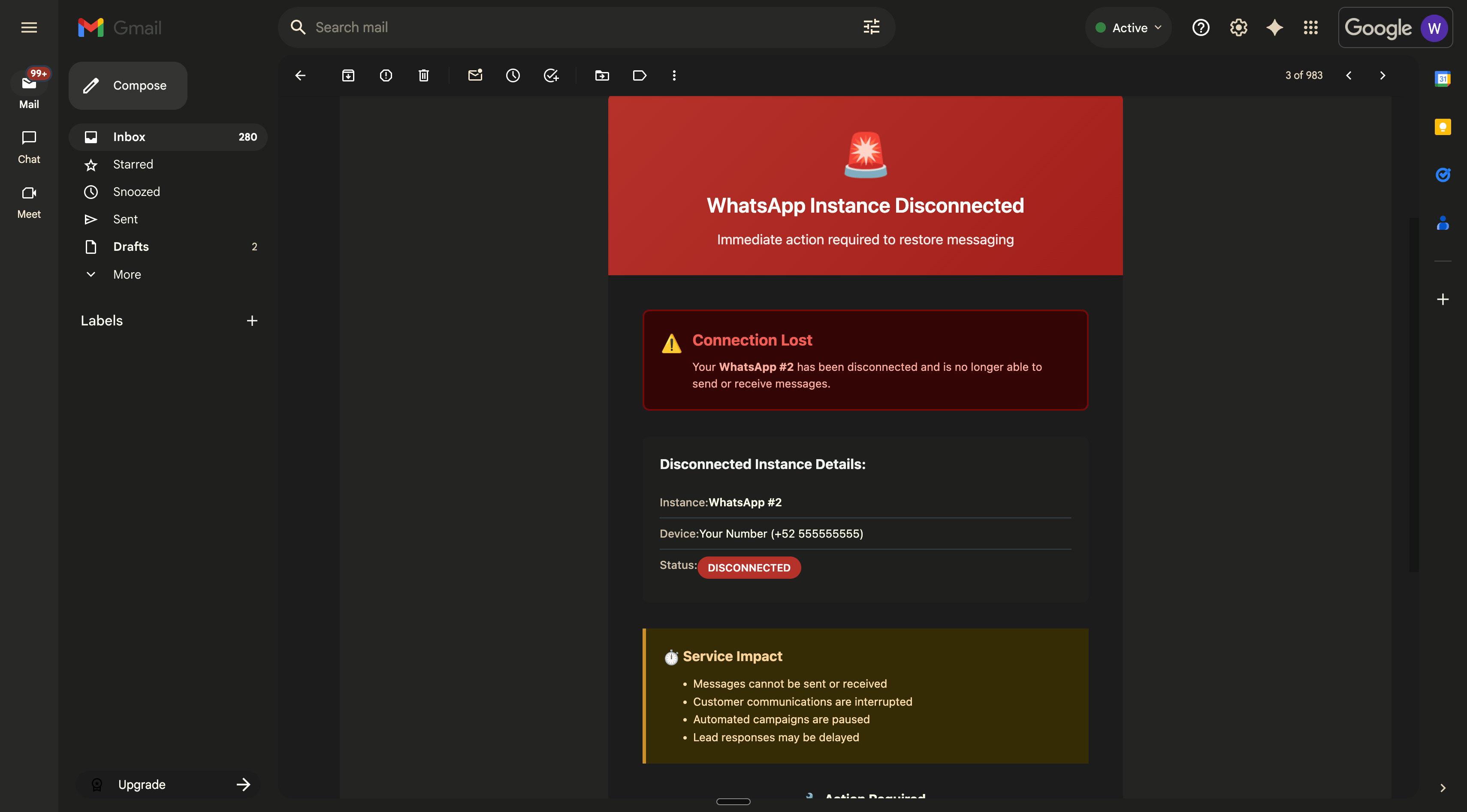
## Sample Email Notification
Here's what a disconnection alert looks like on your email:
## Notification Channels
We support two reliable communication channels for disconnection alerts:
### Email Notifications
Receive disconnection alerts directly in your email inbox. Perfect for:
* Detailed notification logs
* Persistent notification history
### WhatsApp Notifications
Get instant WhatsApp messages about disconnections. Ideal for:
* Immediate mobile alerts
* Real-time notifications
* Quick acknowledgment and response
* On-the-go monitoring
**WhatsApp notifications are automatically sent to:**
* **Connected WhatsApp number** (the number that got disconnected)
* **Logged-in user's number** (your account's primary WhatsApp number)
* **Optional additional number** (configurable in Location Settings)
## Getting Started
Setting up disconnection notifications takes just a few minutes:
**Go to Message Hub Tab** - Click on the message hub tab on your CRM sidebar
**Open Settins Tab** - Click on the settings Tab
**Go to Notification Settings Card** - Look for the Notifications Card on the Settings tab
**Add your email and Whatsapp number** - Set up email, WhatsApp, or both
We recommend setting up both email and WhatsApp notifications for maximum reliability. This ensures you'll receive alerts even if one channel experiences issues.
## Sample Email Notification
Here's what a disconnection alert looks like on your email:
 ## Understanding WhatsApp Numbers in Alerts
We maintain complete whitelabelling while delivering whatsapp messages/alerts to the numbers. Here are the 3 numbers that would receive disconnection alerts:
### 1. Signed-Up User Number
**Your account's primary WhatsApp number**
* The number you used to sign up for your account
* Receives Notifications for all Locations and Whatsapp numbers
* Managed in your **Profile Settings** (accessible via the navbar dropdown)
## Understanding WhatsApp Numbers in Alerts
We maintain complete whitelabelling while delivering whatsapp messages/alerts to the numbers. Here are the 3 numbers that would receive disconnection alerts:
### 1. Signed-Up User Number
**Your account's primary WhatsApp number**
* The number you used to sign up for your account
* Receives Notifications for all Locations and Whatsapp numbers
* Managed in your **Profile Settings** (accessible via the navbar dropdown)
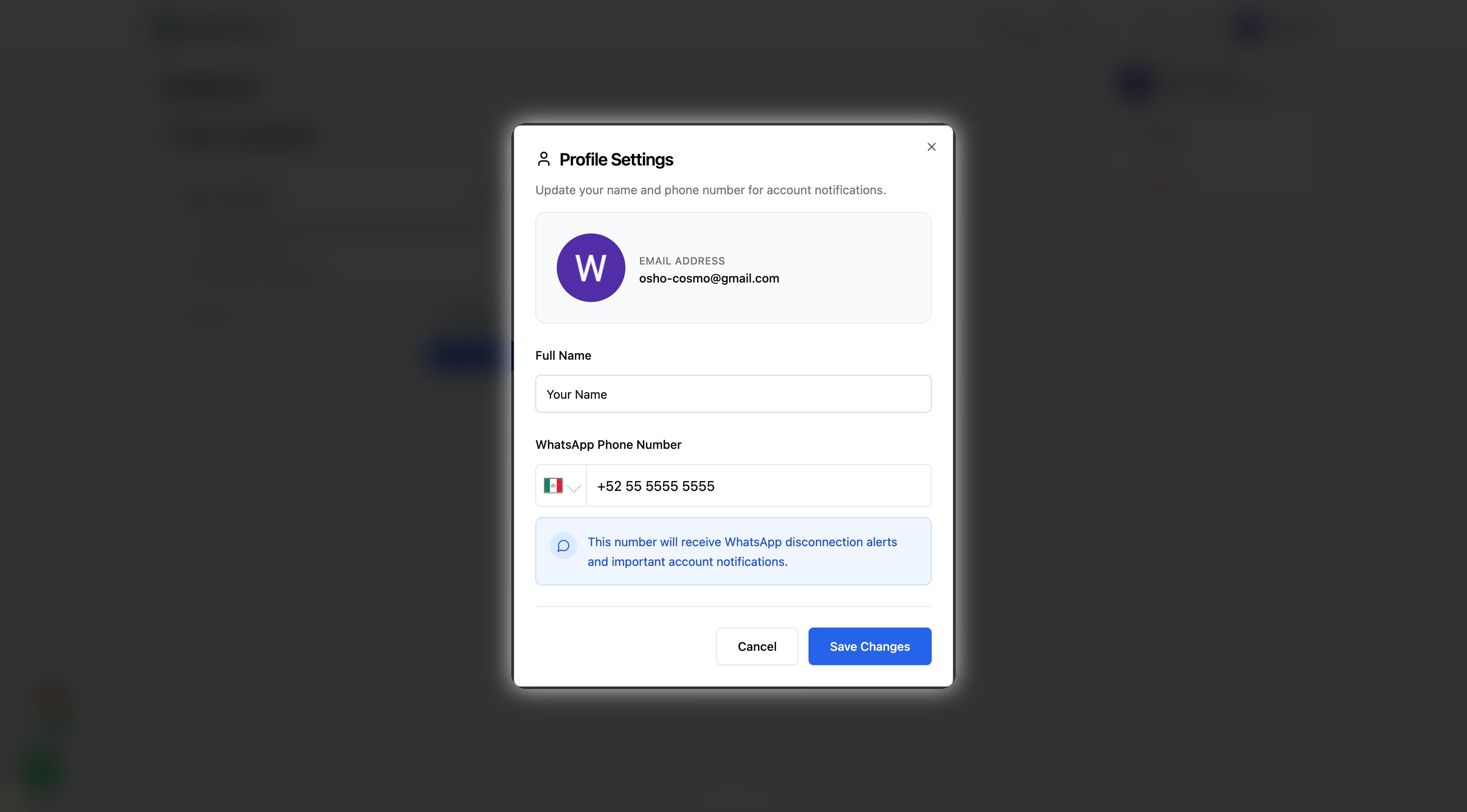 **How to update**:
Click your profile avatar in the top-right navbar
Select "Profile" from the dropdown
Update your WhatsApp phone number
Save changes
### 2. Connected Instance Number
**The actual WhatsApp number connected to your business**
* This is the number that was connected and later got disconnected
* Cannot be changed (it's tied to the WhatsApp account)
The Connected Instance Number cannot be modified through settings. This is the actual WhatsApp Business account number that got disconnected.
### 3. Custom Location-Specific Number
**WhatsApp number assigned to a specific business location**
* Set up in Location Settings → Settings → Notification Settings
* Used for location-specific disconnection alerts
* Can be different from your account number
**How to update**:
Go to Dashboard → Select Location → Settings → Notification Settings
Update the "WhatsApp Phone Number" field
Save changes
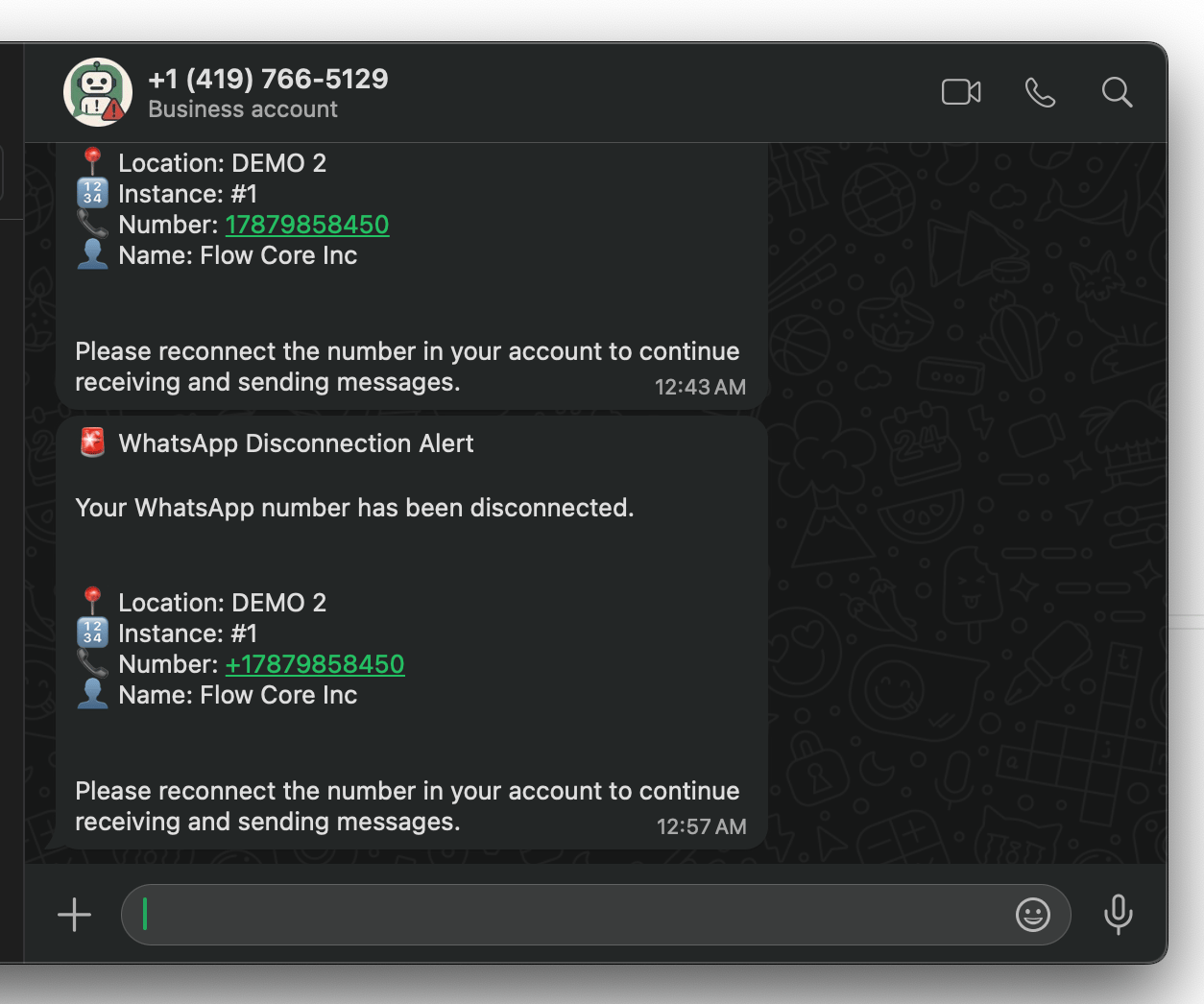
## Sample Whatsapp Notification
Here's what a disconnection alert looks like on your phone:
**How to update**:
Click your profile avatar in the top-right navbar
Select "Profile" from the dropdown
Update your WhatsApp phone number
Save changes
### 2. Connected Instance Number
**The actual WhatsApp number connected to your business**
* This is the number that was connected and later got disconnected
* Cannot be changed (it's tied to the WhatsApp account)
The Connected Instance Number cannot be modified through settings. This is the actual WhatsApp Business account number that got disconnected.
### 3. Custom Location-Specific Number
**WhatsApp number assigned to a specific business location**
* Set up in Location Settings → Settings → Notification Settings
* Used for location-specific disconnection alerts
* Can be different from your account number
**How to update**:
Go to Dashboard → Select Location → Settings → Notification Settings
Update the "WhatsApp Phone Number" field
Save changes
## Sample Whatsapp Notification
Here's what a disconnection alert looks like on your phone:
 ***
**Questions?** Our support team is here to help you set up reliable disconnection monitoring for your WhatsApp integrations.
***
## Support[](#support "Direct link to Support")
If you need help with the setup or onboarding:
* Email: [**support@messagesync.ai**](mailto:support@messagesync.ai)
***
**Questions?** Our support team is here to help you set up reliable disconnection monitoring for your WhatsApp integrations.
***
## Support[](#support "Direct link to Support")
If you need help with the setup or onboarding:
* Email: [**support@messagesync.ai**](mailto:support@messagesync.ai)