> ## Documentation Index
> Fetch the complete documentation index at: https://help.messagesync.ai/llms.txt
> Use this file to discover all available pages before exploring further.
# Log in with Phone Number
> The feature lets you connect a WhatsApp account to the system using a short instead of scanning a QR code. WhatsApp calls this "linking with phone number," and it's the perfect alternative when you can't scan the QR code-for example, when you're setting up on the same phone that holds WhatsApp, or when the camera can't reach the screen.
Instead of pointing your phone's camera at a QR code, the dashboard shows you a code, and you type that code into WhatsApp on your phone to link the device.
***
## When to Use It[](#when-to-use-it "Direct link to When to Use It")
**Camera can't scan** - The QR code won't scan because of screen glare, a damaged camera, or display issues.
**Remote setup** - It's easier to read out or paste a code than to share a scannable QR image.
***
## Before You Start[](#before-you-start "Direct link to Before You Start")
* The WhatsApp account you want to connect must be active on your phone.
* Keep your phone nearby and unlocked during setup.
* Make sure both devices have a stable internet connection.
***
## Step-by-Step Setup[](#step-by-step-setup "Direct link to Step-by-Step Setup")
### Step 1: Open the WhatsApp Connection Screen[](#step-1-open-the-whatsapp-connection-screen "Direct link to Step 1: Open the WhatsApp Connection Screen")
Log into your CRM dashboard.
Click **Message Hub** in the left sidebar.
Select the WhatsApp instance and click **Manage** to open the connection screen.
You'll see the QR code and, just below it, a **Log in with phone number** button.
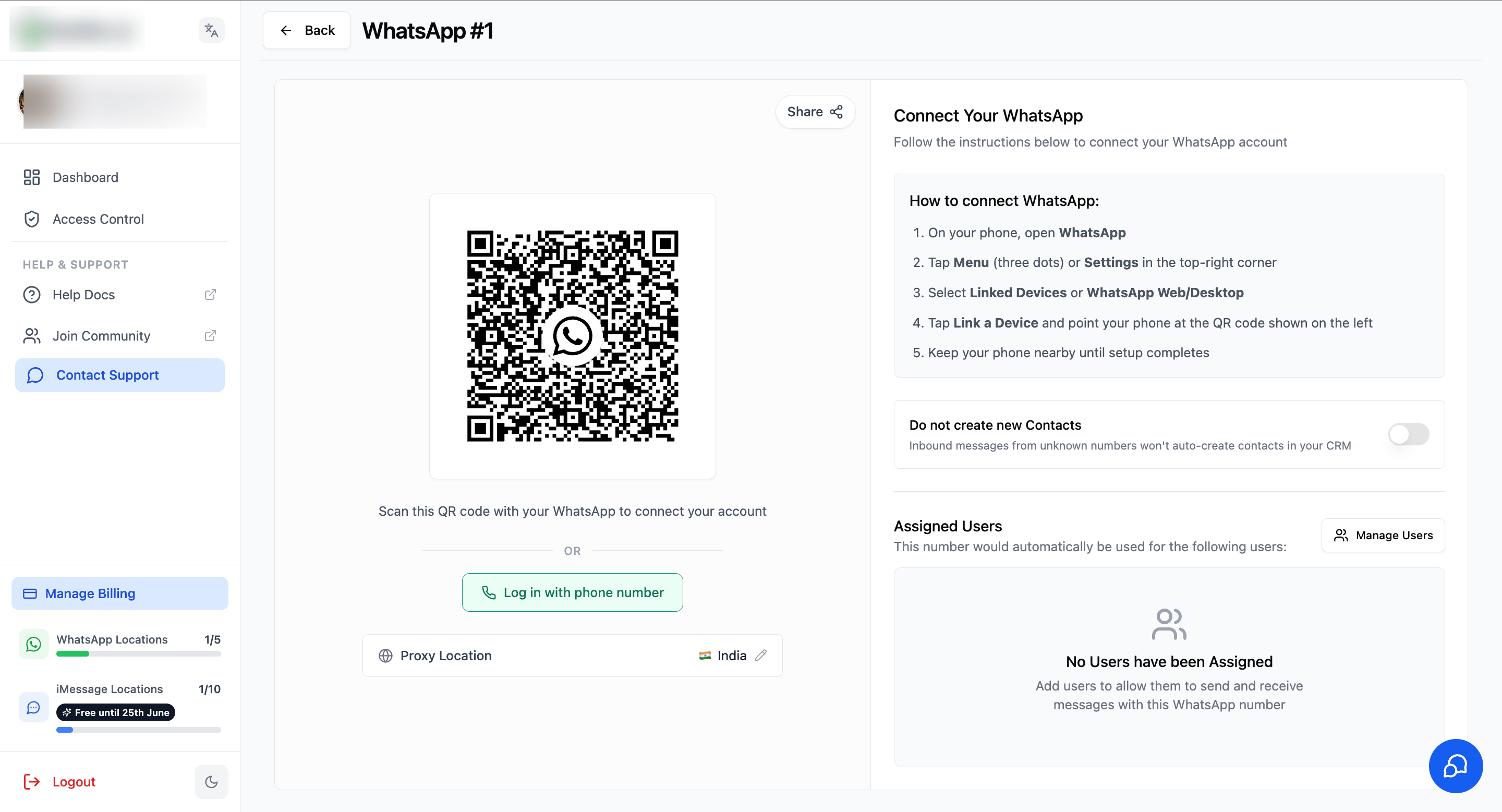 ### Step 2: Enter Your Phone Number[](#step-2-enter-your-phone-number "Direct link to Step 2: Enter Your Phone Number")
Click **Log in with phone number**.
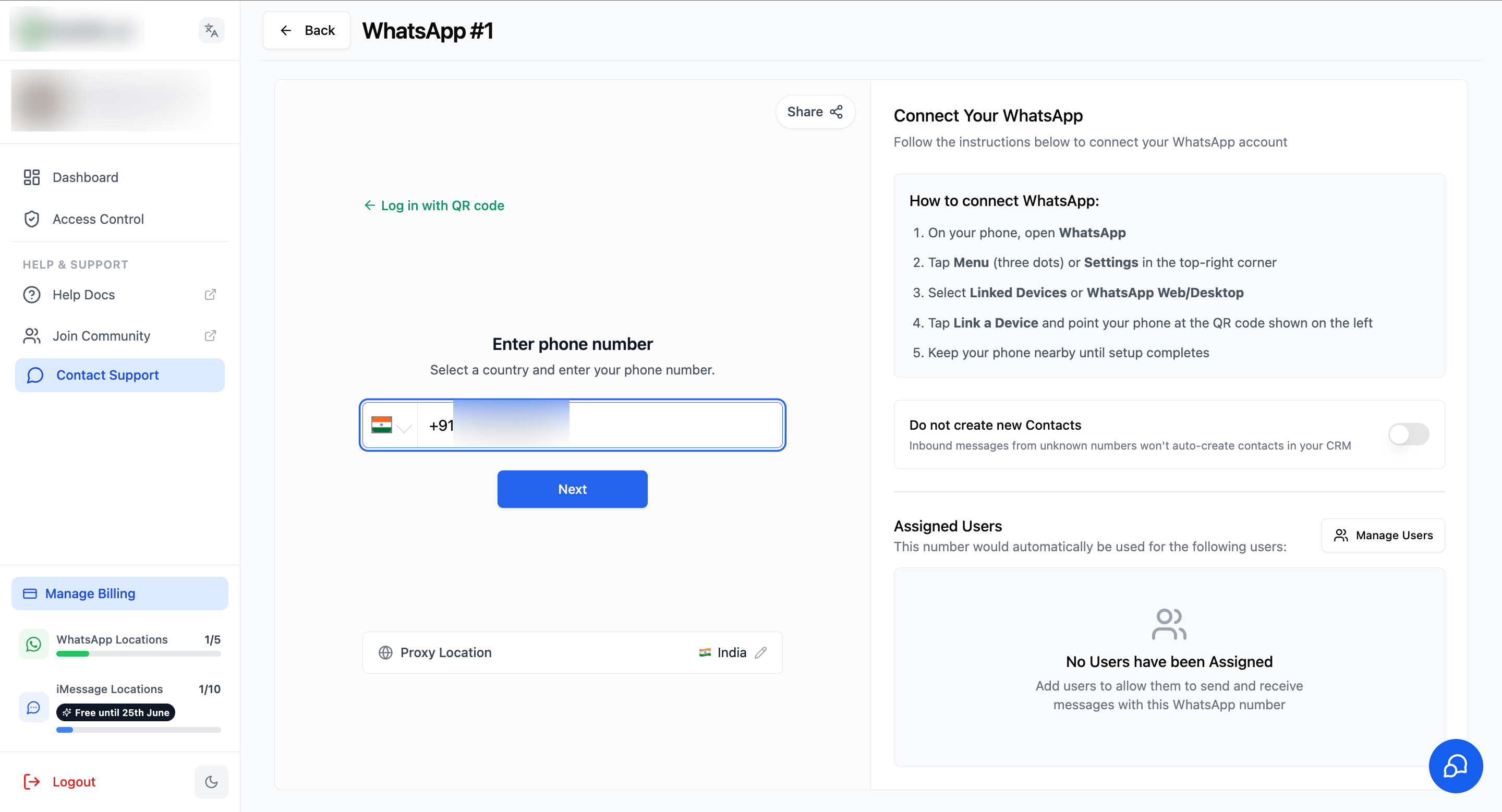
Select your country from the dropdown.
Enter the phone number tied to the WhatsApp account you're connecting.
Click **Next**.
> **Tip:** If you'd rather scan the QR code instead, click **Log in with QR code** to switch back at any time.
### Step 2: Enter Your Phone Number[](#step-2-enter-your-phone-number "Direct link to Step 2: Enter Your Phone Number")
Click **Log in with phone number**.
Select your country from the dropdown.
Enter the phone number tied to the WhatsApp account you're connecting.
Click **Next**.
> **Tip:** If you'd rather scan the QR code instead, click **Log in with QR code** to switch back at any time.
 ### Step 3: Get Your 8-Character Code[](#step-3-get-your-8-character-code "Direct link to Step 3: Get Your 8-Character Code")
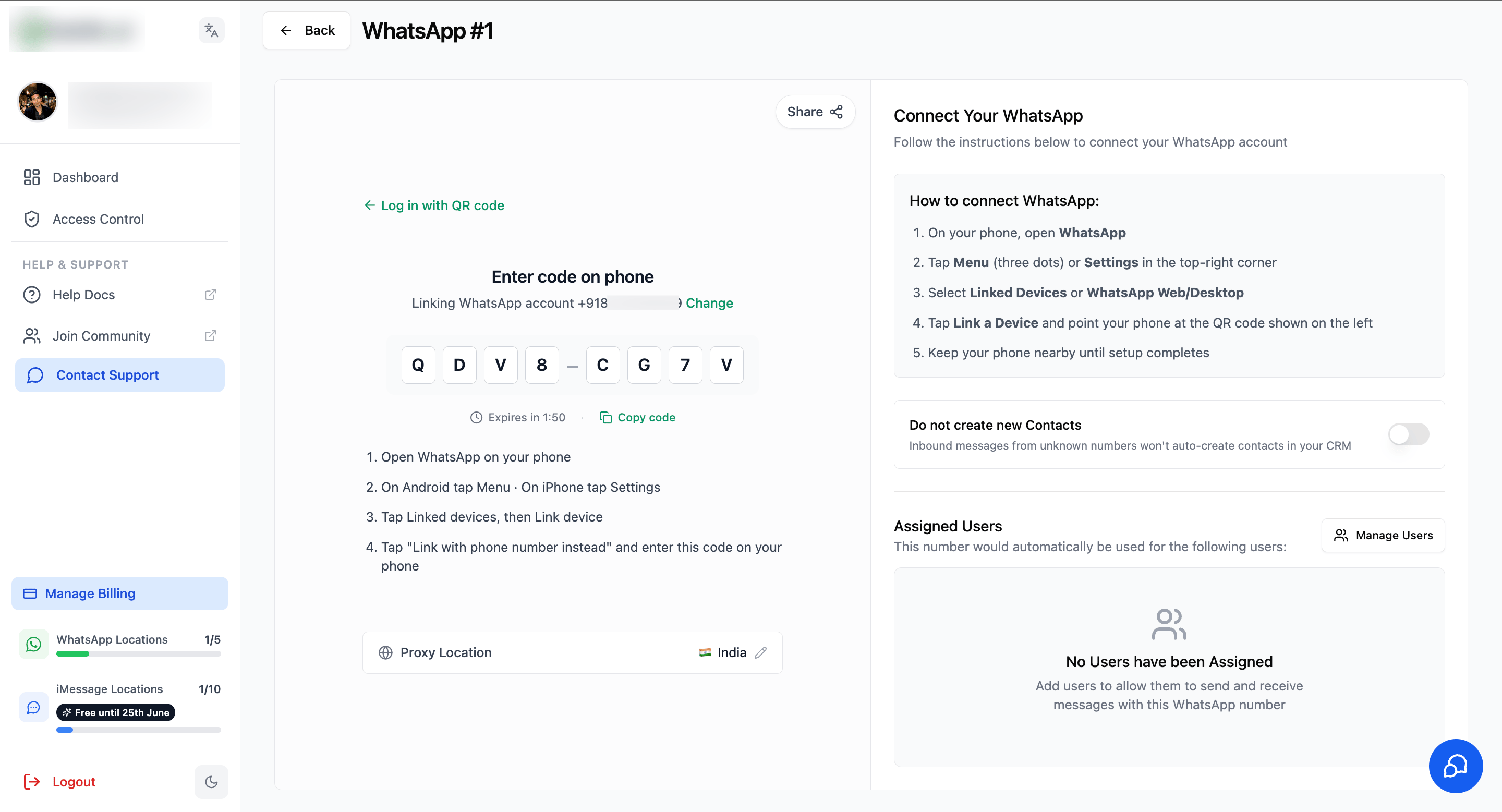
The dashboard displays an 8-character code (for example, `QDV8-CG7V`). You'll enter this code into WhatsApp on your phone.
* Click **Copy code** to copy it to your clipboard.
* The code expires after a short time-if it does, request a new one.
### Step 3: Get Your 8-Character Code[](#step-3-get-your-8-character-code "Direct link to Step 3: Get Your 8-Character Code")
The dashboard displays an 8-character code (for example, `QDV8-CG7V`). You'll enter this code into WhatsApp on your phone.
* Click **Copy code** to copy it to your clipboard.
* The code expires after a short time-if it does, request a new one.
 ### Step 4: Confirm the Device[](#step-4-confirm-the-device "Direct link to Step 4: Confirm the Device")
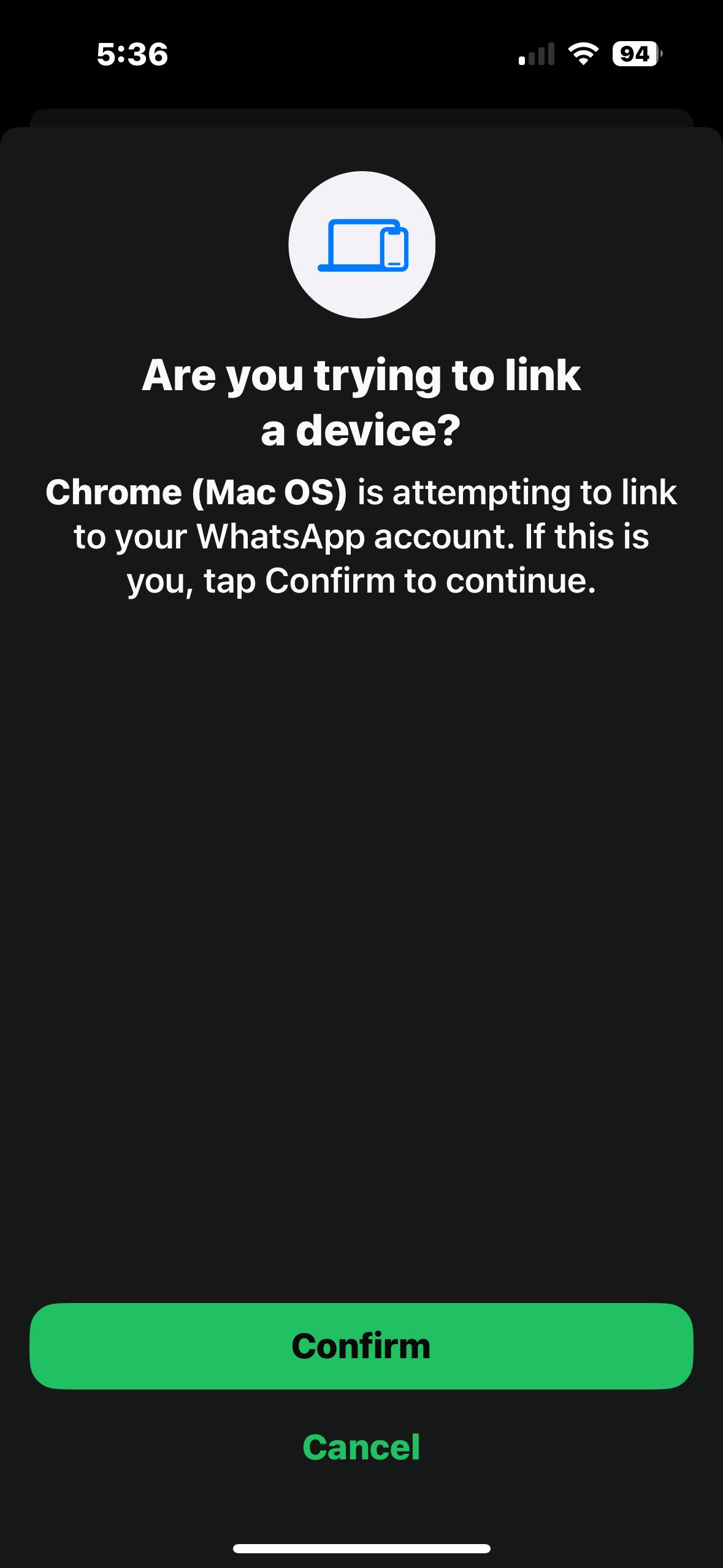
WhatsApp asks you to confirm the new device-for example, *"Chrome (Mac OS) is attempting to link to your WhatsApp account."* Tap **Confirm** to continue.
### Step 4: Confirm the Device[](#step-4-confirm-the-device "Direct link to Step 4: Confirm the Device")
WhatsApp asks you to confirm the new device-for example, *"Chrome (Mac OS) is attempting to link to your WhatsApp account."* Tap **Confirm** to continue.
 ### Step 5: Open the Code Entry Screen in WhatsApp[](#step-5-open-the-code-entry-screen-in-whatsapp "Direct link to Step 5: Open the Code Entry Screen in WhatsApp")
On your phone:
Open **WhatsApp**.
Tap **Menu** (three dots) on Android, or **Settings** on iPhone.
Tap **Linked Devices**, then tap **Link a Device**.
Tap **Link with phone number instead**.
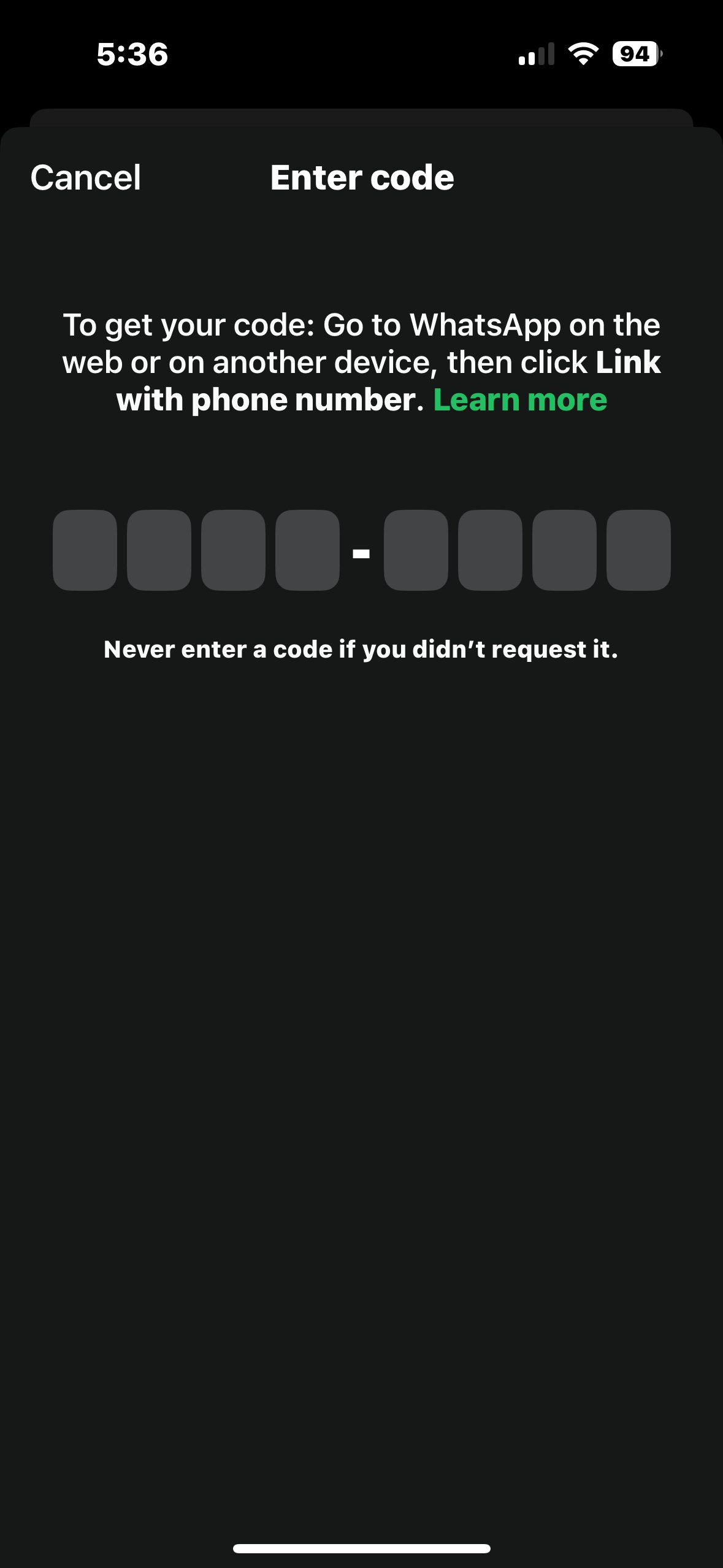
WhatsApp shows an empty 8-box **Enter code** screen.
### Step 5: Open the Code Entry Screen in WhatsApp[](#step-5-open-the-code-entry-screen-in-whatsapp "Direct link to Step 5: Open the Code Entry Screen in WhatsApp")
On your phone:
Open **WhatsApp**.
Tap **Menu** (three dots) on Android, or **Settings** on iPhone.
Tap **Linked Devices**, then tap **Link a Device**.
Tap **Link with phone number instead**.
WhatsApp shows an empty 8-box **Enter code** screen.
 ### Step 6: Enter the Code[](#step-6-enter-the-code "Direct link to Step 6: Enter the Code")
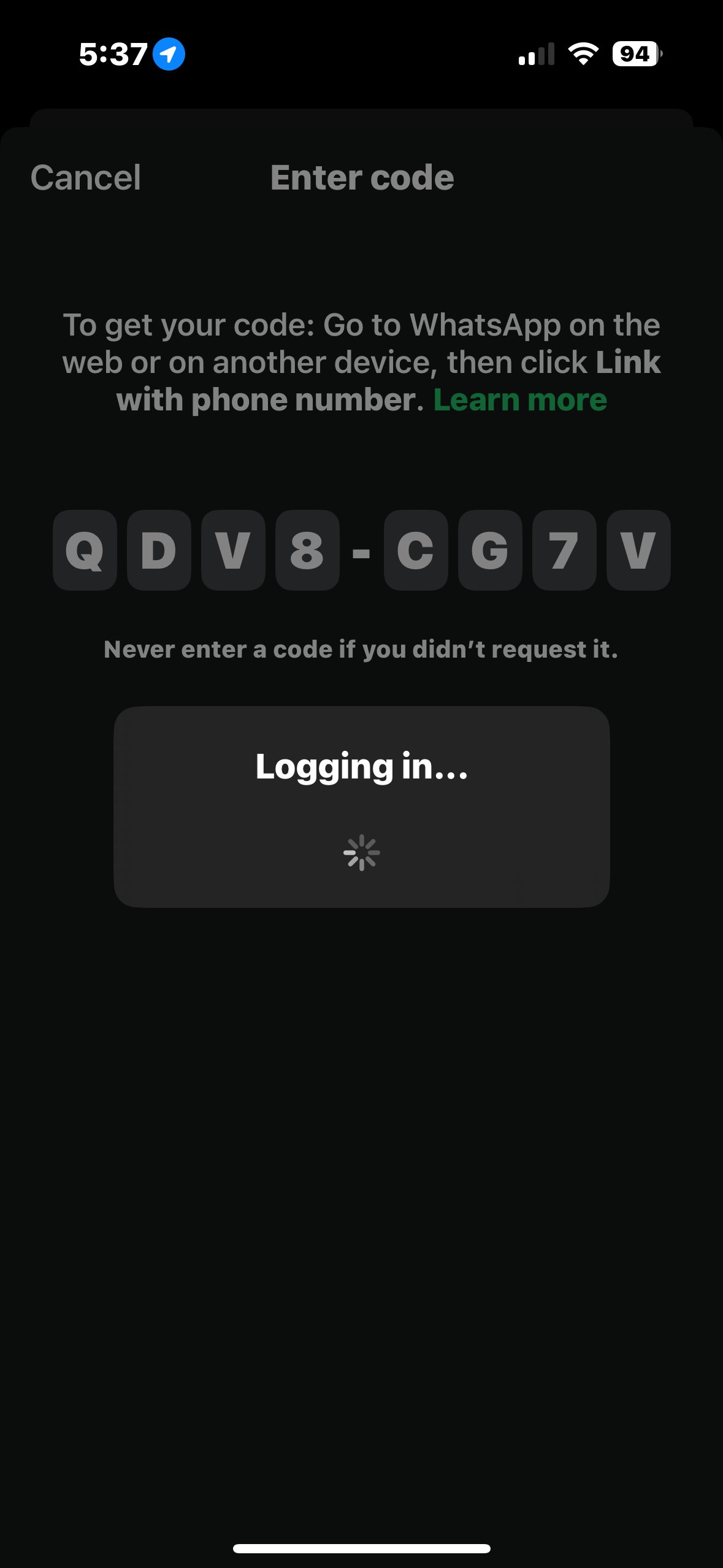
Type (or paste) the 8-character code from the dashboard into WhatsApp. WhatsApp shows **Logging in…** while it links the device.
> **Security:** Never enter a code you didn't request yourself.
### Step 6: Enter the Code[](#step-6-enter-the-code "Direct link to Step 6: Enter the Code")
Type (or paste) the 8-character code from the dashboard into WhatsApp. WhatsApp shows **Logging in…** while it links the device.
> **Security:** Never enter a code you didn't request yourself.
 ### Step 7: Connection Complete[](#step-7-connection-complete "Direct link to Step 7: Connection Complete")
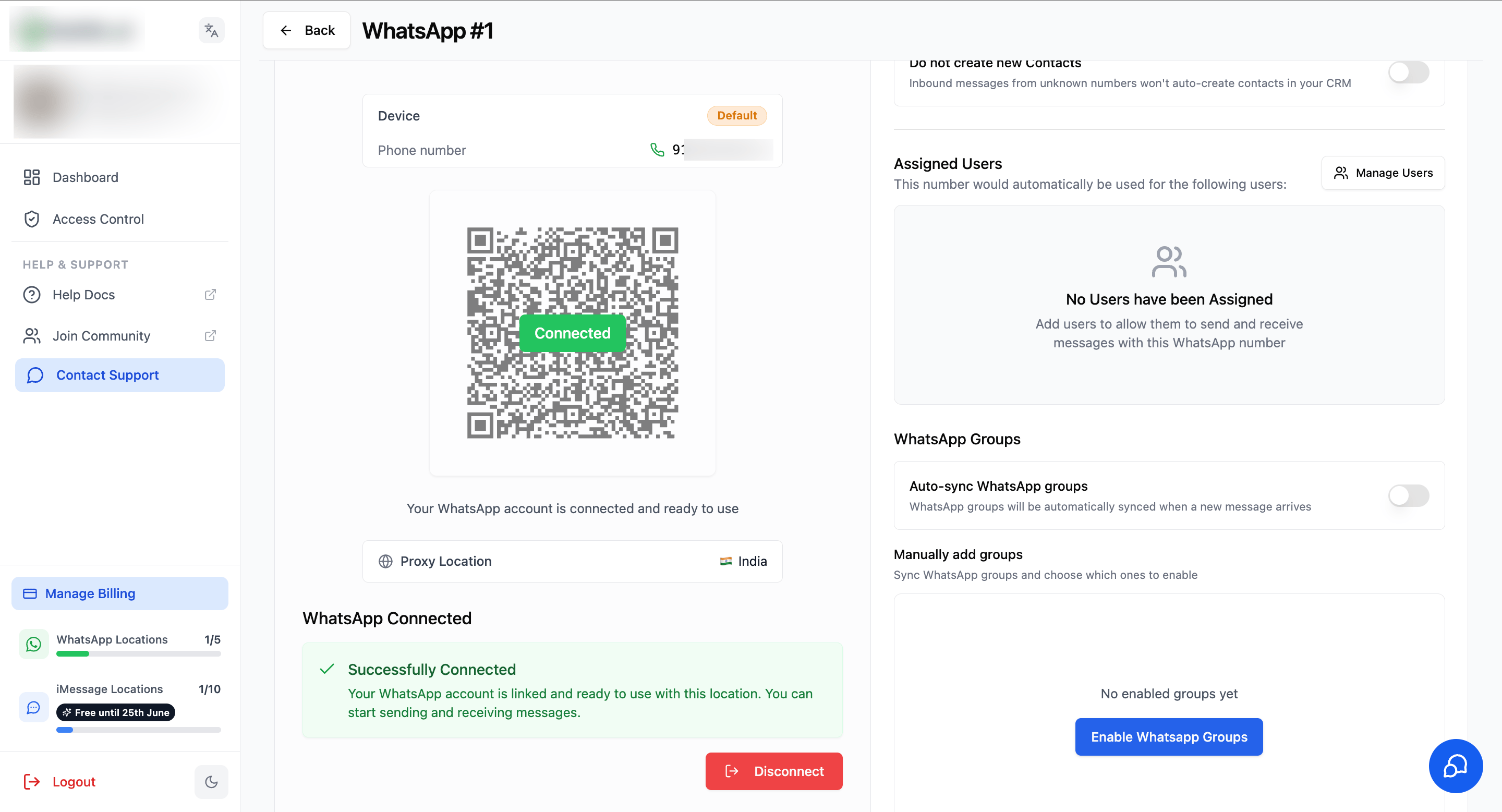
Back in the dashboard, the screen updates to **WhatsApp Connected** with a **Successfully Connected** message. Your WhatsApp account is now linked and ready to send and receive messages from this location.
### Step 7: Connection Complete[](#step-7-connection-complete "Direct link to Step 7: Connection Complete")
Back in the dashboard, the screen updates to **WhatsApp Connected** with a **Successfully Connected** message. Your WhatsApp account is now linked and ready to send and receive messages from this location.
 ***
## Important Notes[](#important-notes "Direct link to Important Notes")
* **Codes are time-limited.** If the code expires before you enter it, generate a new one from the connection screen.
* **One account per instance.** Only one WhatsApp account can be connected per instance.
* **Phone number must match.** Enter the number for the exact WhatsApp account you want to connect.
* **Keep your phone unlocked** during setup so the confirmation prompt can appear.
***
## Troubleshooting[](#troubleshooting "Direct link to Troubleshooting")
### The Code Doesn't Work[](#the-code-doesnt-work "Direct link to The Code Doesn't Work")
* Make sure you typed all 8 characters exactly as shown, including the correct case.
* The code may have expired-request a new one and try again.
### The Phone Number Is Rejected[](#the-phone-number-is-rejected "Direct link to The Phone Number Is Rejected")
* Double-check the country code and number.
* Use the number tied to the WhatsApp account you're connecting.
### No Confirmation Prompt Appears[](#no-confirmation-prompt-appears "Direct link to No Confirmation Prompt Appears")
* Keep your phone unlocked and WhatsApp open during setup.
* Check your internet connection on both devices.
* Restart the process from the connection screen if it stalls.
### Prefer to Scan Instead[](#prefer-to-scan-instead "Direct link to Prefer to Scan Instead")
* Click **Log in with QR code** to switch back to the standard QR scanning method.
***
## FAQs[](#faqs "Direct link to FAQs")
It is an alternative to scanning the QR code. The dashboard shows you an 8-character code, and you type that code into WhatsApp on your phone to link the device.
Use it when you cannot scan the QR code-for example, when the dashboard is open on the same phone that has WhatsApp, or when your camera cannot read the QR code.
The code is time-limited. If it expires before you enter it, generate a new one from the connection screen.
Yes, as long as you requested it yourself. Never enter a code you did not request. WhatsApp also asks you to confirm the device before linking completes.
Enter the number tied to the exact WhatsApp account you want to connect, with the correct country code.
Yes. Click "Log in with QR code" on the connection screen to return to standard QR scanning at any time.
***
## Support[](#support "Direct link to Support")
If you need help with the setup or onboarding:
* Email: [**support@messagesync.ai**](mailto:support@messagesync.ai)
***
## Important Notes[](#important-notes "Direct link to Important Notes")
* **Codes are time-limited.** If the code expires before you enter it, generate a new one from the connection screen.
* **One account per instance.** Only one WhatsApp account can be connected per instance.
* **Phone number must match.** Enter the number for the exact WhatsApp account you want to connect.
* **Keep your phone unlocked** during setup so the confirmation prompt can appear.
***
## Troubleshooting[](#troubleshooting "Direct link to Troubleshooting")
### The Code Doesn't Work[](#the-code-doesnt-work "Direct link to The Code Doesn't Work")
* Make sure you typed all 8 characters exactly as shown, including the correct case.
* The code may have expired-request a new one and try again.
### The Phone Number Is Rejected[](#the-phone-number-is-rejected "Direct link to The Phone Number Is Rejected")
* Double-check the country code and number.
* Use the number tied to the WhatsApp account you're connecting.
### No Confirmation Prompt Appears[](#no-confirmation-prompt-appears "Direct link to No Confirmation Prompt Appears")
* Keep your phone unlocked and WhatsApp open during setup.
* Check your internet connection on both devices.
* Restart the process from the connection screen if it stalls.
### Prefer to Scan Instead[](#prefer-to-scan-instead "Direct link to Prefer to Scan Instead")
* Click **Log in with QR code** to switch back to the standard QR scanning method.
***
## FAQs[](#faqs "Direct link to FAQs")
It is an alternative to scanning the QR code. The dashboard shows you an 8-character code, and you type that code into WhatsApp on your phone to link the device.
Use it when you cannot scan the QR code-for example, when the dashboard is open on the same phone that has WhatsApp, or when your camera cannot read the QR code.
The code is time-limited. If it expires before you enter it, generate a new one from the connection screen.
Yes, as long as you requested it yourself. Never enter a code you did not request. WhatsApp also asks you to confirm the device before linking completes.
Enter the number tied to the exact WhatsApp account you want to connect, with the correct country code.
Yes. Click "Log in with QR code" on the connection screen to return to standard QR scanning at any time.
***
## Support[](#support "Direct link to Support")
If you need help with the setup or onboarding:
* Email: [**support@messagesync.ai**](mailto:support@messagesync.ai)