> ## Documentation Index
> Fetch the complete documentation index at: https://help.messagesync.ai/llms.txt
> Use this file to discover all available pages before exploring further.
# List Button
## WhatsApp List Button Setup Guide[](#whatsapp-list-button-setup-guide "Direct link to WhatsApp List Button Setup Guide")
This guide explains how to create List Messages. Follow the formats carefully, once you get used to it, creating list will take only a few minutes.
## What are WhatsApp List Buttons?[](#what-are-whatsapp-list-buttons "Direct link to What are WhatsApp List Buttons?")
WhatsApp List Buttons (List Messages) present a structured, interactive menu inside the chat, letting customers select from multiple options without typing. They are best used when you have more than a few choices and want them organized into categories.
* Present multiple choices in a single message
* Group options into named sections (e.g., categories or menus)
* Reduce typing and invalid free-text responses
* Render consistently with WhatsApp’s native list UI across devices
## Who should use them?[](#who-should-use-them "Direct link to Who should use them?")
* Agencies: To help clients build interactive flows and improve response rates.
* Businesses: For faster customer support, product catalogs, booking flows, or marketing campaigns.
* Sales teams: To collect structured responses (like “Book Demo” or “Get Pricing”) instantly.
## Key Terms (Quick Definitions)[](#key-terms-quick-definitions "Direct link to Key Terms (Quick Definitions)")
* Command Prefix: The special code (#list) that tells the system what type of message you’re sending.
* Section: A grouping of multiple options (e.g., “Electronics” or “Clothing” in a catalog).
* Option ID: A unique identifier for each button or list item (used to track which option was clicked).
* Media Header: An optional image or video at the top of a Button Message.
## List Messages[](#list-messages "Direct link to List Messages")
### Format[](#format "Direct link to Format")
```text theme={null}
#list|title|description|footer|buttonText|sections
```
### Sections format[](#sections-format "Direct link to Sections format")
```text theme={null}
SectionTitle*ItemTitle*ItemDescription*ItemId/SectionTitle2*ItemTitle2*ItemDescription2*ItemId2
```
### Example[](#example "Direct link to Example")
```text theme={null}
#list|Product Catalog|Choose your product|Powered by MessageSync|View Products|Electronics*iPhone 15*Latest iPhone model*iphone15/Electronics*Samsung Galaxy*Premium Android*galaxy01/Clothing*T-Shirt*Comfortable cotton*tshirt01/Clothing*Jeans*Classic denim*jeans01
```
### Format Breakdown[](#format-breakdown "Direct link to Format Breakdown")
\#list → Command prefix
title → List title (undefined to omit)
description → List description (required)
footer → Footer text (undefined to omit)
buttonText → Label for the button (undefined = default "View Options")
sections → Section entries separated by /
Each section entry = `SectionName*OptionTitle*Description*ID`
Automatic Grouping: Options with the same section name are grouped automatically.
Flexible Order: Add options in any order - grouping happens automatically.
Multiple Options: Each section can have unlimited options.
Make sure to use **`undefined`** for any optional parameter you don't want to include. For example, if you don't want a subtitle, use `undefined` instead of leaving it empty.
#### Mini Example[](#mini-example "Direct link to Mini Example")
`Electronics*iPhone*Latest model*iphone15/Electronics*Galaxy*Premium*galaxy01`
Creates one “Electronics” section with 2 options.
***
## Button Builder (No-Code)[](#button-builder-no-code "Direct link to Button Builder (No-Code)")
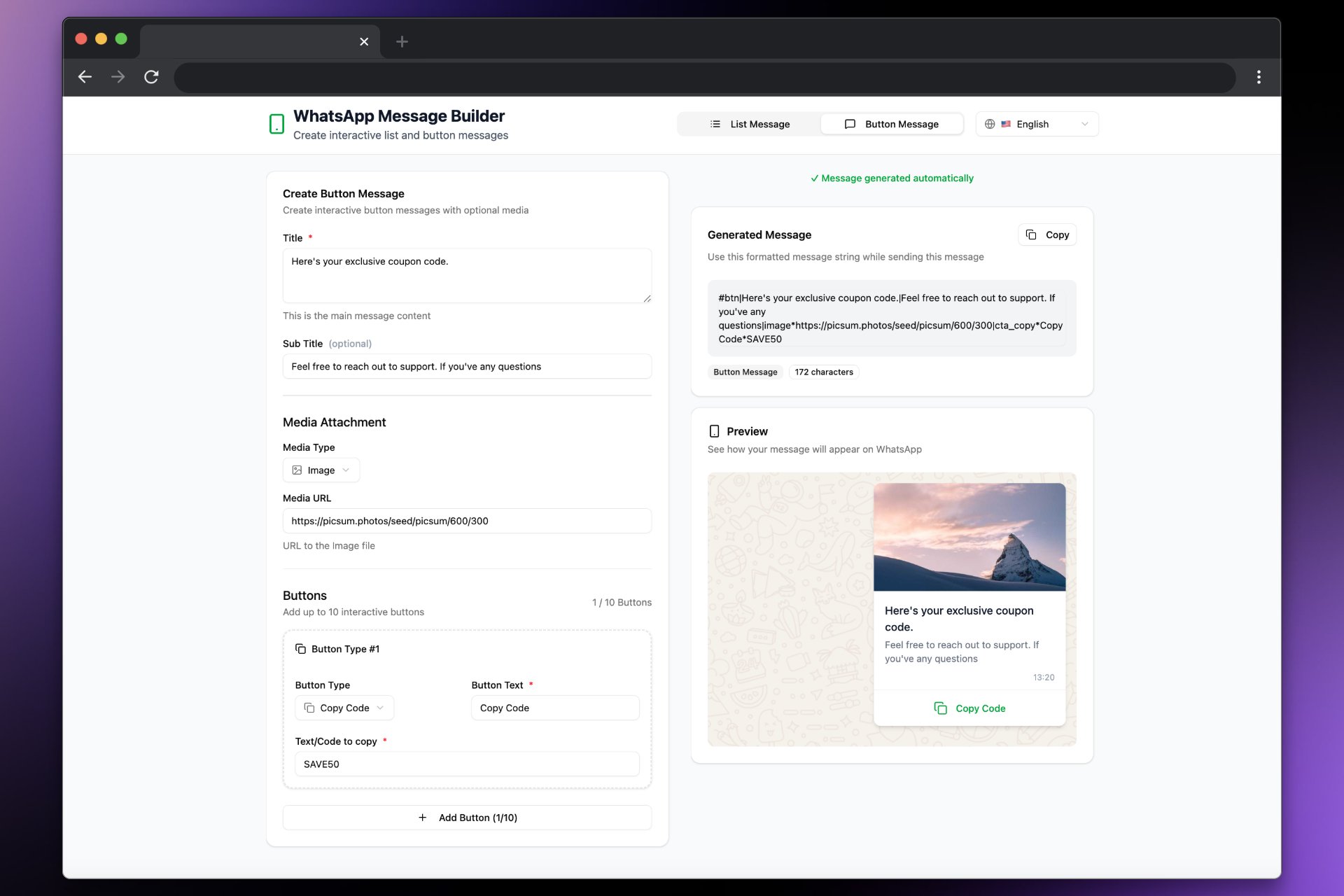
You can also build List Messages visually without hand-writing the string. The builder groups items by section name automatically and ensures the format is valid.
* Open the builder: [builder.messagesync.ai](https://builder.messagesync.ai/)
* Add sections and options (title, description, ID)
* Copy the generated `#list|...` payload and paste it into message input
 ### Enable Button Builder for All Sub-Accounts (Whitelabel)[](#enable-button-builder-for-all-sub-accounts-whitelabel "Direct link to Enable Button Builder for All Sub-Accounts (Whitelabel)")
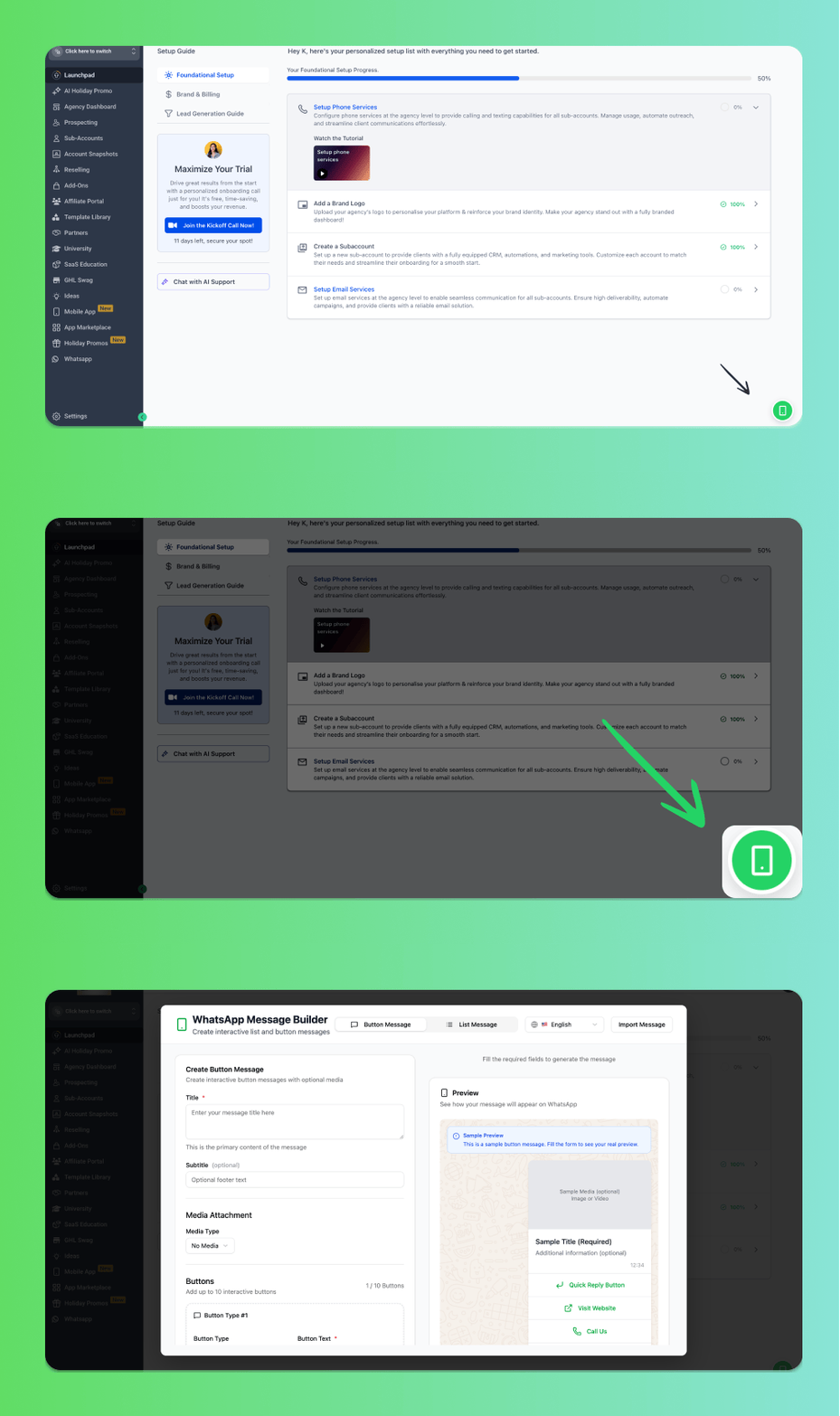
Want to enable the Button Builder as a global icon for all your sub-accounts? Follow these steps:
From the **Agency View**, go to **Settings**
Navigate to **Company** → **Whitelabel**
Scroll down to the **Custom JS** section
Add the following script:
```text theme={null}
```
Click **Save** and refresh the page
Once enabled, the Button Builder icon will appear globally across all your sub-accounts!
### Enable Button Builder for All Sub-Accounts (Whitelabel)[](#enable-button-builder-for-all-sub-accounts-whitelabel "Direct link to Enable Button Builder for All Sub-Accounts (Whitelabel)")
Want to enable the Button Builder as a global icon for all your sub-accounts? Follow these steps:
From the **Agency View**, go to **Settings**
Navigate to **Company** → **Whitelabel**
Scroll down to the **Custom JS** section
Add the following script:
```text theme={null}
```
Click **Save** and refresh the page
Once enabled, the Button Builder icon will appear globally across all your sub-accounts!
 ***
## Support[](#support "Direct link to Support")
If you need help with the setup or onboarding:
* Email: [**support@messagesync.ai**](mailto:support@messagesync.ai)
***
## Support[](#support "Direct link to Support")
If you need help with the setup or onboarding:
* Email: [**support@messagesync.ai**](mailto:support@messagesync.ai)