> ## Documentation Index
> Fetch the complete documentation index at: https://help.messagesync.ai/llms.txt
> Use this file to discover all available pages before exploring further.
# WhatsApp Buttons
## WhatsApp Buttons Setup Guide[](#whatsapp-buttons-setup-guide "Direct link to WhatsApp Buttons Setup Guide")
This guide explains how to create Button Messages. Follow the formats carefully, once you get used to it, creating buttons will take only a few minutes.
## What are WhatsApp Buttons?[](#what-are-whatsapp-buttons "Direct link to What are WhatsApp Buttons?")
WhatsApp Buttons are interactive elements that allow your clients to take quick actions without typing. Instead of writing a reply, they can simply tap a button to:
* Select an option from a menu
* Open a website
* Call a number
* Copy a coupon code
## Who should use them?[](#who-should-use-them "Direct link to Who should use them?")
* Agencies: To help clients build interactive flows and improve response rates.
* Businesses: For faster customer support, product catalogs, booking flows, or marketing campaigns.
* Sales teams: To collect structured responses (like “Book Demo” or “Get Pricing”) instantly.
## What button types are available?[](#what-button-types-are-available "Direct link to What button types are available?")
* Quick Reply → Customers tap and reply instantly with a preset answer.
* CTA URL → Opens a webpage directly.
* CTA Call → Calls a phone number in one tap.
* CTA Copy → Copies text or a coupon code.
## Key Terms (Quick Definitions)[](#key-terms-quick-definitions "Direct link to Key Terms (Quick Definitions)")
* Command Prefix: The special code (#btn) that tells the system what type of message you’re sending.
* Section: A grouping of multiple options (e.g., “Electronics” or “Clothing” in a catalog).
* Option ID: A unique identifier for each button (used to track which option was clicked).
* Media Header: An optional image or video at the top of a Button Message.
## Button Messages[](#button-messages "Direct link to Button Messages")
### Format[](#format "Direct link to Format")
```text theme={null}
#btn|title|subTitle|mediaType*mediaUrl|buttonType*buttonText*buttonId
```
### Example[](#example "Direct link to Example")
```text theme={null}
#btn|Welcome!|Choose an action|image*https://filesamples.com/samples/image/jpeg/sample_640%C3%97426.jpeg|quick_reply*Get Started*start_btn|cta_url*Visit Website*https://example.com|cta_call*Call Me*+919999999999|cta_copy*Copy Coupon*blackfriday50
```
### Format Breakdown[](#format-breakdown "Direct link to Format Breakdown")
\#btn → Command prefix
title → Main body text of the message
subTitle → Optional text below the title (undefined to omit)
mediaType\*mediaUrl → Optional header (e.g., image\*URL, video\*URL, or undefined)
buttonType\*buttonText\*buttonId → Button definitions (multiple allowed)
Make sure to use **`undefined`** for any optional parameter you don't want to include. For example, if you don't want a subtitle, use `undefined` instead of leaving it empty.
### Button Types[](#button-types "Direct link to Button Types")
quick\_reply → Simple reply option
Example: `quick_reply*Get Started*start_btn`
cta\_url → Opens a URL
Example: `cta_url*Visit Website*https://example.com`
cta\_call → Calls a phone number (intl. format)
Example: `cta_call*Call Me*+919999999999`
cta\_copy → Copies a code or value
Example: `cta_copy*Copy Coupon*blackfriday50`
## Tips[](#tips "Direct link to Tips")
* Always test your button before sending to customers.
* Keep button text short (≤ 20–25 characters).
* Use Button Messages for direct actions (call, link, coupon).
* Provide a fallback text (e.g., “Reply 1, 2, or 3 if buttons don’t show”) for users on older devices.
With these formats, you can build interactive WhatsApp menus and buttons directly in the system, making your customer interactions faster, easier, and more engaging.
***
## Button Builder (No-Code)[](#button-builder-no-code "Direct link to Button Builder (No-Code)")
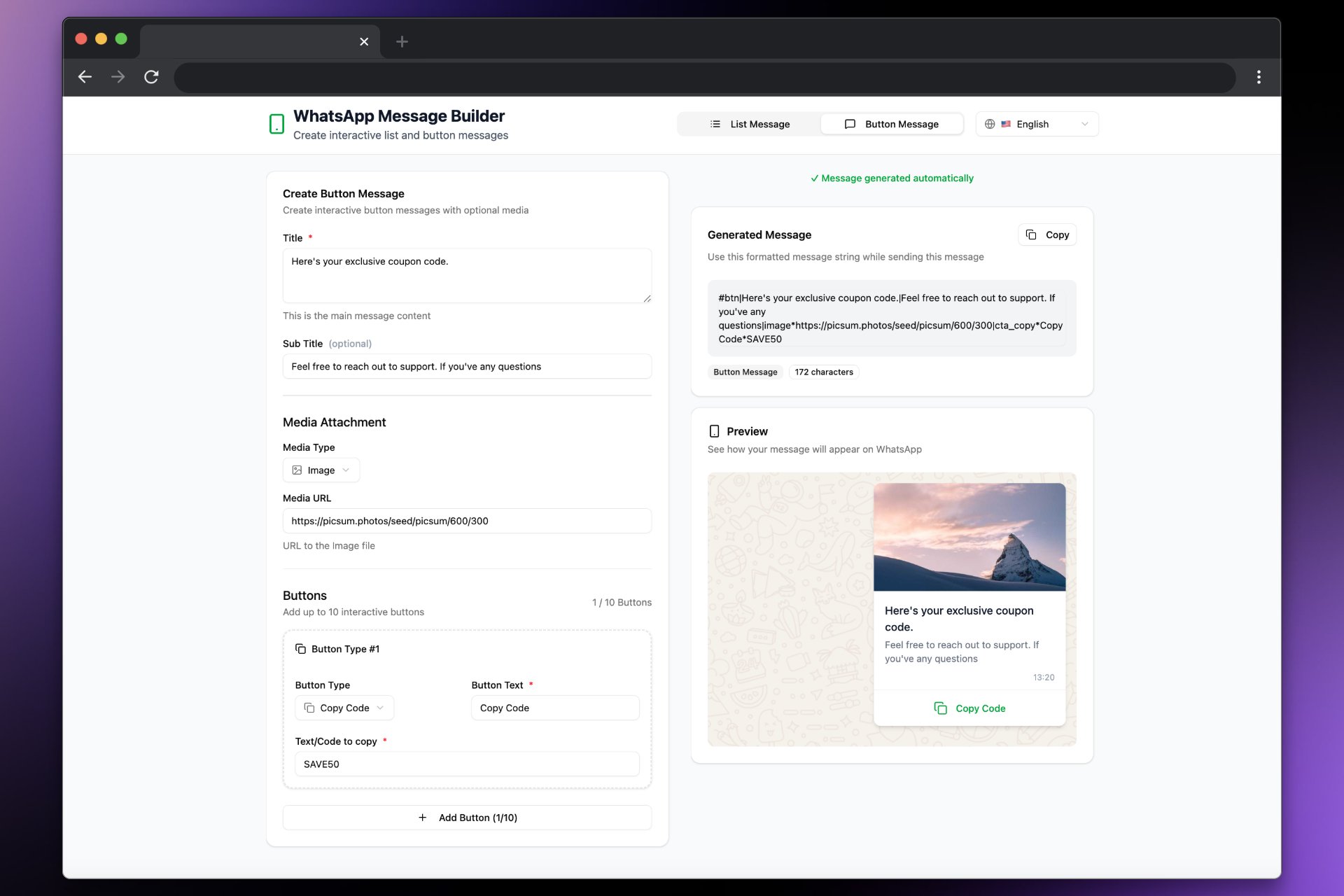
Prefer a faster way? Use our visual Button Builder to generate valid button payloads without memorizing formats. It validates structure, escapes special characters, and lets you preview before sending.
* Open the builder: [builder.messagesync.ai](https://builder.messagesync.ai/)
* Create Quick Reply, CTA URL, CTA Call, or CTA Copy buttons
* Copy the generated string and paste it into your workflow or conversation
 ### Enable Button Builder for All Sub-Accounts (Whitelabel)[](#enable-button-builder-for-all-sub-accounts-whitelabel "Direct link to Enable Button Builder for All Sub-Accounts (Whitelabel)")
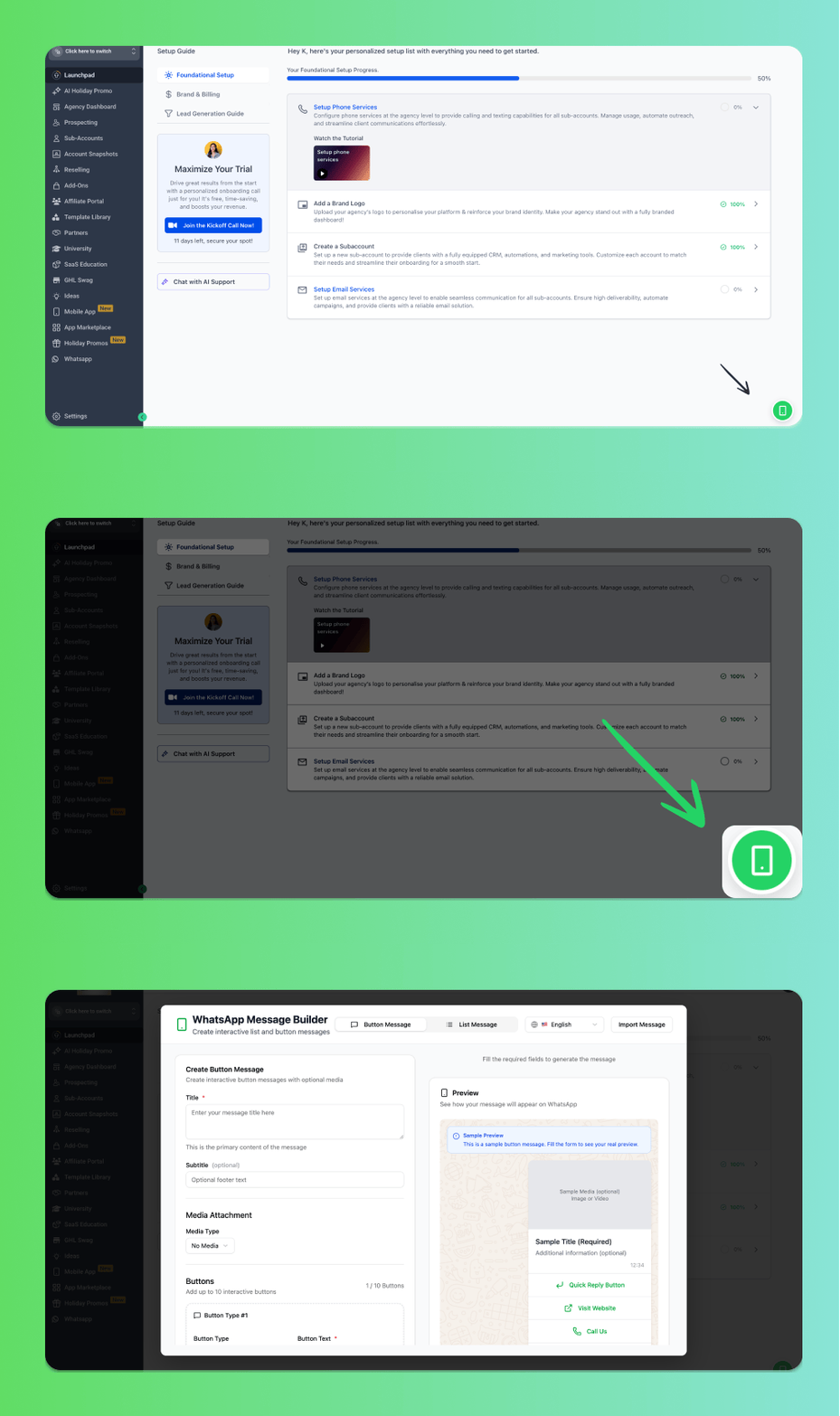
Want to enable the Button Builder as a global icon for all your sub-accounts? Follow these steps:
From the **Agency View**, go to **Settings**
Navigate to **Company** → **Whitelabel**
Scroll down to the **Custom JS** section
Add the following script:
```text theme={null}
```
Click **Save** and refresh the page
Once enabled, the Button Builder icon will appear globally across all your sub-accounts!
### Enable Button Builder for All Sub-Accounts (Whitelabel)[](#enable-button-builder-for-all-sub-accounts-whitelabel "Direct link to Enable Button Builder for All Sub-Accounts (Whitelabel)")
Want to enable the Button Builder as a global icon for all your sub-accounts? Follow these steps:
From the **Agency View**, go to **Settings**
Navigate to **Company** → **Whitelabel**
Scroll down to the **Custom JS** section
Add the following script:
```text theme={null}
```
Click **Save** and refresh the page
Once enabled, the Button Builder icon will appear globally across all your sub-accounts!
 ***
## Support[](#support "Direct link to Support")
If you need help with the setup or onboarding:
* Email: [**support@messagesync.ai**](mailto:support@messagesync.ai)
***
## Support[](#support "Direct link to Support")
If you need help with the setup or onboarding:
* Email: [**support@messagesync.ai**](mailto:support@messagesync.ai)