

iPhone Requirements
The Minimum iOS
iOS Version: Your iPhone needs to be running at least iOS 12.0.We highly recommend using iOS 14.0 or newer. It gives you the best performance, the latest security updates, and ensures everything runs smoothly.
Which iPhones Work Best?
Here is a quick breakdown of how different iPhone models handle the iMessage integration:Fully Supported & Recommended
These are your best bets for a flawless experience.Older Devices (Limited Support)
These will work, but the hardware is getting a bit old, so they might be slower.Not Recommended
Please avoid using these devices for your setup.A Few Extra iPhone Details
Text Message Forwarding: Make sure your iPhone supports SMS Text Message Forwarding to your Mac. Some really old models struggle with this. Your Cellular Plan: You’ll need an active cell plan that can send and receive SMS texts, plus a solid data connection so iMessage can do its thing.Mac Requirements
The Minimum macOS
macOS Version: Your Mac needs to be running macOS Monterey (12.4) or newer.For the absolute best performance and security, we recommend using macOS Ventura (13.0) or newer.
Which Macs Work Best?
Our iMessage Sync app runs beautifully on any Mac made in Late 2014 or later.Fully Supported Macs
How to Check Your Mac’s Age
Not sure how old your Mac is? It’s easy to check:1
Click the Apple logo () in the top left corner of your screen.
2
Click About This Mac.
3
Look at the Year, Model, and macOS version.
4
If you aren’t on Monterey 12.4 yet, just run a quick software update!
If your Mac is older than Late 2014, it sadly won’t be able to run macOS Monterey, which means it won’t work with the system.
Our Favorite Hardware Setup
The Winner: A Mac Mini
If you are setting up a dedicated machine, we strongly recommend buying a Mac mini. Here is why: It’s Affordable You can find them second-hand for a great price, and they use way less electricity than bigger Macs. It Fits Anywhere It’s a tiny little box. You can tuck it away in a closet or on a shelf and forget about it. Built to Run 24/7 Unlike laptops, the Mac mini is designed to stay on all the time without overheating. No Screen Required You don’t even need a monitor, keyboard, or mouse! You can just access it remotely using Screen Sharing.Mac Mini Cheat Sheet
Other Mac Options
MacBooks (Laptops): Great for testing things out. However, keeping a laptop plugged in 24/7 isn’t great for its battery, and it’s generally more expensive than a Mac mini. iMacs (Desktops with Screens): Great if you are also using it as your everyday work computer. But if it’s just sitting in a corner running the system, the big screen wastes a lot of electricity. Mac Studio / Mac Pro: These are incredibly powerful machines! But honestly, they are completely overkill unless you are trying to run 4 or more iPhones at the exact same time.The Best Way: Rent a Cloud Mac
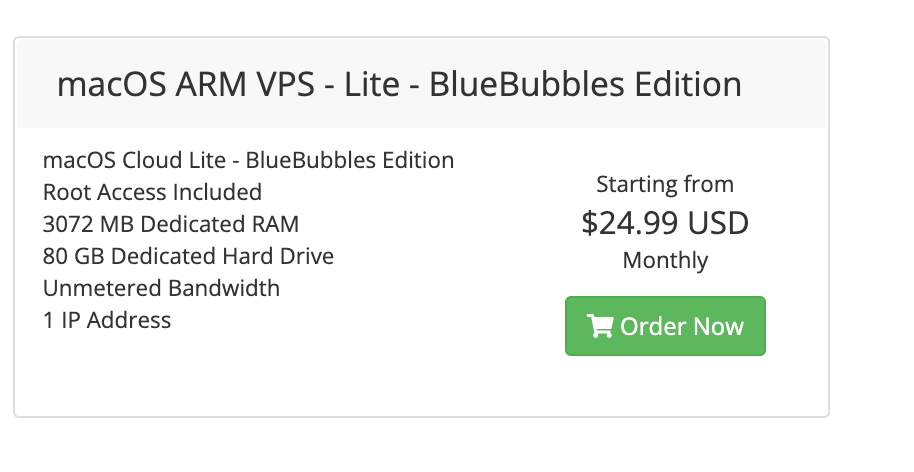
We strongly suggest renting a Mac in the cloud instead of using your personal laptop. A Cloud Mac is on 24/7, never goes to sleep, and means you don’t have to leave a laptop running in your closet just to keep your messages syncing. Why we recommend this:- Never Miss a Beat: 100% uptime means your messages always send instantly.
- Zero Headaches: You never have to worry about dead batteries, sleep mode, or a dropped wifi signal.
- Easy Upgrades: Need more power? You can upgrade your cloud Mac with one click.
How Much Power Do I Need ?
RAM (Memory)
If you want to connect multiple iPhones to the same Mac, you’ll need more RAM. Every iPhone needs its own user profile on the Mac, and running them all at once eats up memory quickly.
Storage Space
- Minimum: 128 GB SSD
- Recommended: 256 GB SSD or more. (Messages with photos and videos take up space over time!)
Internet Connection
- Wired Ethernet: We highly recommend plugging your Mac directly into your router for the best stability.
- WiFi: It works, but it can occasionally drop out.
- Speed: Try to have at least 25 Mbps download / 10 Mbps upload for a smooth experience.
Running Multiple iPhones on One Mac (Advanced)
If you’re an agency running multiple clients, you can connect several iPhones to a single Mac! You do this by creating a separate macOS user profile for each phone.Setting Up the Profiles
For every iPhone you want to connect:1
Open System Settings → Users & Groups.
2
Click Add User.
3
Create a Standard user account.
4
Name it something obvious (like “iPhone-Client-A”).
Getting the App Running
1
Log into your first user profile.
2
Install the iMessage Sync app and connect the first iPhone.
3
Leave the app running.
4
Switch user to the next profile. (Do not log out!)
5
Repeat for the next iPhone.
The Golden Rules for Multiple Phones
We strongly advise keeping it to a maximum of 4 iPhones per Mac. If you run too many, Apple might get suspicious and flag the accounts. Also, remember that every single account needs to stay under Apple’s 50 new contacts a day limit.
- Make sure your Mac has at least 16GB of RAM.
- Keep all profiles logged in at the same time.
- Don’t push past 4 iPhones on one Mac.
- Don’t use a really old, slow Mac for this.
- Don’t log out of the profiles!
Keeping Your Mac Awake 24/7
Your Mac needs to stay awake so your messages can sync. See the Mac sleep settings guide in the Full Setup docs for step-by-step instructions.Your Final Checklist
Before you start connecting everything, make sure you can check all these boxes: The iPhone:- It’s an iPhone 6s or newer.
- It’s running iOS 12.0 or newer.
- iMessage is turned on in the Settings app.
- It’s plugged into power and connected to WiFi.
- It’s from Late 2014 or newer.
- It’s running macOS Monterey (12.4) or newer.
- You’re signed into the exact same Apple ID as the iPhone.
- The Mac’s power settings are set to never sleep.
- You’ve downloaded the iMessage Sync app to your Mac.
- You have your Activation Code ready from the dashboard.
Support
If you need help with the setup or onboarding:- Email: support@messagesync.ai