

Conversation providers are refreshed when the marketplace app is updated on a sub-account. Clicking Update pulls in the latest provider list, which is what makes iMessage show up alongside your other channels.
1
Click the Update Button
Open the marketplace app’s page in your CRM and click Update in the top right.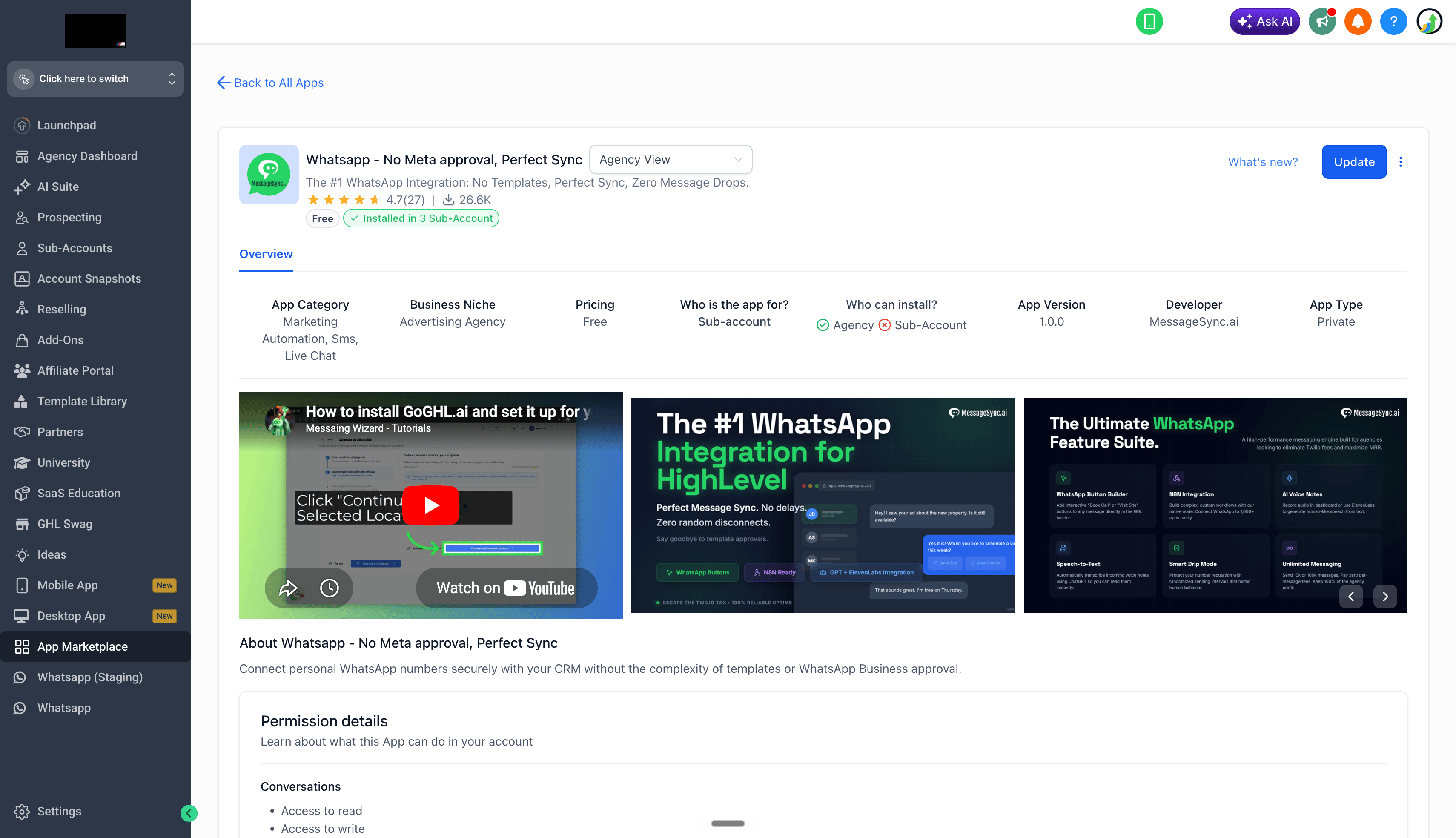
2
Confirm iMessage Is Now a Conversation Provider
Scroll down the app details page to the Conversation Provider section - you should now see iMessage listed alongside your existing providers.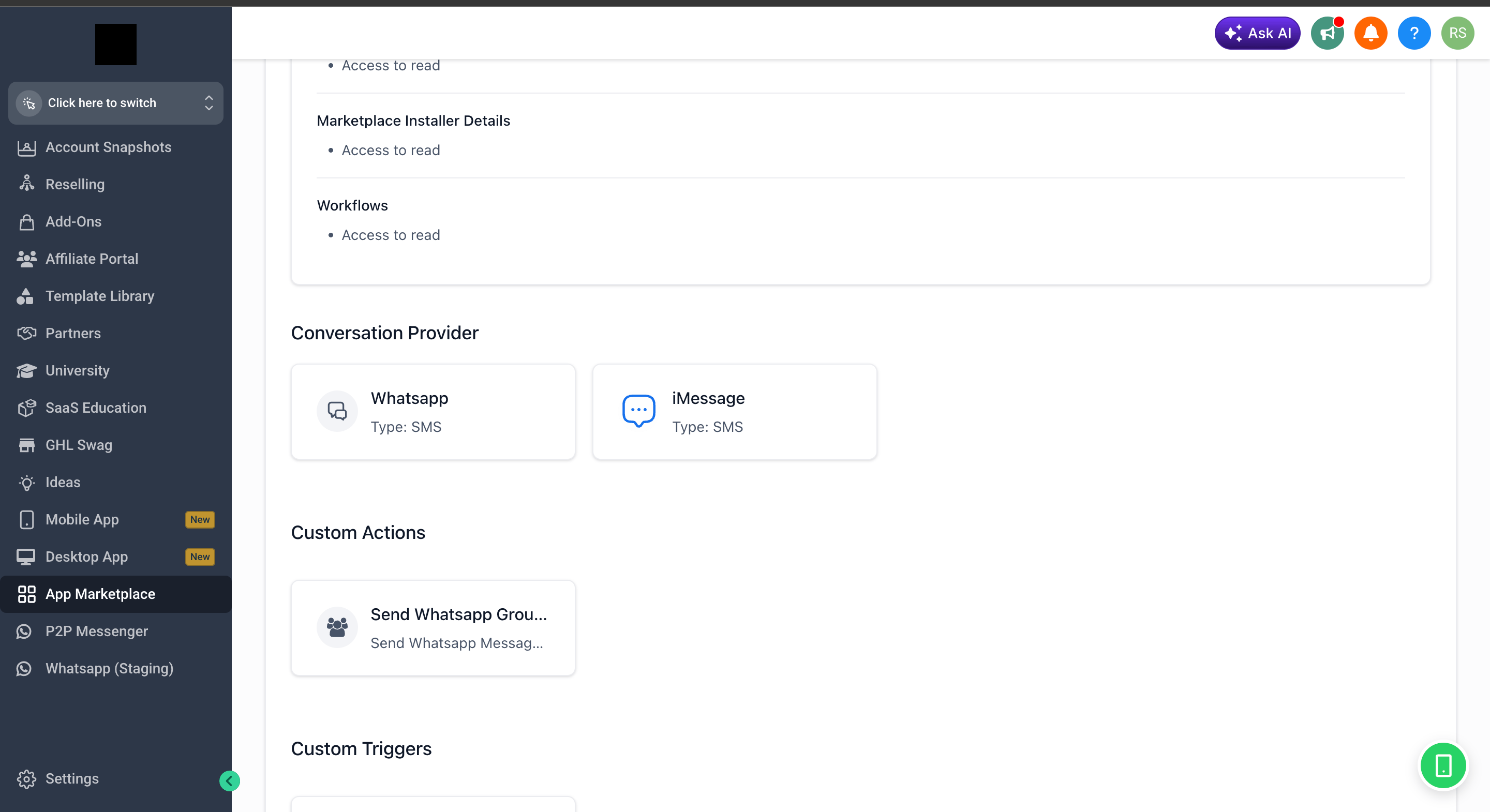
3
Use iMessage in Conversations
Head into Conversations in your sub-account - iMessage is now selectable as a channel from the message composer dropdown.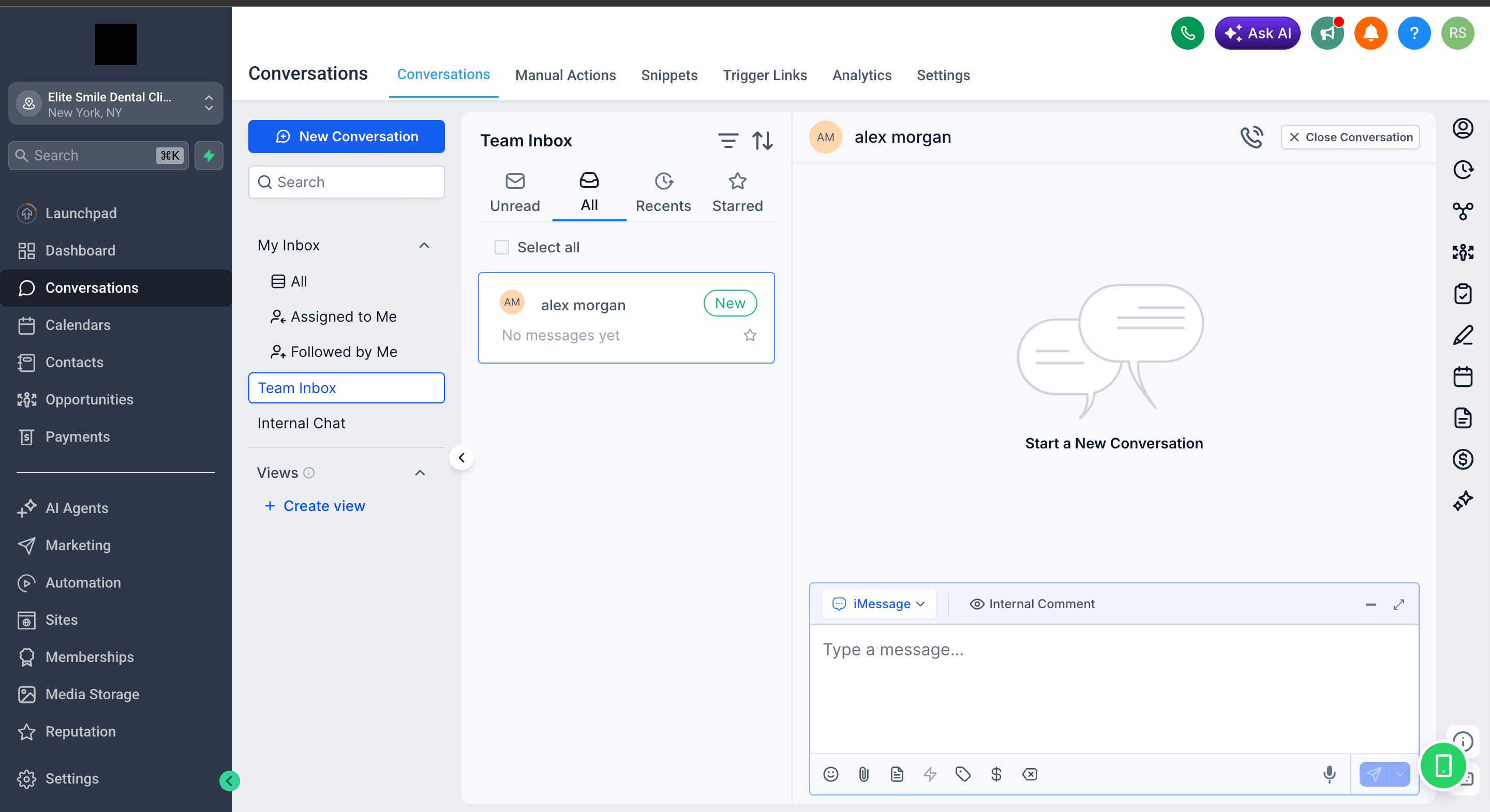
Your sub-account now has iMessage as a native conversation channel. If you haven’t yet set up the Mac sync app, head back to the iMessage Full Setup guide to finish the rest of the flow.
Support
If you need help with the setup or onboarding:- Email: support@messagesync.ai