

Key Benefits
Instant Response - React the moment a customer’s message lands Smart Routing - Direct conversations to the right rep or team Never Miss a Lead - Automate follow-up so no inbound message goes cold Filtered Automation - Trigger only on messages that match your criteria Zero Manual Monitoring - No need to watch the inbox around the clockWho Should Use It
Sales teams - Auto-respond and assign new conversations instantly Support teams - Acknowledge inbound messages and create tickets automatically Agencies - Standardize inbound message handling across client sub-accounts High-volume operations - Keep response times fast even at scaleRequirements
Before using this trigger, update your Whatsapp provider app to the latest version:1
Go to App Marketplace → Installed Apps
2
Find Whatsapp provider
3
Click Update if available
How to Set Up
Step 1: Create a New Workflow
1
Go to Automation → Workflows
2
Click Create Workflow or + Add
3
Select Start from Scratch
Step 2: Add the Trigger
1
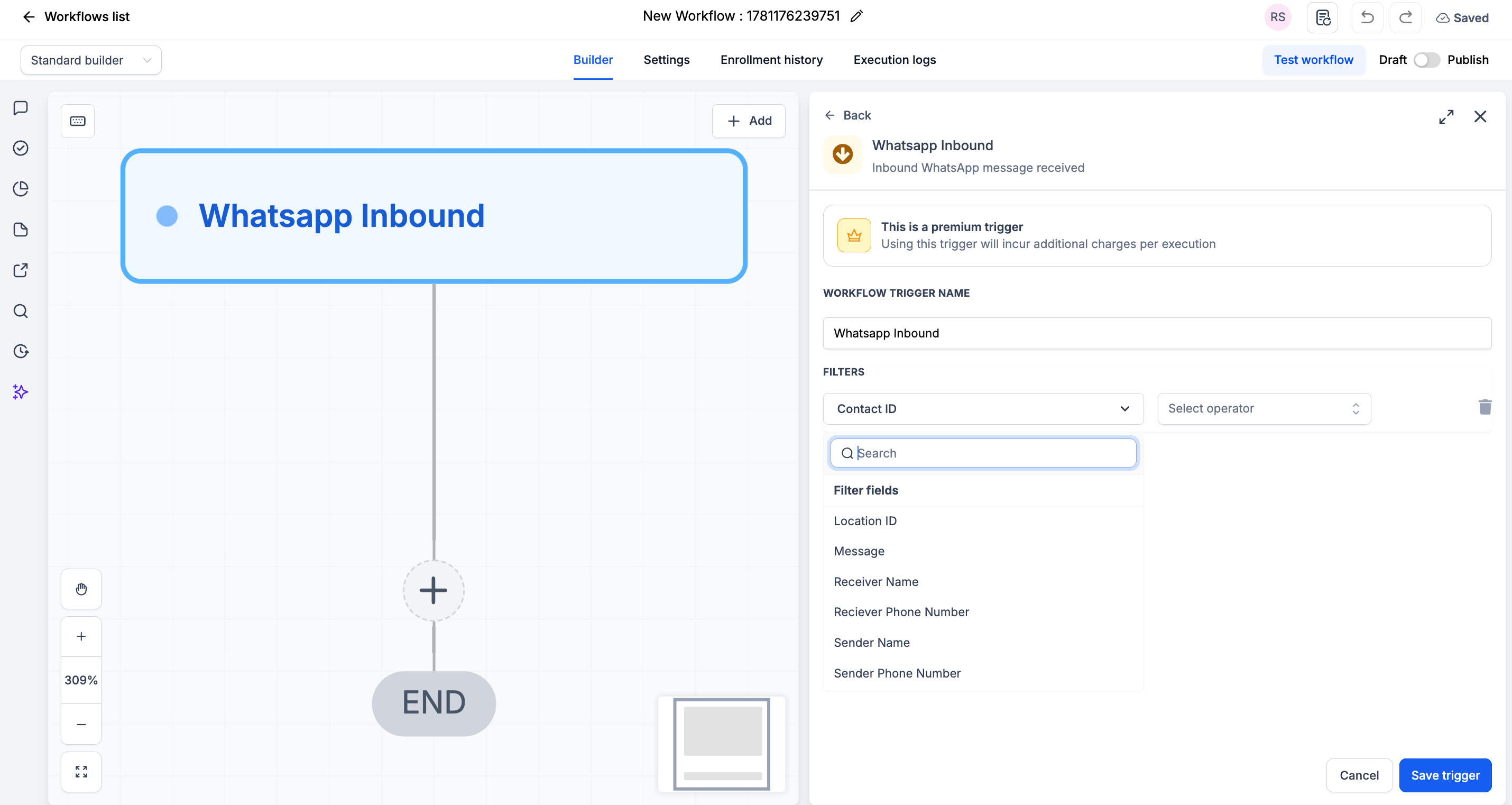
Click Add New Trigger
2
Switch to the Apps tab (not the default triggers)
3
Find and click the Whatsapp provider app icon
4
Select WhatsApp Inbound from the dropdown
5
(Optional) Add Filters to narrow when the trigger fires
6
Click Save trigger
Step 3: Find or Create the Contact
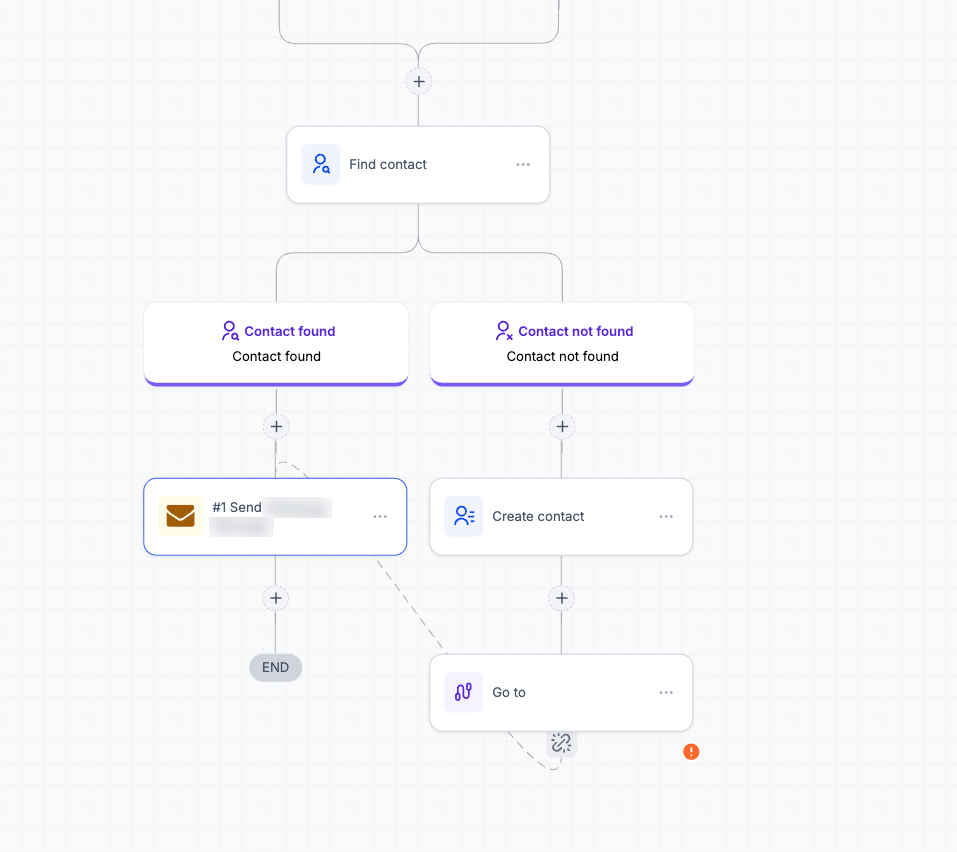
Inbound messages often come from numbers that are not in your CRM yet. Every action that follows - sending a reply, assigning an owner, adding a tag - needs a contact record to act on. Add the Find Contact action right after the trigger to look up the sender. If the contact is not found, add Create Contact so the contact exists before the rest of the workflow runs. Find Contact and Create Contact are CRM built-in actions. They are already available in every workflow, so there is nothing extra to install.Find the contact
1
Click + Add below the trigger
2
Search for and select Find Contact
3
Under Fields, select Contact ID from the dropdown
4
Click the tag icon in the value box and insert WhatsApp provider → Whatsapp Inbound → Contact ID
5
Click Save action
Create the contact if not found
Under the Contact not found branch, add the Create Contact action:1
Click + Add below Contact not found
2
Search for and select Create Contact
3
Under Fields, select Phone from the dropdown
4
Click the tag icon in the value box and insert WhatsApp provider → Whatsapp Inbound → Sender Phone Number
5
Click Add field and select Email from the dropdown
6
Click the tag icon in the value box and insert WhatsApp provider → Whatsapp Inbound → Whatsapp Id (Email)
7
Click Save action
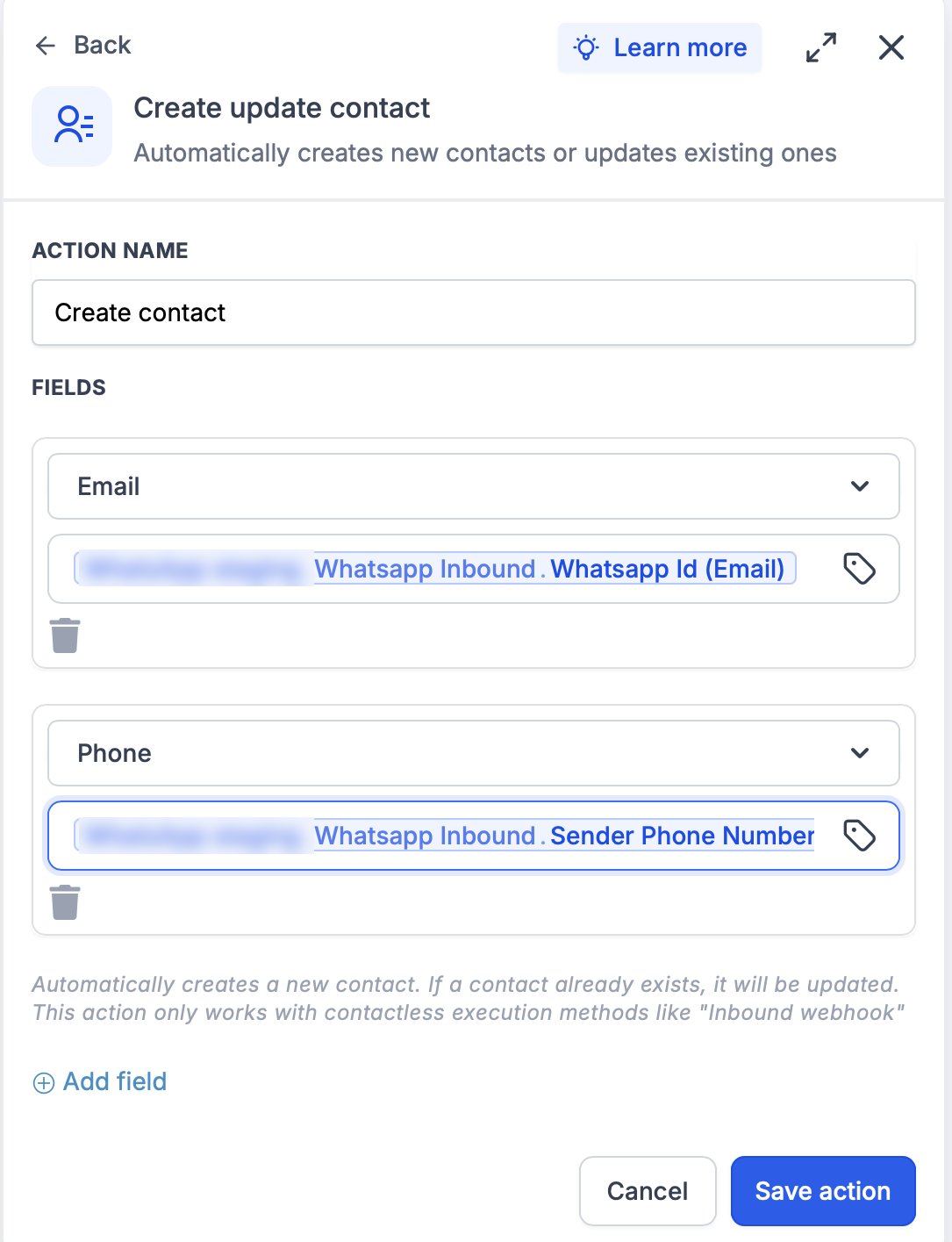
Map the Email field as well as Phone. WhatsApp now lets people message you from a username instead of a phone number, and those senders arrive with no phone number at all. Their WhatsApp identifier comes through as Whatsapp Id (Email) and is saved on the contact’s email field, so mapping it is what keeps username-based senders from creating blank or duplicate contacts.
Rejoin the branches
So that new contacts run the same actions as existing ones, send the Contact not found branch back to the Contact found branch:1
Click + Add below Create Contact
2
Search for and select Go To
3
Select the first action under the Contact found branch as the target (add that action first if you have not yet - see Step 4)
4
Click Save action
Existing contacts go straight down the Contact found branch. New contacts are created first, then jump to the same actions - no duplicate record is made either way.
Step 4: Add Your Actions
With the contact in place, add the actions you want to execute when an inbound WhatsApp message is received:- Send WhatsApp Message → Reply to the contact on the same channel
- Send Email → Notify the assigned rep
- Send Internal Notification → Alert your team inside the CRM
- Create Task → Queue a follow-up
- Add to Workflow / Pipeline → Move the contact through your funnel
Step 5: Save and Publish
1
Review your workflow
2
Click Save
3
Toggle workflow from Draft to Published
Available Filters
Use filters to control exactly which inbound WhatsApp messages start the workflow. Each filter can be paired with an operator (equals, contains, etc.).Example Use Cases
Use Case 1: Instant Auto-Reply
Acknowledge every inbound message immediately. Trigger: WhatsApp Inbound Action: Send a reply confirming you received the message and will respond shortly.Use Case 2: Route by Keyword
Send leads to the right team based on what they say. Trigger: WhatsApp Inbound Filter: Message contains “pricing” Action: Notify the sales team and create a high-priority follow-up task.Important Notes
Technical Details
- The trigger fires once per inbound message
- Filters are optional - leave them blank to fire on every inbound WhatsApp message
- Executes immediately when the message is received
Best Practices
- Add Find Contact as the first action, with Create Contact on the Contact not found branch, so later steps always have a contact to work with
- Use the Message filter to build keyword-based routing flows
- Use the Location ID filter when managing multiple sub-accounts
- Test your workflow by sending a message to your connected number
FAQs
Do I have to add filters?
Do I have to add filters?
No. Filters are optional. Without them, the trigger fires on every inbound WhatsApp message.
Can I trigger different workflows for different messages?
Can I trigger different workflows for different messages?
Yes. Use the Message or Sender filters to build separate workflows for different conditions.
What happens if the contact already exists?
What happens if the contact already exists?
Find Contact locates it and the workflow continues down the Contact found branch. Create Contact only runs on the Contact not found branch, so no duplicate contact is made.
Do I need to add Find Contact and Create Contact to every workflow?
Do I need to add Find Contact and Create Contact to every workflow?
Add them whenever the workflow can receive a message from a number that is not in your CRM yet, especially if Do not create new Contacts is enabled on the instance. If every sender is already a saved contact, Find Contact on its own is enough.
Support
If you need help with the setup or onboarding:- Email: support@messagesync.ai