

WhatsApp Buttons Setup Guide
This guide explains how to create Button Messages. Follow the formats carefully, once you get used to it, creating buttons will take only a few minutes.What are WhatsApp Buttons?
WhatsApp Buttons are interactive elements that allow your clients to take quick actions without typing. Instead of writing a reply, they can simply tap a button to:- Select an option from a menu
- Open a website
- Call a number
- Copy a coupon code
Who should use them?
- Agencies: To help clients build interactive flows and improve response rates.
- Businesses: For faster customer support, product catalogs, booking flows, or marketing campaigns.
- Sales teams: To collect structured responses (like “Book Demo” or “Get Pricing”) instantly.
What button types are available?
- Quick Reply → Customers tap and reply instantly with a preset answer.
- CTA URL → Opens a webpage directly.
- CTA Call → Calls a phone number in one tap.
- CTA Copy → Copies text or a coupon code.
Key Terms (Quick Definitions)”)
- Command Prefix: The special code (#btn) that tells the system what type of message you’re sending.
- Section: A grouping of multiple options (e.g., “Electronics” or “Clothing” in a catalog).
- Option ID: A unique identifier for each button (used to track which option was clicked).
- Media Header: An optional image or video at the top of a Button Message.
Button Messages
Format
Example
Format Breakdown
#btn → Command prefix title → Main body text of the message subTitle → Optional text below the title (undefined to omit) mediaType*mediaUrl → Optional header (e.g., image*URL, video*URL, or undefined) buttonType*buttonText*buttonId → Button definitions (multiple allowed)Button Types
quick_reply → Simple reply option Example:quick_reply*Get Started*start_btn
cta_url → Opens a URL
Example: cta_url*Visit Website*https://example.com
cta_call → Calls a phone number (intl. format)
Example: cta_call*Call Me*+919999999999
cta_copy → Copies a code or value
Example: cta_copy*Copy Coupon*blackfriday50
Tips
- Always test your button before sending to customers.
- Keep button text short (≤ 20–25 characters).
- Use Button Messages for direct actions (call, link, coupon).
- Provide a fallback text (e.g., “Reply 1, 2, or 3 if buttons don’t show”) for users on older devices.
Button Builder (No-Code)”)
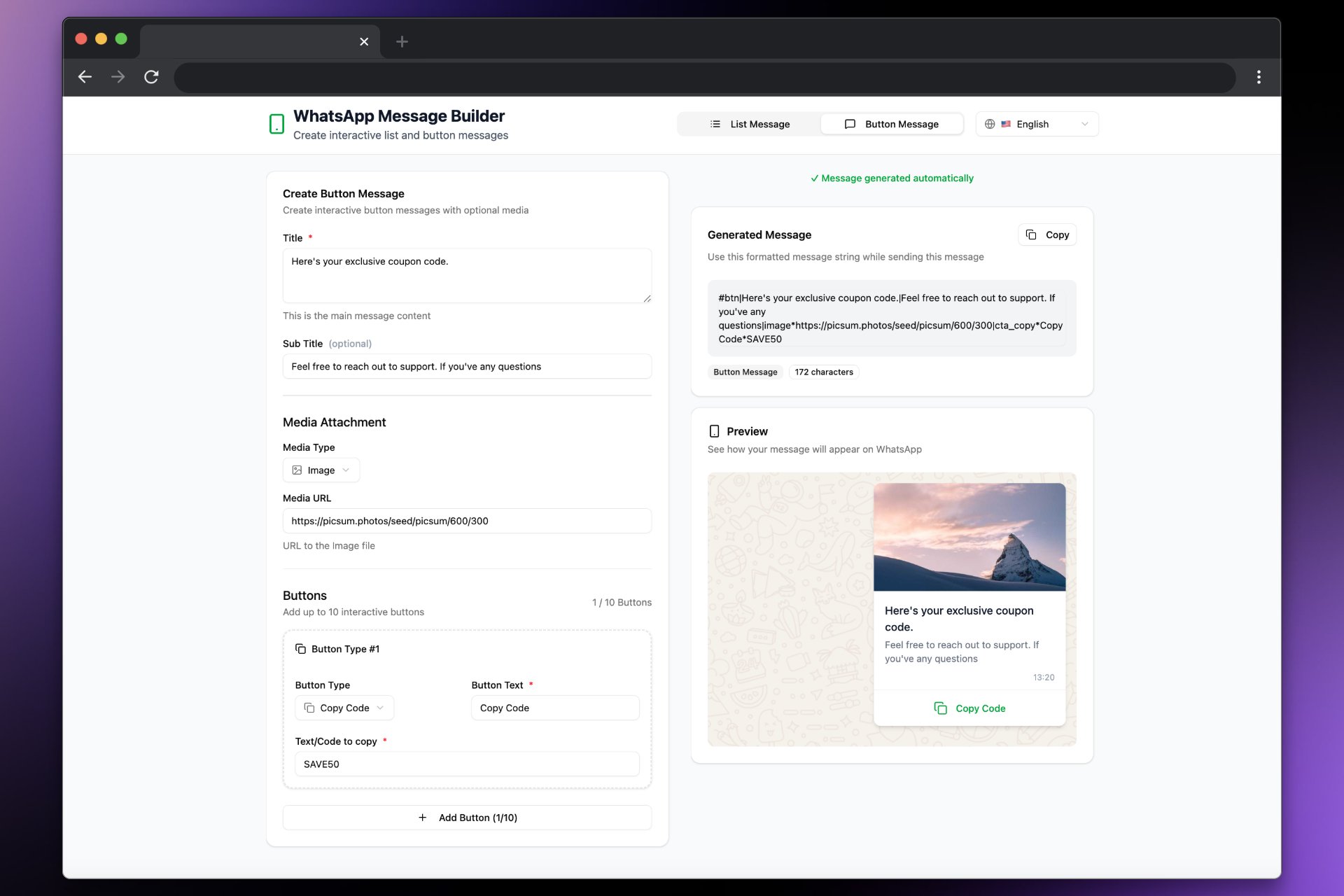
Prefer a faster way? Use our visual Button Builder to generate valid button payloads without memorizing formats. It validates structure, escapes special characters, and lets you preview before sending.- Open the builder: builder.messagesync.ai
- Create Quick Reply, CTA URL, CTA Call, or CTA Copy buttons
- Copy the generated string and paste it into your workflow or conversation
Enable Button Builder for All Sub-Accounts (Whitelabel)”)
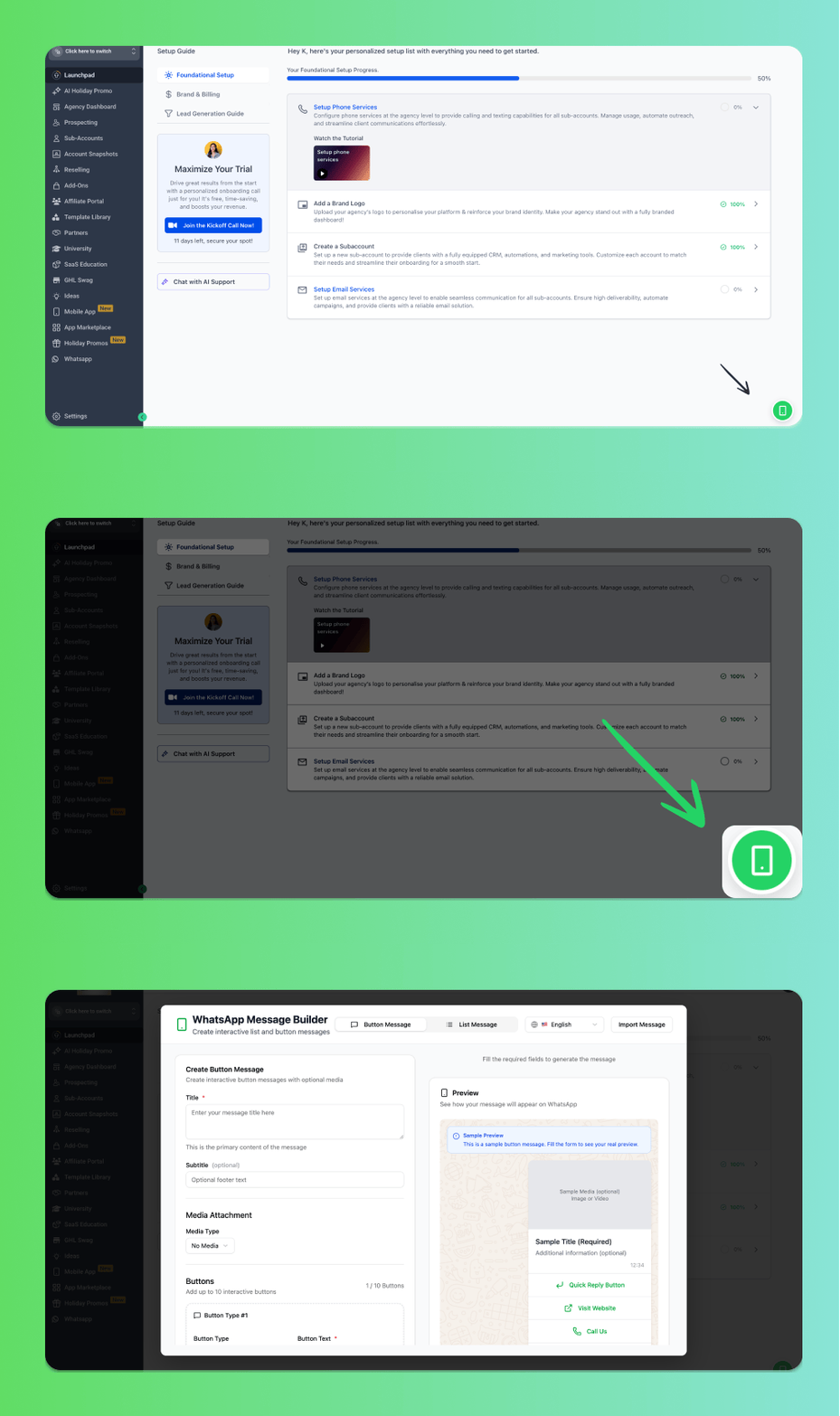
Want to enable the Button Builder as a global icon for all your sub-accounts? Follow these steps:1
From the Agency View, go to Settings
2
Navigate to Company → Whitelabel
3
Scroll down to the Custom JS section
4
Add the following script:
5
Click Save and refresh the page
Support
If you need help with the setup or onboarding:- Email: support@messagesync.ai