

What is Managed iMessage?
With the standard iMessage setup, you bring your own iPhone, Mac, and phone number. With Managed iMessage, we bring everything: we provide the devices, run them in our own infrastructure, and hand you a live iMessage channel inside your CRM. No Mac. No iPhone. No US number. No problem. It’s a direct connection with nothing to configure on your end - the same connection our self-hosted customers use, but provisioned, hosted, and monitored 24/7 by our team. It’s the most stable way to run iMessage with your CRM.You just install the marketplace app and claim your number from Message Hub. That’s the
whole setup.
What’s in your setup
Everything below is included:Dedicated iPhone
A real iPhone, provisioned and managed by us. It’s dedicated to your account - not shared
with anyone else.
Mac, hosted & run by us
The Mac that powers your iMessage connection lives in our infrastructure and is monitored
24/7. No sleep mode, no dead batteries, no dropped wifi.
US or Australia SIM
A real, textable phone number on a physical SIM. Your customers can reply to it like any
other number.
Dedicated onboarding & support
A specialist sets everything up for you and stays on call afterwards.
How it works
Getting a Managed iMessage line takes a single call with our team and a couple of clicks in Message Hub. Here’s the full process:1
Contact support - we set everything up on one call
Email support@messagesync.ai to get started. We’ll
schedule a quick call, and on that one call we answer your questions, confirm pricing and
the number of lines you need, and set up the service for you in the backend: your
dedicated iPhone, the hosted Mac, and your US or Australia number, all connected to our
monitored infrastructure.
2
Add an iMessage device in Message Hub
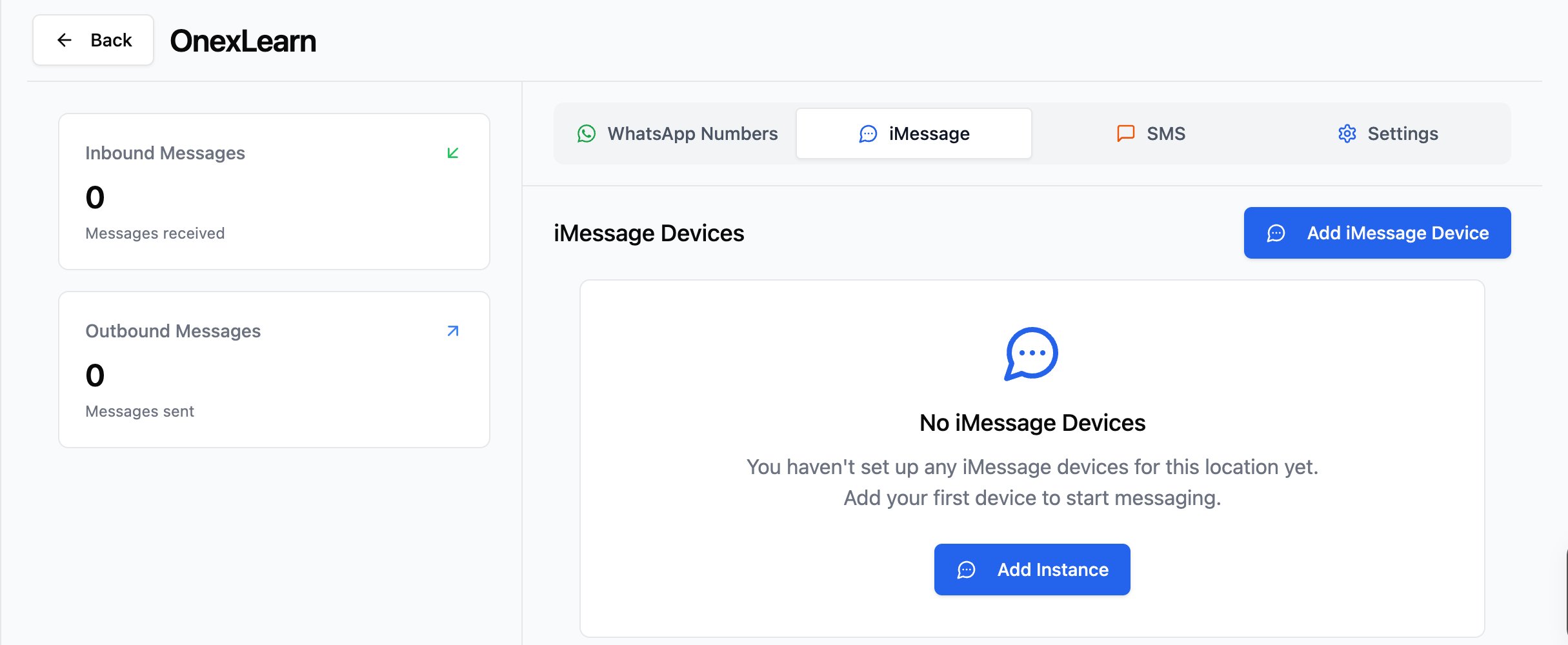
Log into your CRM and click Message Hub in the left sidebar. Go to the iMessage
tab and click Add iMessage Device (or Add Instance if the sub-account has no
devices yet).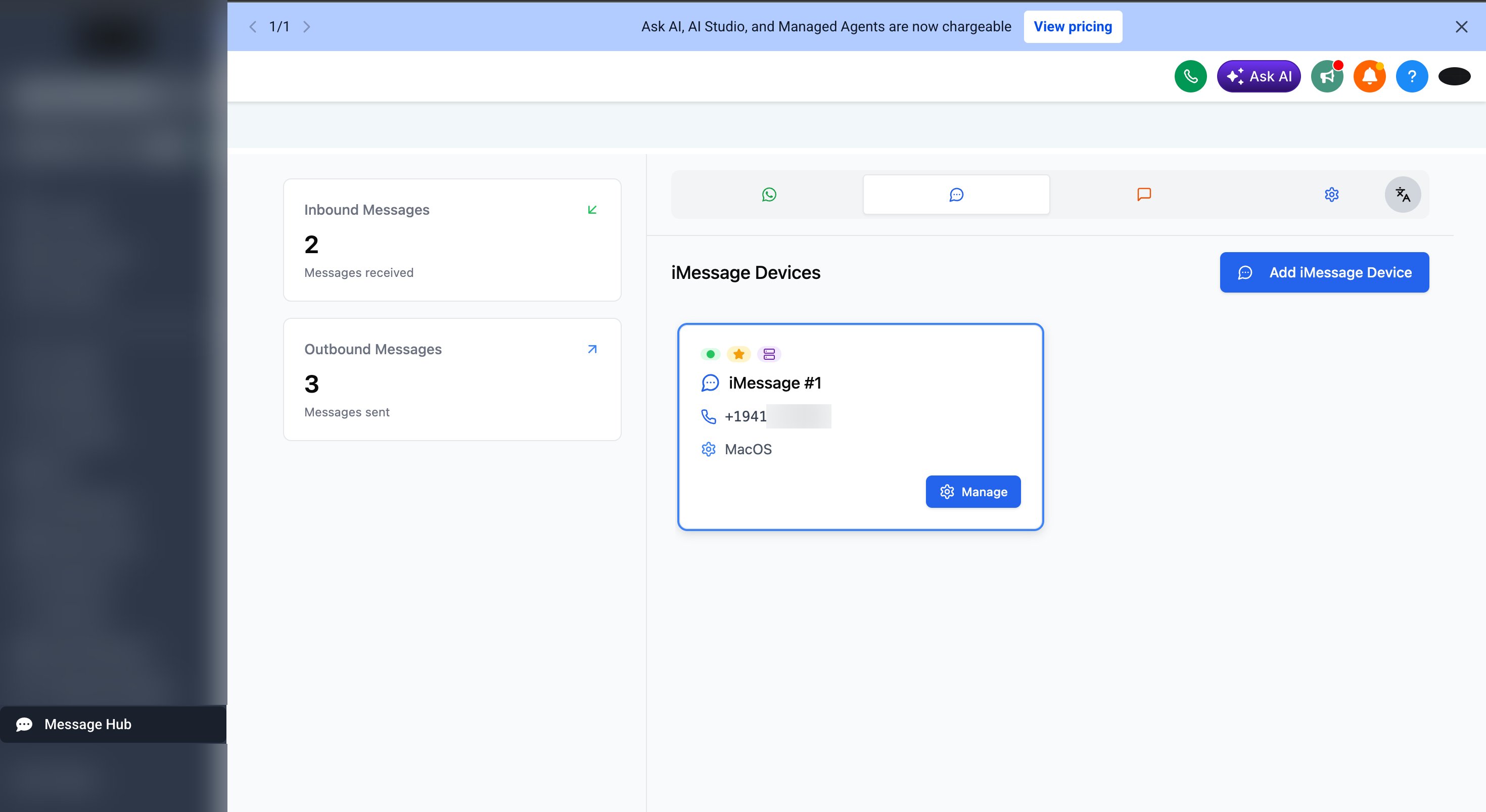
3
Choose Managed
In the Add an iMessage device dialog, pick Managed and click Create instance.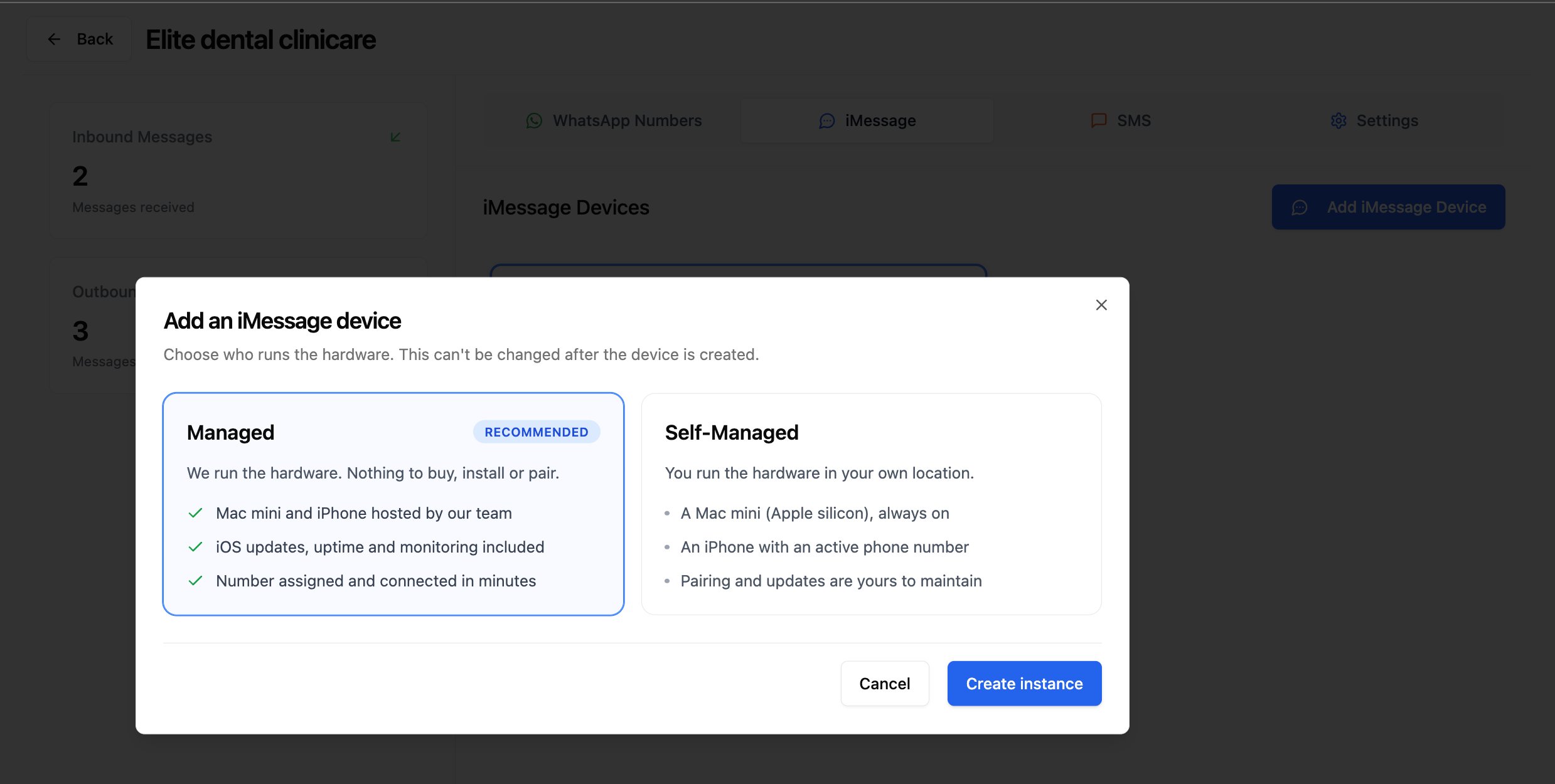
4
Claim your number
The Claim a Managed Number dialog lists the numbers available on our managed
hardware. Select one and click Claim Number. It becomes the active iMessage number
for this sub-account right away - no Mac, no pairing, no device setup.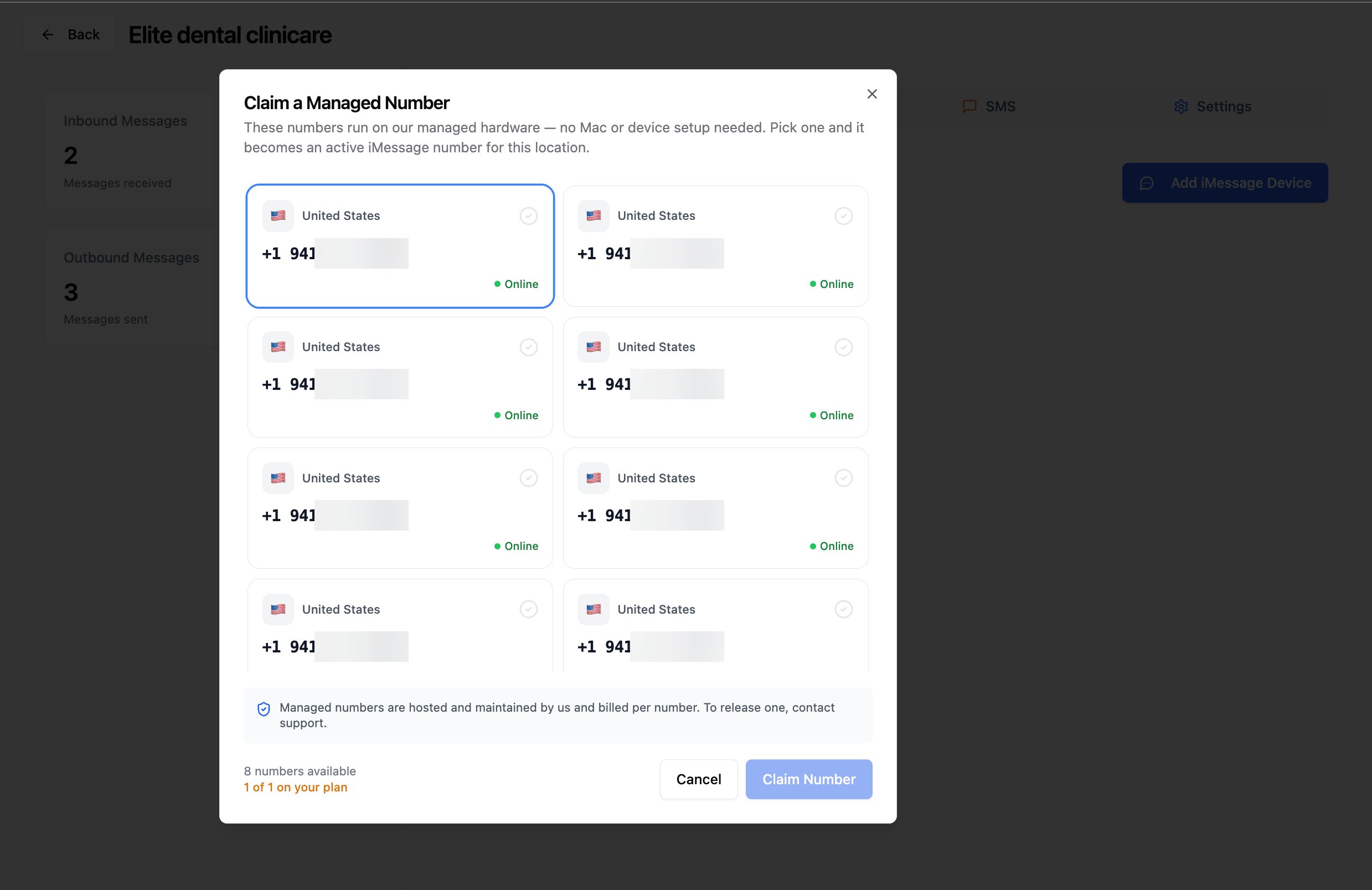
5
Your device is connected
Back on the iMessage tab, your new device shows up with the Connected,
Default, and Managed badges and the number you claimed. There’s nothing to
install, pair, or keep online - we handle all of that.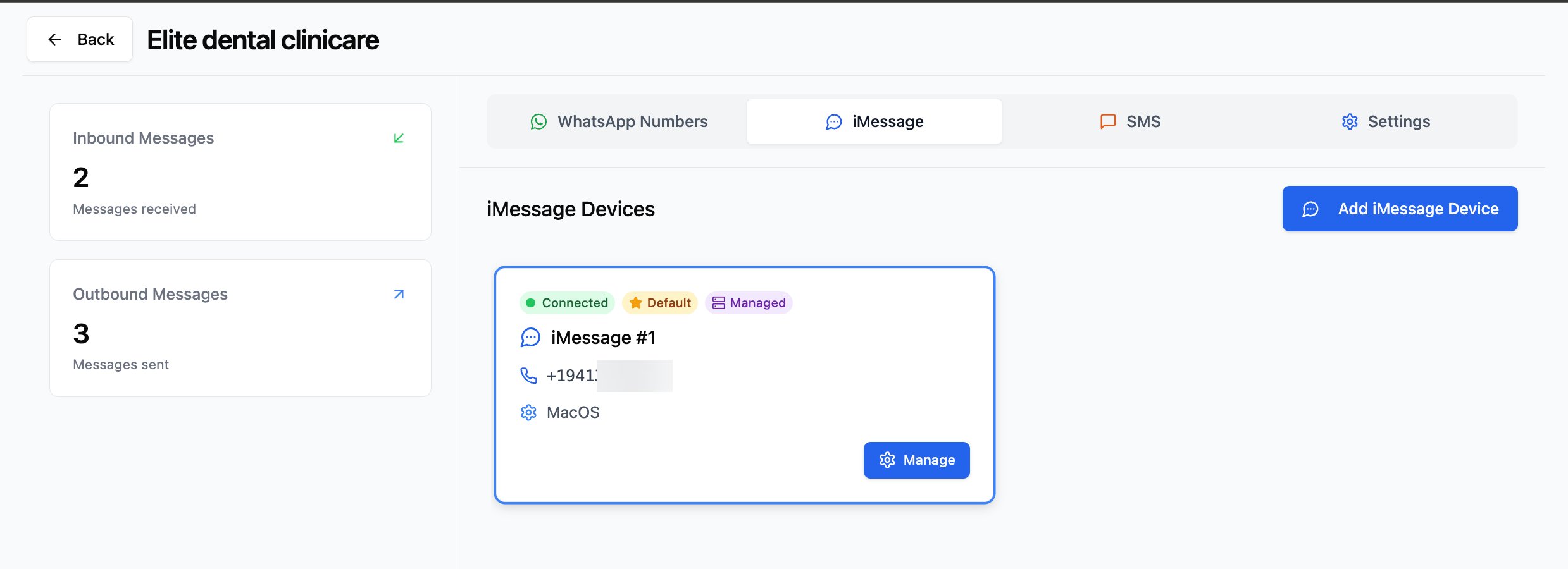
6
Review your settings (optional)
Click Manage on the device card to open its settings. Managed numbers come
pre-configured: when a recipient isn’t on iMessage, the message is sent as SMS from
the same number using the SIM in your iPhone. This fallback is fixed for managed numbers.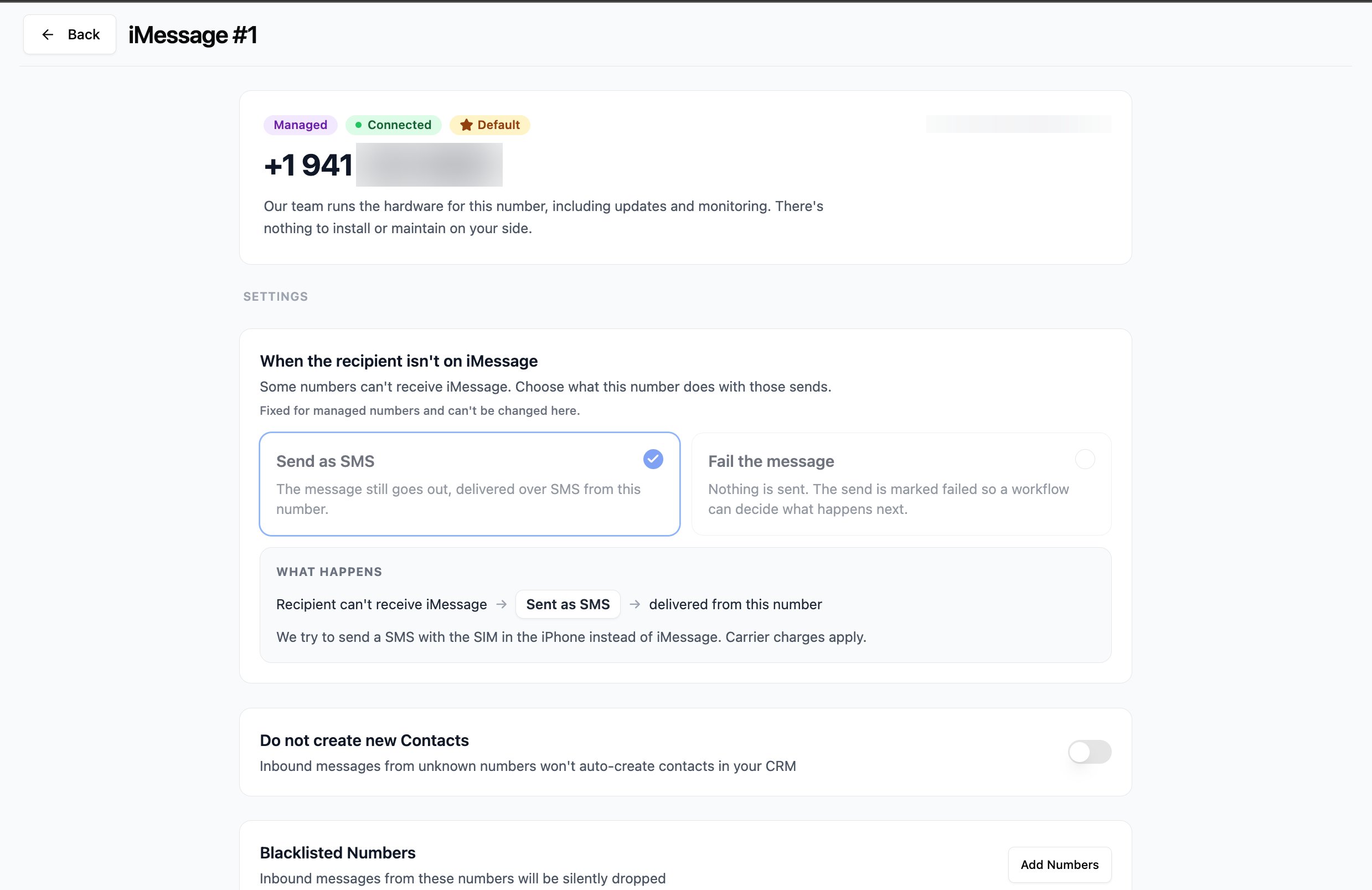
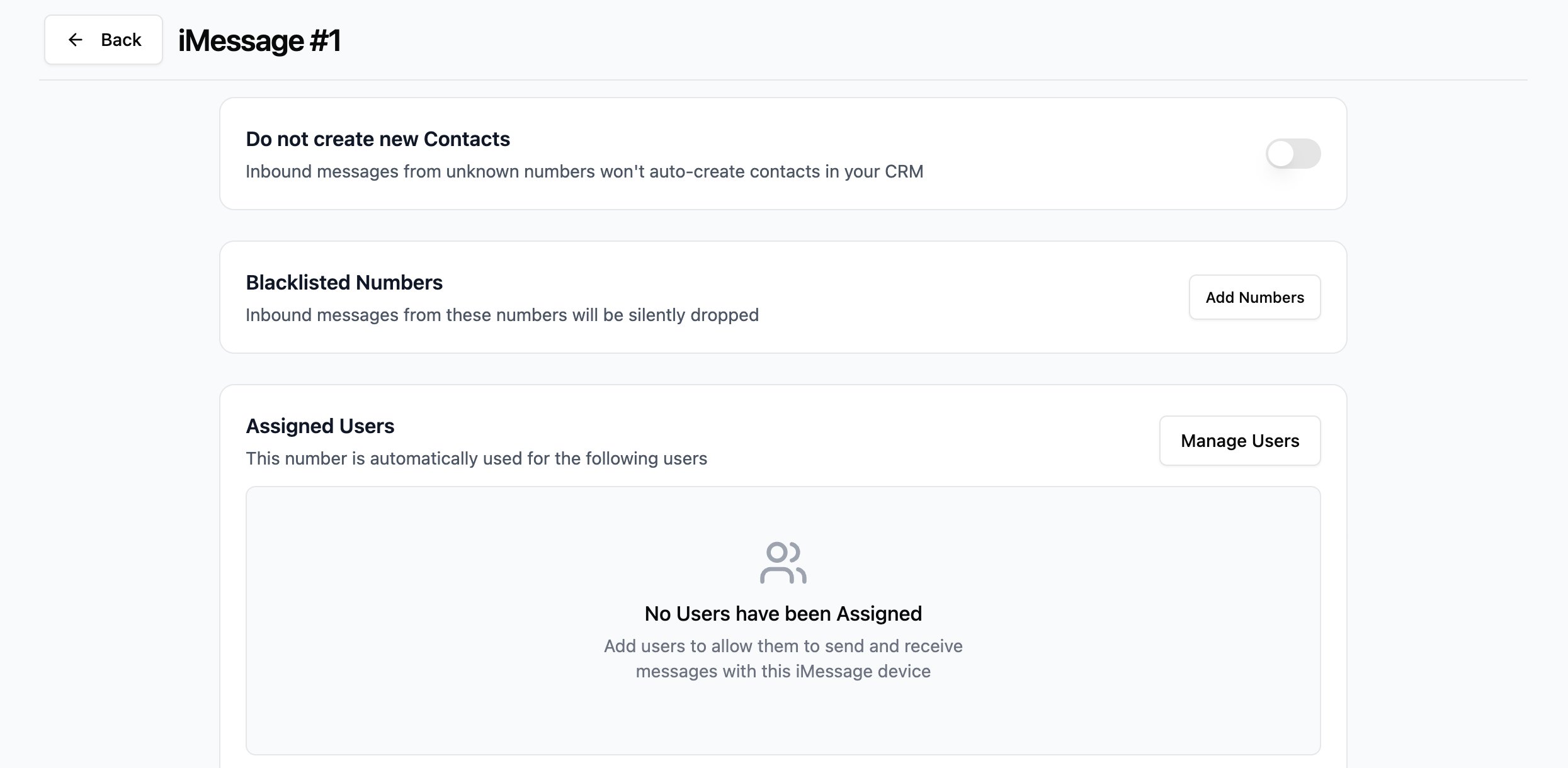
- Do not create new Contacts - inbound messages from unknown numbers won’t auto-create contacts in your CRM.
- Blacklisted Numbers - inbound messages from these numbers are silently dropped.
- Assigned Users - pick which users are allowed to send and receive from this number. Click Manage Users to add them.
7
Start texting
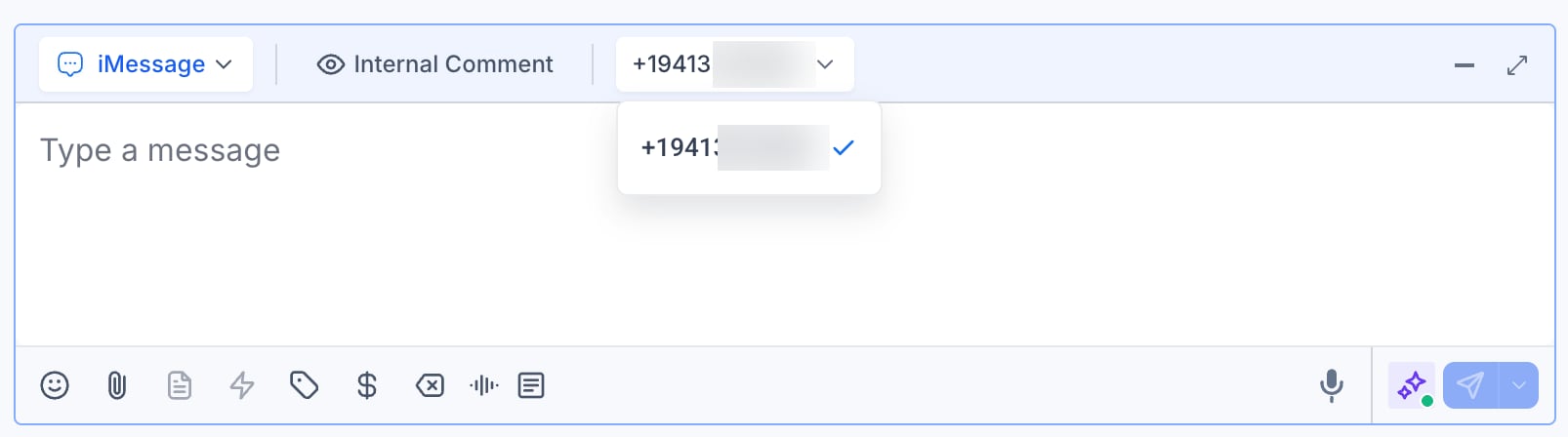
Open any conversation in the CRM Conversations tab. In the message composer, choose
iMessage as the channel.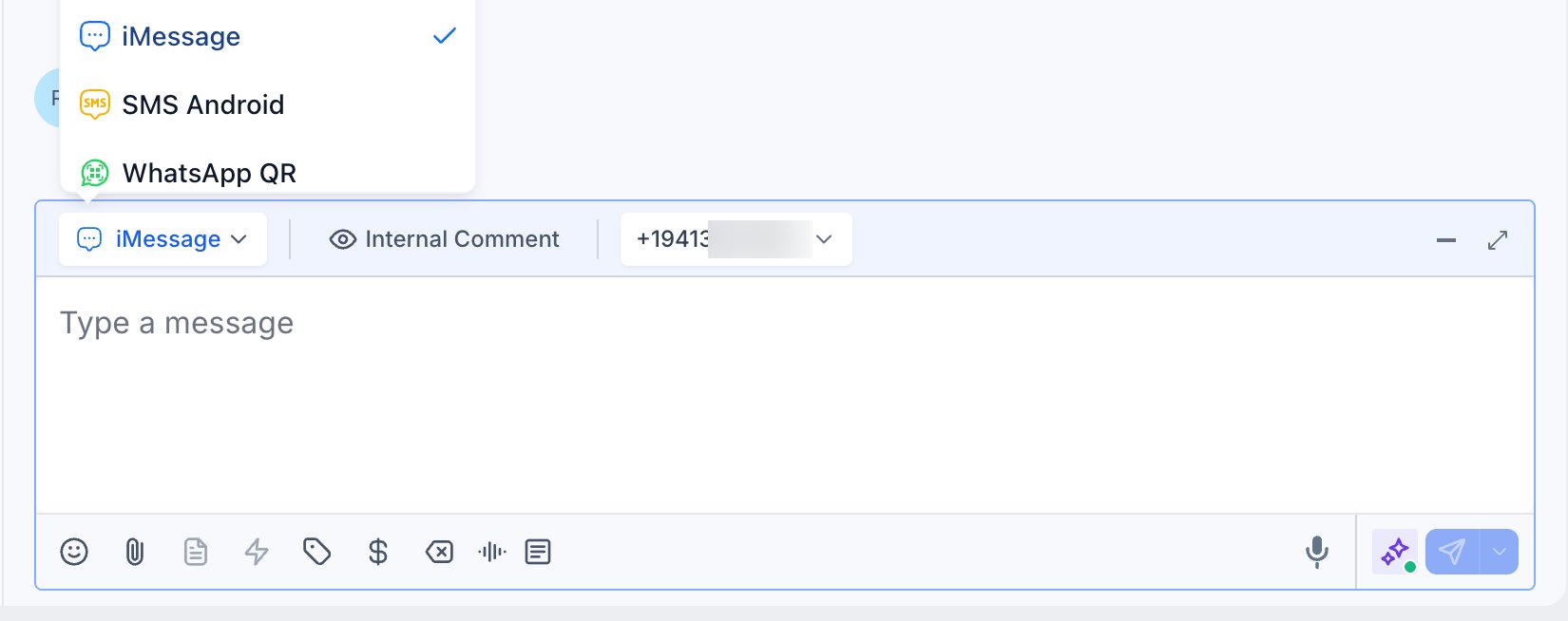
Managed vs. self-hosted
Not sure which option fits you? Here’s the difference at a glance:
Already have an iPhone, a Mac, and a number you want to use? The self-hosted route works
great - start with the iMessage Full Setup guide.
Get started
Contact us about Managed iMessage
Email us and a specialist will walk you through pricing and get your Managed iMessage line
set up.
Support
If you need help or have questions about Managed iMessage:- Email: support@messagesync.ai