

WhatsApp List Button Setup Guide
This guide explains how to create List Messages. Follow the formats carefully, once you get used to it, creating list will take only a few minutes.What are WhatsApp List Buttons?
WhatsApp List Buttons (List Messages) present a structured, interactive menu inside the chat, letting customers select from multiple options without typing. They are best used when you have more than a few choices and want them organized into categories.- Present multiple choices in a single message
- Group options into named sections (e.g., categories or menus)
- Reduce typing and invalid free-text responses
- Render consistently with WhatsApp’s native list UI across devices
Who should use them?
- Agencies: To help clients build interactive flows and improve response rates.
- Businesses: For faster customer support, product catalogs, booking flows, or marketing campaigns.
- Sales teams: To collect structured responses (like “Book Demo” or “Get Pricing”) instantly.
Key Terms (Quick Definitions)”)
- Command Prefix: The special code (#list) that tells the system what type of message you’re sending.
- Section: A grouping of multiple options (e.g., “Electronics” or “Clothing” in a catalog).
- Option ID: A unique identifier for each button or list item (used to track which option was clicked).
- Media Header: An optional image or video at the top of a Button Message.
List Messages
Format
Sections format
Example
Format Breakdown
#list → Command prefix title → List title (undefined to omit) description → List description (required) footer → Footer text (undefined to omit) buttonText → Label for the button (undefined = default “View Options”) sections → Section entries separated by / Each section entry =SectionName*OptionTitle*Description*ID
Automatic Grouping: Options with the same section name are grouped automatically.
Flexible Order: Add options in any order - grouping happens automatically.
Multiple Options: Each section can have unlimited options.
Mini Example
Electronics*iPhone*Latest model*iphone15/Electronics*Galaxy*Premium*galaxy01
Creates one “Electronics” section with 2 options.
Button Builder (No-Code)”)
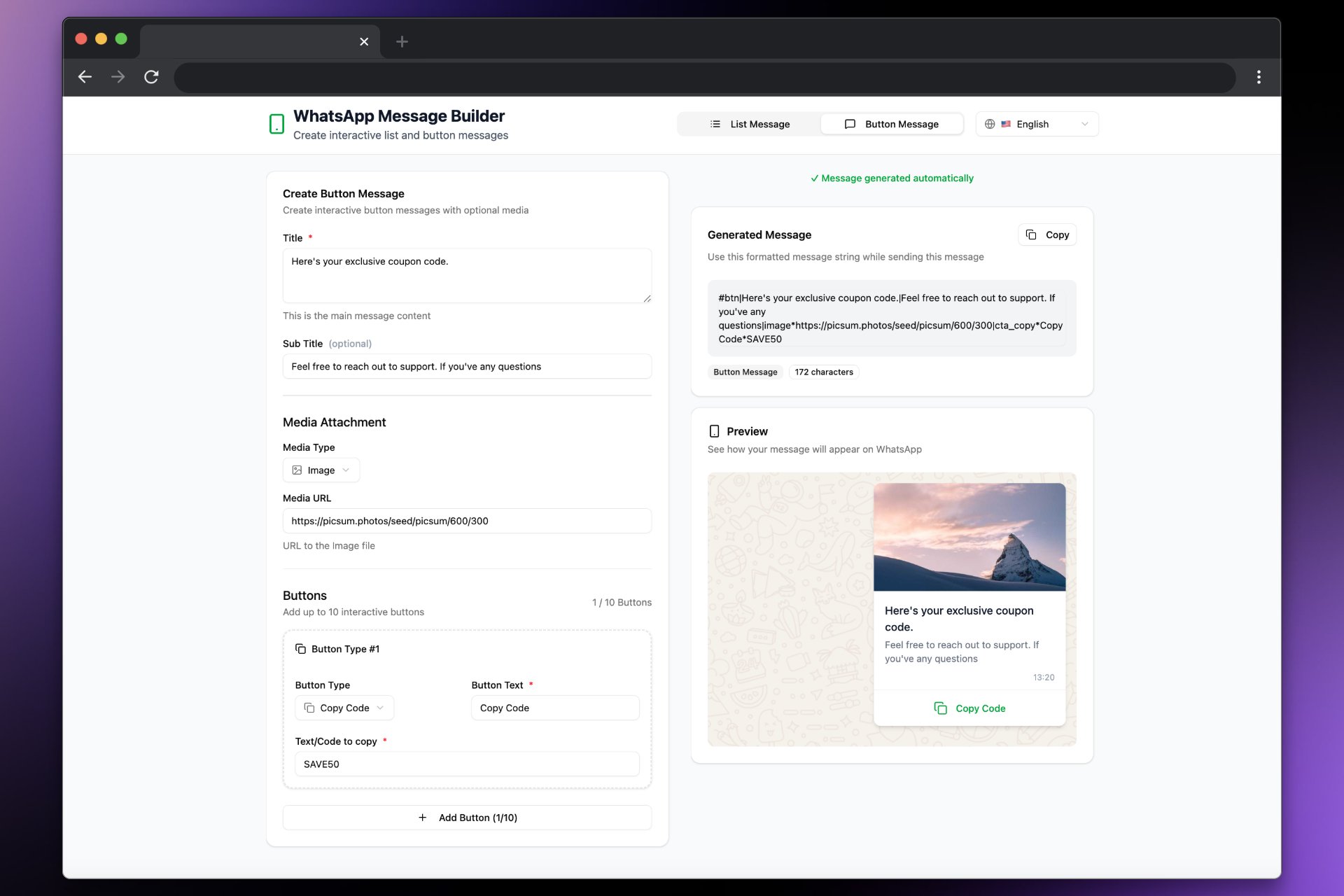
You can also build List Messages visually without hand-writing the string. The builder groups items by section name automatically and ensures the format is valid.- Open the builder: builder.messagesync.ai
- Add sections and options (title, description, ID)
- Copy the generated
#list|...payload and paste it into message input
Enable Button Builder for All Sub-Accounts (Whitelabel)”)
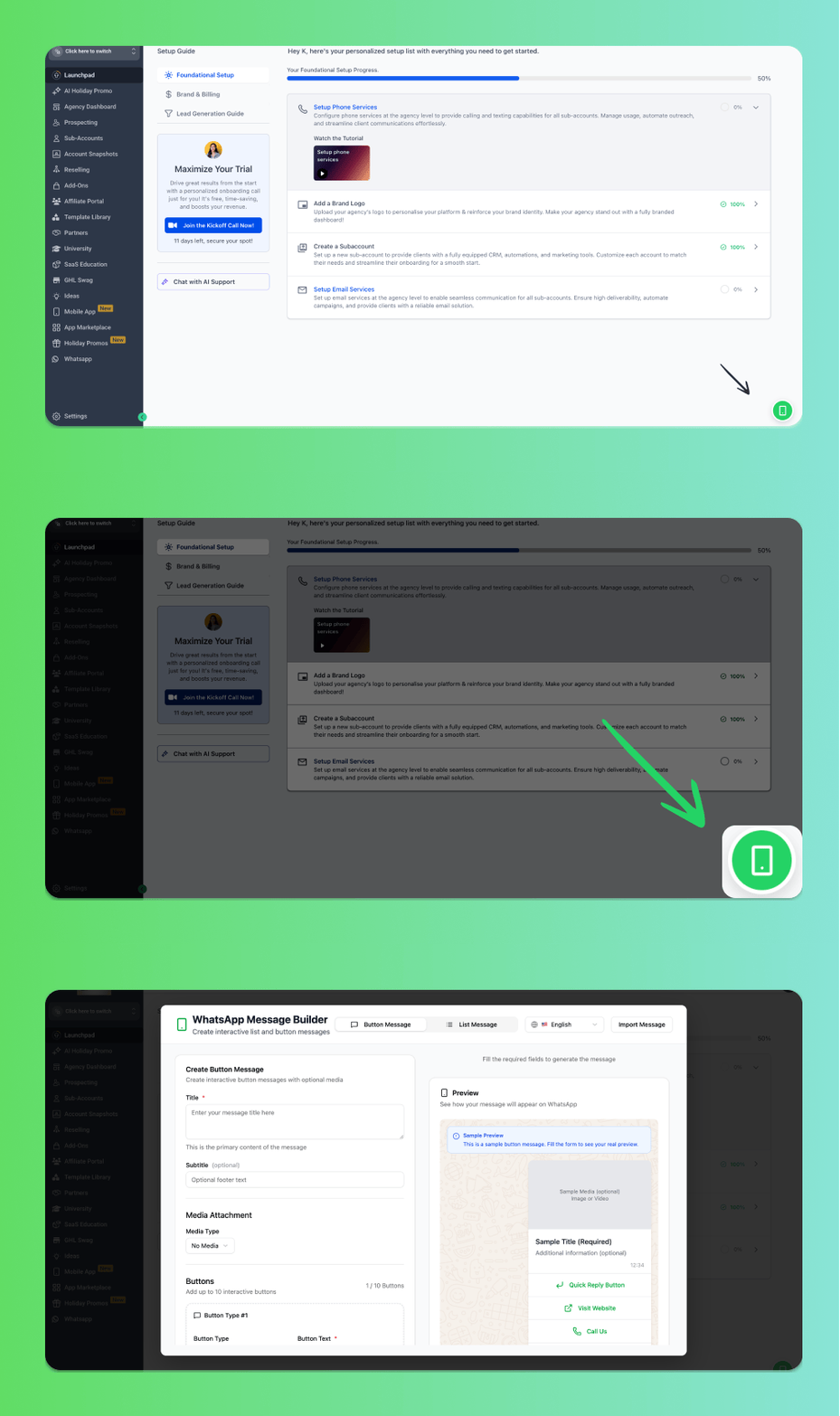
Want to enable the Button Builder as a global icon for all your sub-accounts? Follow these steps:1
From the Agency View, go to Settings
2
Navigate to Company → Whitelabel
3
Scroll down to the Custom JS section
4
Add the following script:
5
Click Save and refresh the page
Support
If you need help with the setup or onboarding:- Email: support@messagesync.ai