

Key Benefits
Instant Alerts - Know immediately when a WhatsApp number goes offline Prevent Missed Messages - Take action before leads go unanswered Multi-Account Monitoring - Track disconnections across all your sub-accounts Automated Recovery - Trigger notifications to reconnect quickly Zero Manual Monitoring - No need to constantly check connection statusWho Should Use It
Agencies - Monitor client WhatsApp numbers and alert account managers instantly Teams with multiple numbers - Track which numbers need attention across locations High-volume operations - Ensure 24/7 WhatsApp availability for lead response Remote teams - Get notified when field devices lose connectionRequirements
Before using this trigger, update your Whatsapp provider app to the latest version:1
Go to App Marketplace → Installed Apps
2
Find Whatsapp provider
3
Click Update if available
How to Set Up
Step 1: Create a New Workflow
1
Go to Automation → Workflows
2
Click Create Workflow or + Add
3
Select Start from Scratch
Step 2: Add the Trigger
1
Click Add New Trigger
2
Switch to the Apps tab (not the default triggers)
3
Find and click the Whatsapp provider app icon
4
Select WhatsApp Disconnected from the dropdown
5
Click Save trigger
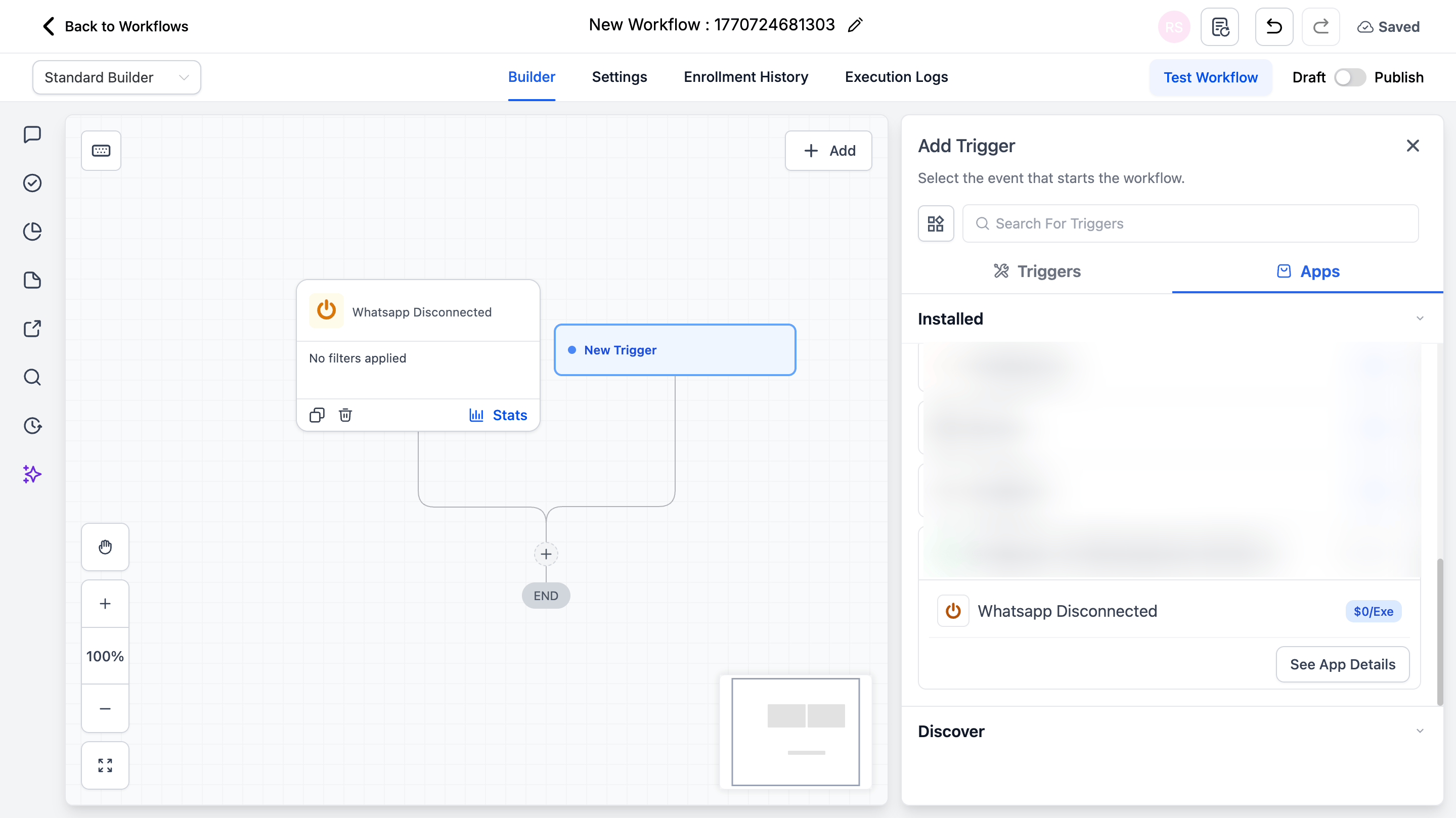
Step 3: Add Your Actions
Add any actions you want to execute when disconnection occurs:- Send Email → Alert admin team
- Send SMS → Notify account owner
- Create Task → Assign reconnection task
- Send Slack Message → Alert your team channel
- Internal Notification → Notify CRM users
Step 4: Save and Publish
1
Review your workflow
2
Click Save
3
Toggle workflow from Draft to Published
Available Trigger Variables
When the trigger fires, these variables become available for use in your workflow actions. Insert them by clicking the tag icon in any field or typing with double curly braces.Example Use Cases
Use Case 1: Email Alert to Admin
Send an immediate email when any WhatsApp number disconnects. Trigger: WhatsApp Disconnected Action: Send Email- To: admin@yourcompany.com
- **Subject:**WhatsApp Disconnected - Action Required
- Body:
Use Case 2: Create Reconnection Task
Automatically create a high-priority task for your operations team. Trigger: WhatsApp Disconnected Action: Create Task- **Title:**Reconnect WhatsApp:
{{whatsapp_disconnected_prod.payload.instance.phoneNumber}} - Description: This WhatsApp number has disconnected. Please reconnect immediately.
- Assign to: Operations Manager
- Priority: High
Important Notes
Technical Details
- The trigger fires once per disconnection event
- Works for both manual disconnections and unexpected disconnections
- Executes immediately when disconnection is detected
- Works across all WhatsApp instances in the location
Best Practices
- Set up multiple notification channels for critical numbers
- Include the phone number variable in all notifications for quick identification
- Create high-priority tasks with immediate due dates
- Test your workflow by manually disconnecting a test number
FAQs
Will the trigger fire if I manually disconnect WhatsApp?
Will the trigger fire if I manually disconnect WhatsApp?
Yes. The trigger fires for all disconnection events-whether manual, network-related, or unexpected.
Can I use this trigger with multiple actions?
Can I use this trigger with multiple actions?
Yes. You can add as many actions as needed to a single workflow. They will execute in sequence when the trigger fires.
Why can't I send a WhatsApp message when this trigger fires?
Why can't I send a WhatsApp message when this trigger fires?
When the trigger fires, your WhatsApp number is already offline and cannot send messages. Use alternative notification methods like email, SMS, or Slack.
How quickly does the trigger fire after disconnection?
How quickly does the trigger fire after disconnection?
The trigger fires immediately when the disconnection is detected-typically within seconds of the actual event.
Support
If you need help with the setup or onboarding:- Email: support@messagesync.ai