

Why it matters: Manually replying to contacts on WhatsApp doesn’t scale. With this action you can send personalized WhatsApp messages triggered by any CRM event-new leads, appointments, form submissions, replies, and more.
Key Benefits
Automated Messaging - Send WhatsApp messages automatically from any workflow Personalized Content - Use custom variables to tailor every message Attachment Support - Include an image, video, or document with your message Multi-Number Support - Choose which connected WhatsApp number sends the message Workflow Integration - Combine with any CRM trigger for powerful automationWho Should Use It
Sales Teams - Instantly follow up with new leads on WhatsApp Support Teams - Send confirmations and updates automatically Agencies - Automate client-facing messaging across sub-accounts Operations - Send reminders, alerts, and status updates Marketers - Deliver timely, personalized WhatsApp touchesRequirements
Before using this action:1
Update your WhatsApp provider app to the latest version
- Go to App Marketplace → Installed Apps → WhatsApp provider → Update
2
Connect a WhatsApp number
- Use the WhatsApp Settings dashboard to connect one or more WhatsApp instances
How to Set Up
Step 1: Create or Edit a Workflow
1
Go to Automation → Workflows
2
Create a new workflow or edit an existing one
3
Add your desired trigger (Form Submitted, WhatsApp Inbound, Appointment Booked, etc.)
Step 2: Add the Action
1
Click + or Add New Action after your trigger
2
Switch to the Apps tab
3
Click the WhatsApp provider app icon
4
Select Send WhatsApp Message
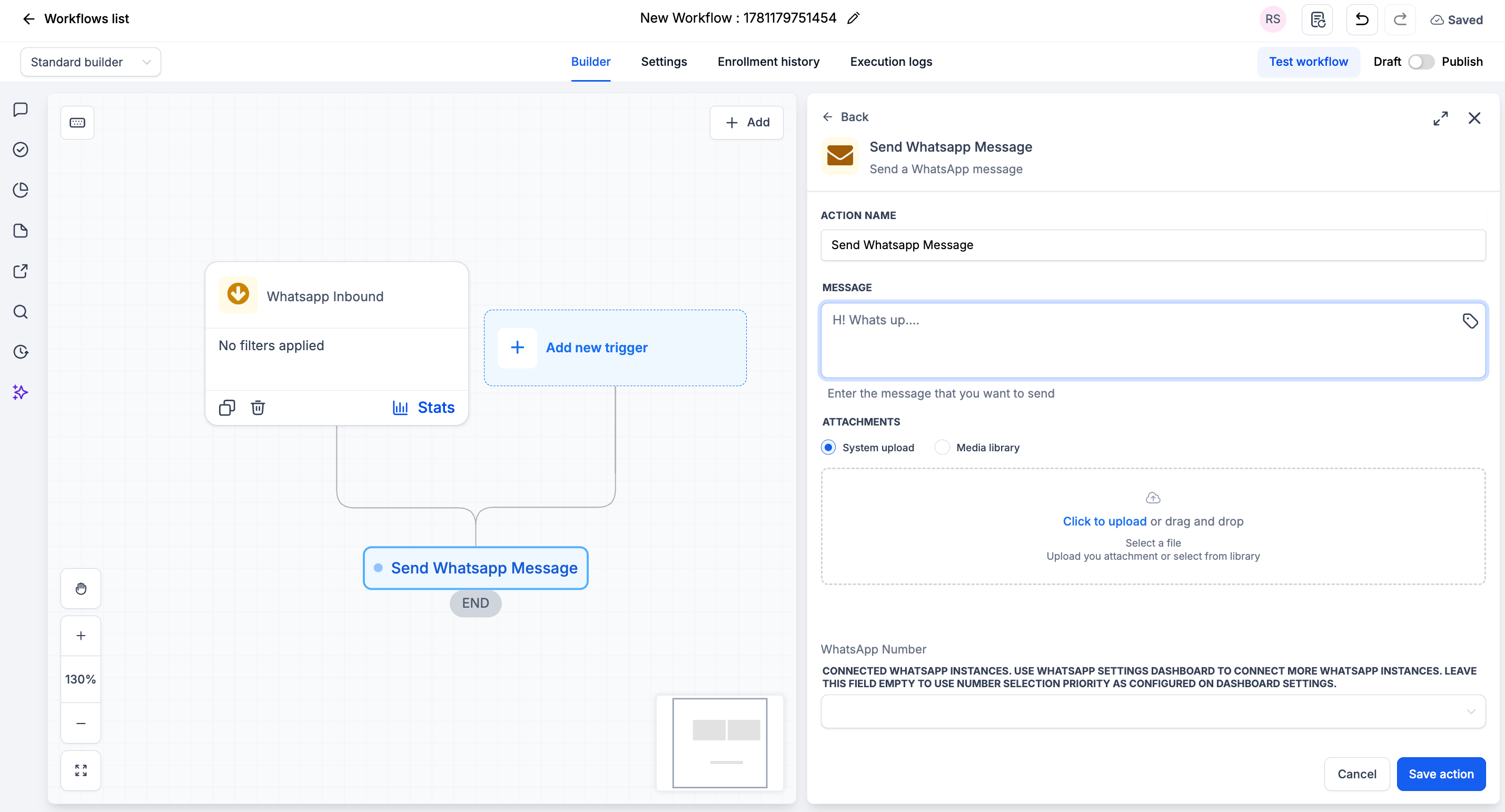
Step 3: Configure the Action
Step 4: Save and Publish
1
Click Save action
2
Review your complete workflow
3
Toggle from Draft to Published
Action Fields Explained
Message Field
Enter the message you want to send. You can:- Type plain text
- Use custom variables (click the tag icon to insert)
- Include emojis
- Use line breaks for formatting
Attachments Field
Attach a file to send with your message. You have two options:- System upload - Click to upload, or drag and drop a file
- Media library - Select an existing file from your library
WhatsApp Number Field
Choose which connected WhatsApp instance sends the message.Connected WhatsApp instances. Use the WhatsApp Settings dashboard to connect more WhatsApp instances. Leave this field empty to use the number-selection priority as configured in your dashboard settings.
Example Use Cases
Use Case 1: Instant Lead Follow-Up
Reply to a new lead the moment they submit a form. Trigger: Form Submitted Action: Send WhatsApp Message- Message:
Use Case 2: Auto-Reply to Inbound Messages
Acknowledge every inbound WhatsApp message automatically. Trigger: WhatsApp Inbound Action: Send WhatsApp Message- Message:
Important Notes
Technical Details
- Messages send from your connected WhatsApp number
- Leaving WhatsApp Number empty uses your dashboard’s number-selection priority
- Supports text, emojis, and one attachment per message
- Works with all standard CRM workflow triggers
Best Practices
- Keep messages concise and personal
- Use relevant variables only
- Test before publishing
- Avoid over-messaging - too many messages cause fatigue
FAQs
Which number does the message send from?
Which number does the message send from?
The one you select in the WhatsApp Number field. If you leave it empty, it uses the number-selection priority configured in your WhatsApp dashboard settings.
Can I attach a file?
Can I attach a file?
Yes. Use the Attachments field to upload a file (System upload) or pick one from the Media library.
Can I personalize the message?
Can I personalize the message?
Yes. Click the tag icon in the Message field to insert custom variables like
{{contact.first_name}}.What happens if WhatsApp is disconnected?
What happens if WhatsApp is disconnected?
The message will fail to send. We recommend setting up the WhatsApp Disconnected trigger to get alerts when your number goes offline.
Support
If you need help with the setup or onboarding:- Email: support@messagesync.ai