

Key Benefits
Activity Tracking - Capture every outbound message automatically Automated Follow-Up - Schedule the next step the moment a reply is sent Source Awareness - Distinguish manual replies from automated sends Filtered Automation - Trigger only on messages that match your criteria Zero Manual Logging - No need to record outgoing activity by handWho Should Use It
Sales teams - Trigger follow-up sequences after a rep replies Support teams - Log outbound responses for reporting and SLAs Agencies - Audit outbound messaging across client sub-accounts Operations teams - Sync sent-message data into reporting toolsRequirements
Before using this trigger, update your messaging provider app to the latest version:1
Go to App Marketplace → Installed Apps
2
Find your iMessage provider app
3
Click Update if available
How to Set Up
Step 1: Create a New Workflow
1
Go to Automation → Workflows
2
Click Create Workflow or + Add
3
Select Start from Scratch
Step 2: Add the Trigger
1
Click Add New Trigger
2
Switch to the Apps tab (not the default triggers)
3
Find and click your iMessage provider app icon
4
Select iMessage Outbound from the dropdown
5
(Optional) Add Filters to narrow when the trigger fires
6
Click Save trigger
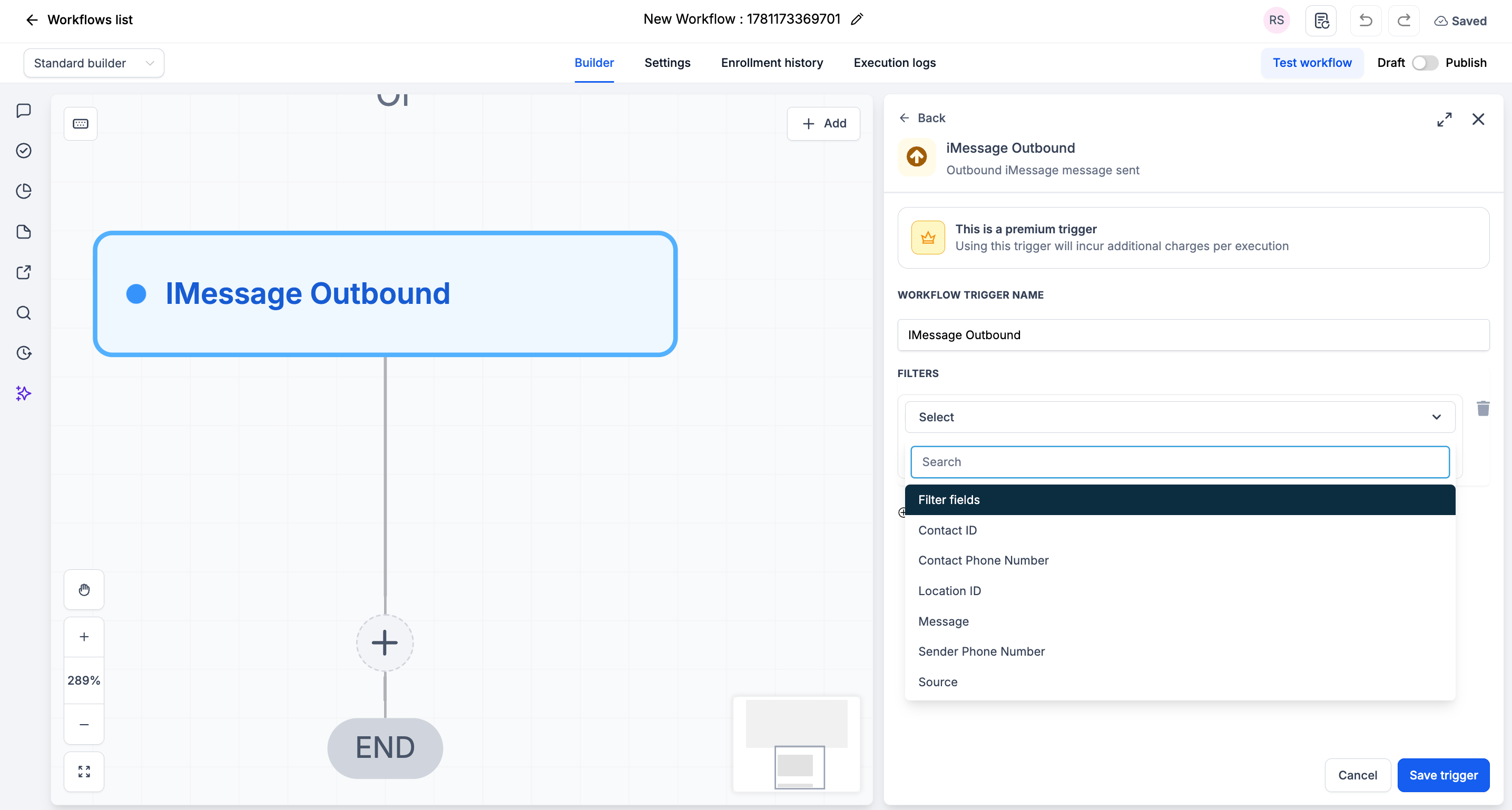
Step 3: Add Your Actions
Add any actions you want to execute when an outbound iMessage is sent:- Wait + Send Follow-Up → Schedule the next message
- Create Task → Queue a check-in
- Update Contact / Custom Field → Record last-contacted info
- Send Internal Notification → Notify a manager of the send
Step 4: Save and Publish
1
Review your workflow
2
Click Save
3
Toggle workflow from Draft to Published
Available Filters
Use filters to control exactly which outbound iMessages start the workflow. Each filter can be paired with an operator (equals, contains, etc.).Example Use Cases
Use Case 1: Follow-Up After a Reply
Keep the conversation moving automatically. Trigger: iMessage Outbound Action: Wait 1 day, then send a follow-up if the contact hasn’t replied.Use Case 2: Log Manual Replies Only
Track only the messages your team sends by hand. Trigger: iMessage Outbound Filter: Source equals manual Action: Update a “Last Manual Contact” custom field on the contact.Important Notes
Technical Details
- The trigger fires once per outbound message
- Filters are optional - leave them blank to fire on every outbound iMessage
- The Source filter helps separate manual sends from automated ones
Best Practices
- Use the Source filter to avoid follow-up loops triggered by your own automations
- Use the Contact ID filter for contact-specific flows
- Test your workflow by sending a message from your connected number
FAQs
Will this fire on messages sent by automations?
Will this fire on messages sent by automations?
Yes. Outbound messages sent by automations can also fire this trigger. Use the Source filter to separate manual sends from automated ones and avoid loops.
Do I have to add filters?
Do I have to add filters?
No. Filters are optional. Without them, the trigger fires on every outbound iMessage.
Support
If you need help with the setup or onboarding:- Email: support@messagesync.ai