

Why it matters: Keeping WhatsApp groups up to date by hand is slow and error-prone. With this action you can automatically add new customers to a group when they convert, or remove them when they churn, cancel, or opt out — all triggered by any CRM event.
Key Benefits
Automated Membership - Add or remove members based on CRM events No Manual Group Management - Stop adding and removing people by hand Workflow Integration - Combine with any CRM trigger for powerful automation Dynamic Participants - Use contact variables to target the right person every timeWho Should Use It
Sales Teams - Add new customers to a VIP group the moment they convert Support Teams - Remove members from a group once their case is closed Agencies - Keep client community groups in sync with your CRM automatically Course Creators - Add students to a cohort group on enrollment, remove on completionHow to Set Up
Step 1: Add the Action
1
Go to Automation → Workflows
2
Create a new workflow or edit an existing one
3
Add your desired trigger (Form Submitted, Tag Added, Appointment Booked, etc.)
4
Click + to add a new action, then select Change WhatsApp Group Participant
Step 2: Configure the Action
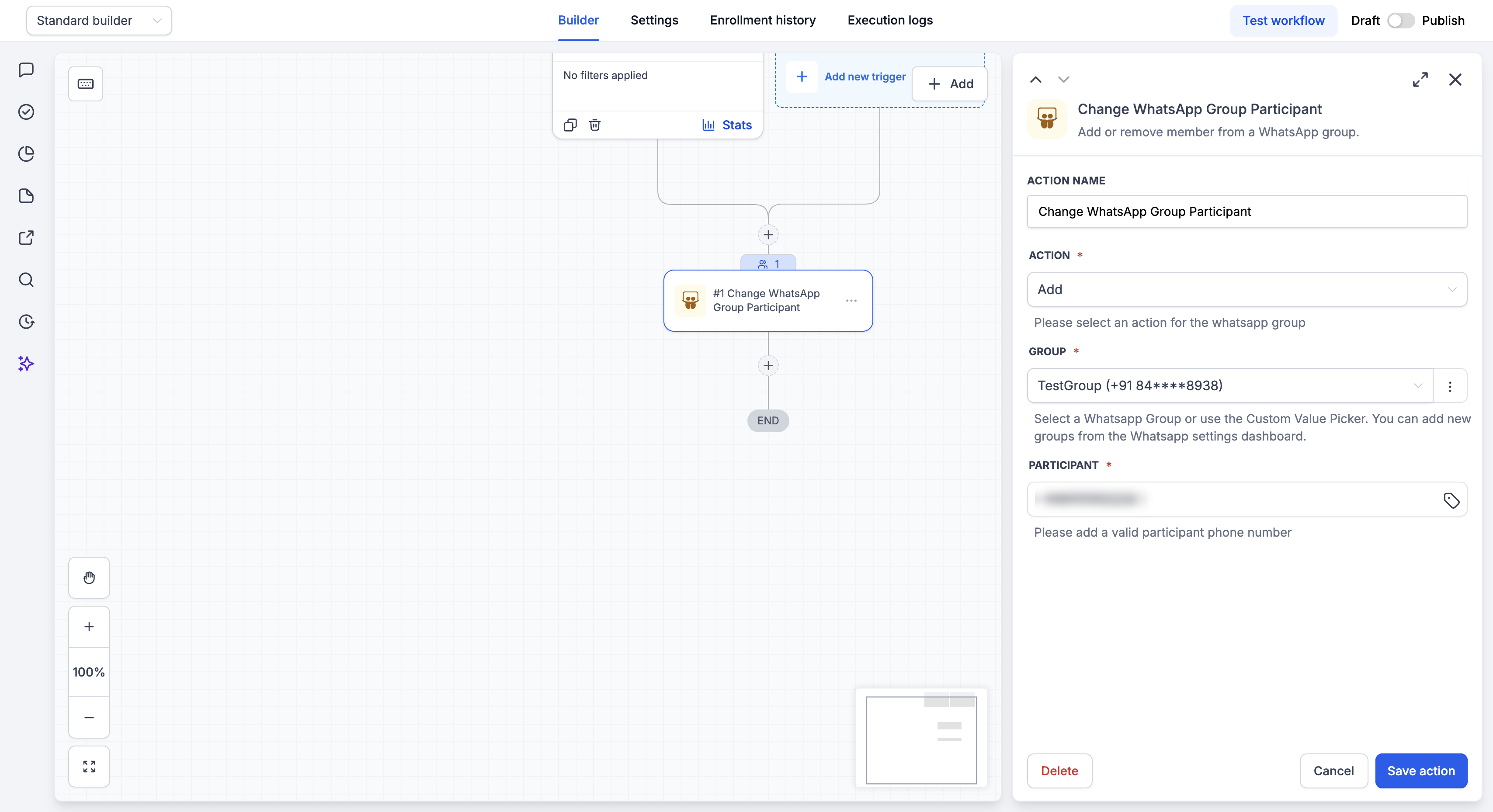
Step 3: Save and Publish
1
Click Save action
2
Review your complete workflow
3
Toggle from Draft to Published
Action Fields Explained
Action Field
Choose what should happen to the participant:- Add - Adds the participant to the selected group
- Remove - Removes the participant from the selected group
Group Field
Select the destination group from the dropdown, or use the Custom Value Picker to set it dynamically. If your group isn’t listed, add it from the WhatsApp settings dashboard first.Participant Field
Enter the phone number of the person to add or remove. This must be a valid WhatsApp number in full international format, including the country code. Recommended values:- A full number with country code, e.g.
+14155552671 - The
{{contact.raw_phone}}custom value — this stores the number in raw international format, including the country code
Action Output & Filters
After the action runs, it returns the following values. You can reference them in later steps or branch on them with an If/Else step to build reliable automations.Action Status Codes
Use Action’s Status Code in an If/Else filter to react to each outcome.Handling privacy-restricted adds (invite links)”)
Some contacts can’t be added to a group directly because of their WhatsApp privacy settings. When this happens the action returns408 (or 403 on an add). Rather than treating this as a failure, branch on the status code and send them a WhatsApp message with the group invite link so they can join themselves:
1
Add an If/Else step after this action and check whether Action’s Status Code is
408 (or 403).2
On that branch, add a Send WhatsApp Message action and send the contact a message that includes your group’s invite link, so they can tap it and join on their own.
3
Optionally, tag the contact (e.g.
invite-sent) so you can follow up later.Limitations
Keep the following constraints in mind when using this action:- Add and remove only. This action cannot promote or demote a participant to admin — it only handles adding and removing members.
- Community containers are rejected. Communities are meta-containers. Add/remove operates on the linked subgroups (the announcement or discussion group), not on the community itself.
- Announce-only groups are supported. Participants can still be added and removed by admins normally. The announce flag only restricts who can send messages — it does not restrict membership management.
- Rate limits. WhatsApp may throttle repeated participant operations on the same group. Space out bulk changes .
Example Use Cases
Use Case 1: Add New Customers to a VIP Group
Trigger: Tag Added —customer
Action: Change WhatsApp Group Participant
- Action: Add
- Group: VIP Customers
- Participant:
{{contact.raw_phone}}
Use Case 2: Remove Members When They Cancel
Trigger: Tag Added —cancelled
Action: Change WhatsApp Group Participant
- Action: Remove
- Group: VIP Customers
- Participant:
{{contact.raw_phone}}
FAQs
What format should the participant phone number be in?
What format should the participant phone number be in?
Always use the full international format with the country code — for example,
+14155552671. The easiest and most reliable option is to insert the {{contact.raw_phone}} custom value, which already stores the number with its country code. A number entered without a country code will not match a WhatsApp user and the action will fail.Can I use {{contact.phone}} instead of {{contact.raw_phone}}?
Can I use {{contact.phone}} instead of {{contact.raw_phone}}?
We recommend
{{contact.raw_phone}}. Depending on how a contact was created, {{contact.phone}} may be formatted or stored without the country code, which causes the participant match to fail. {{contact.raw_phone}} keeps the number in full international format.Why wasn't the participant added or removed?
Why wasn't the participant added or removed?
The most common cause is a phone number without a country code. Make sure the Participant field uses a full international number (e.g.
+14155552671) or {{contact.raw_phone}}. Also confirm your WhatsApp number is connected and that the group is available in your WhatsApp settings.Why don't I see my group in the dropdown?
Why don't I see my group in the dropdown?
Groups must be added and available in your WhatsApp settings dashboard first. Add the group there, then return to the workflow and refresh.
What happens if WhatsApp is disconnected?
What happens if WhatsApp is disconnected?
The action will fail to run. We recommend setting up the WhatsApp Disconnected trigger to get alerts when your number goes offline.
Support
If you need help with the setup or onboarding:- Email: support@messagesync.ai