

The sustem links your real WhatsApp number to your CRM. Every message you send from CRM goes out from your own WhatsApp, and every reply syncs straight back into your CRM conversations, no third-party numbers, no Business API approval.
Video Walkthrough
Prefer to watch? This video walks you through the full WhatsApp setup from start to finish.What You Need Before Starting
- Access to your CRM account
- The phone with your active WhatsApp account nearby, to scan a QR code
Part 1: Connect Your WhatsApp Number
With the app installed, link your WhatsApp number by scanning a QR code, exactly like WhatsApp Web.1
Open the Connection Screen
Go to the Message hub tab in your sub-account, then click Connect and wait for the QR code to appear.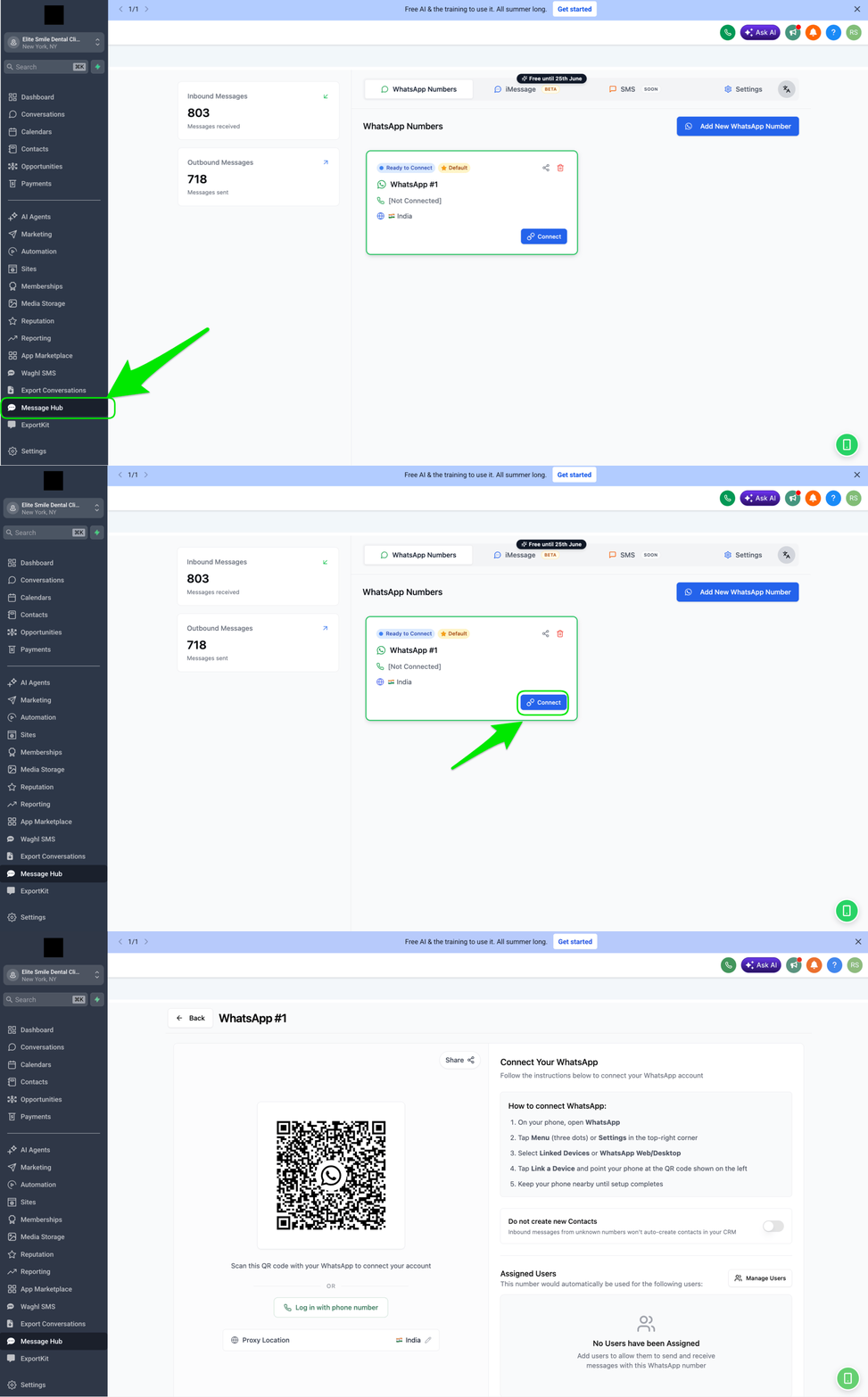
2
Scan the QR Code From Your Phone
On the phone with your WhatsApp account, open: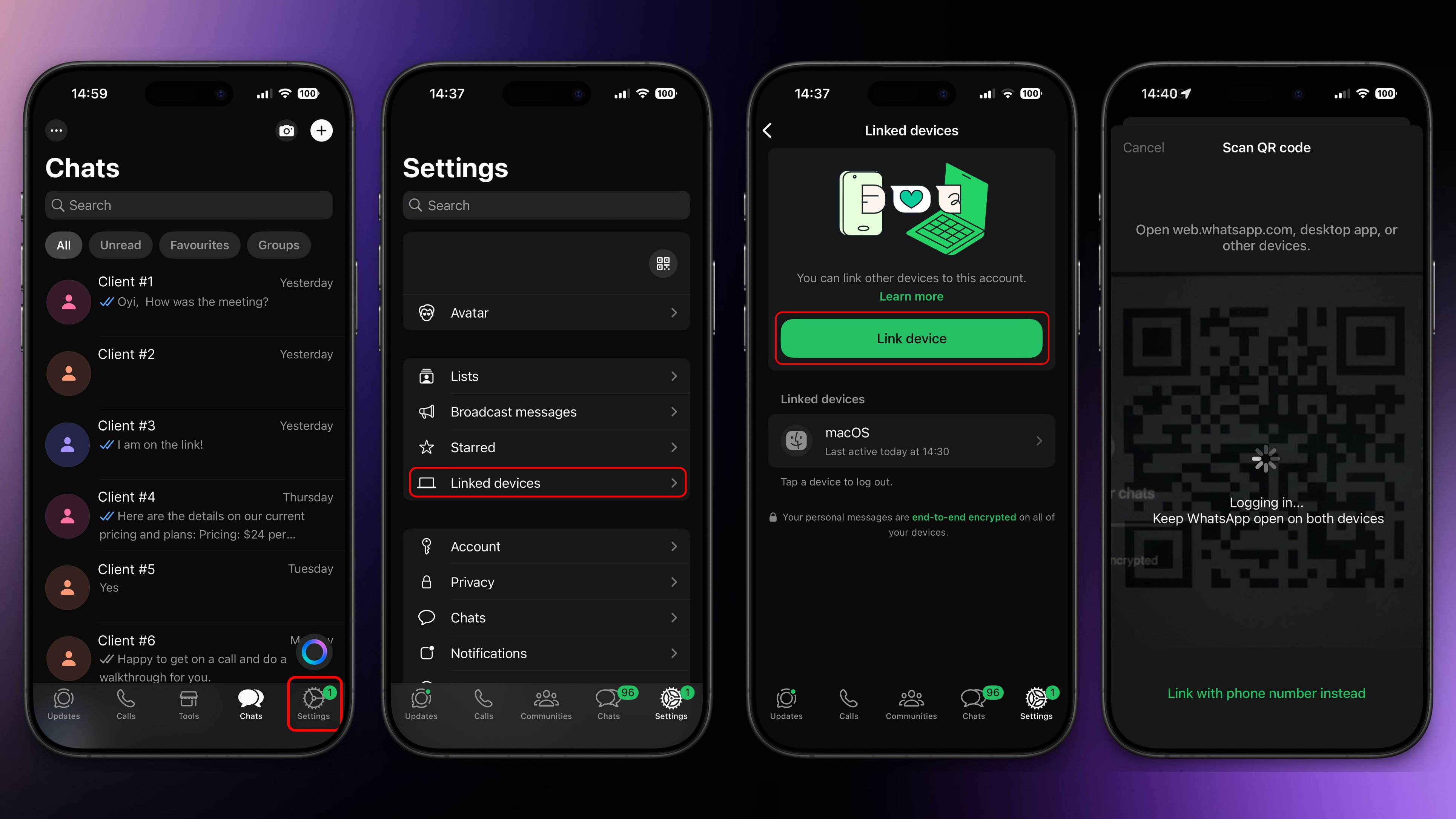
WhatsApp → Settings → Linked Devices → Link a Device → Scan QRPoint your camera at the QR code on screen.These are iOS screenshots, the Android flow may vary slightly. Can’t scan the QR code? Use Log in with Phone Number instead.
3
Wait for Confirmation
Give it a few moments. You’ll see a confirmation in your console once WhatsApp is connected, your number is now ready to use.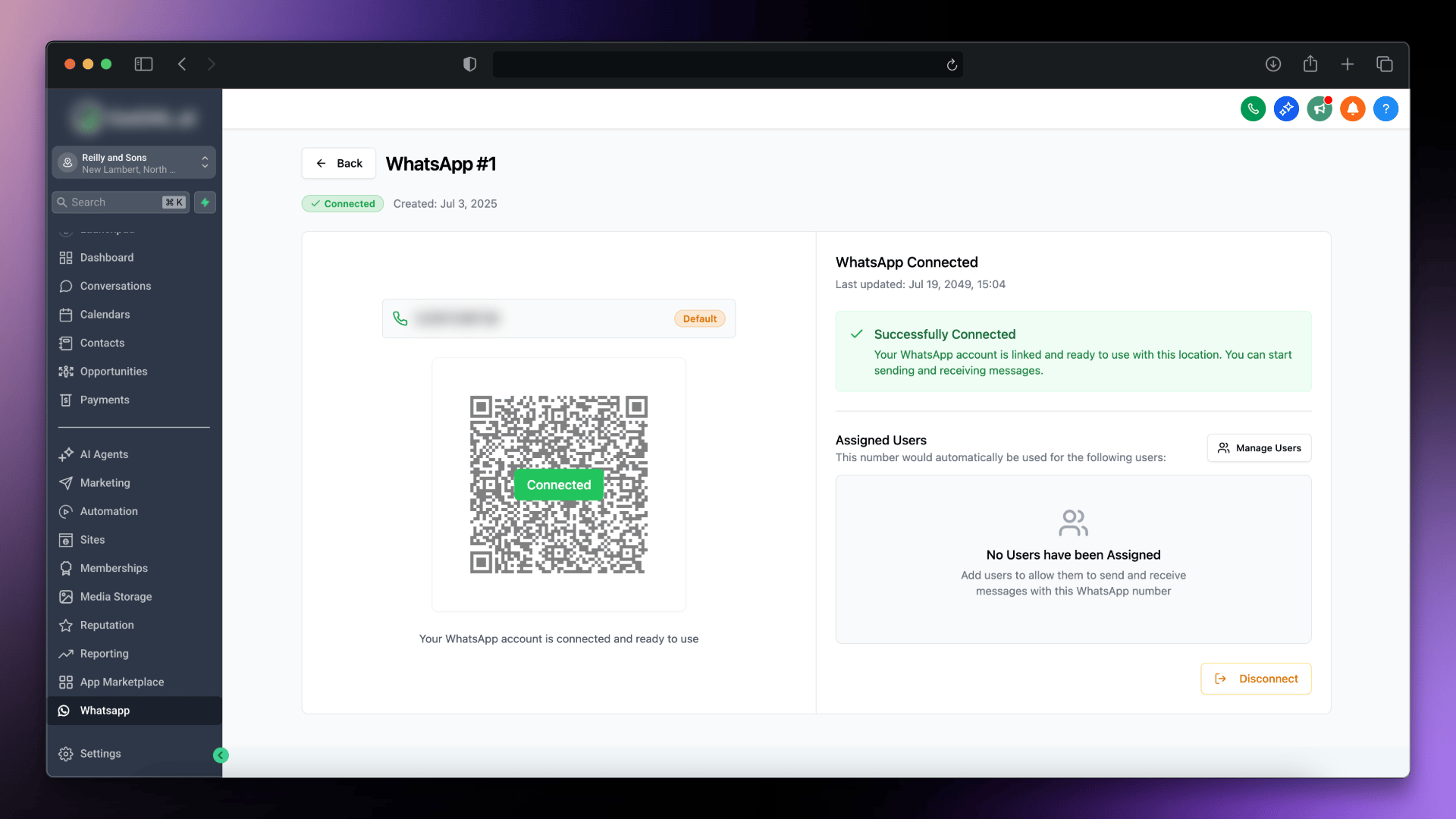
Part 2: Send a Test Message
Let’s confirm everything works end-to-end.1
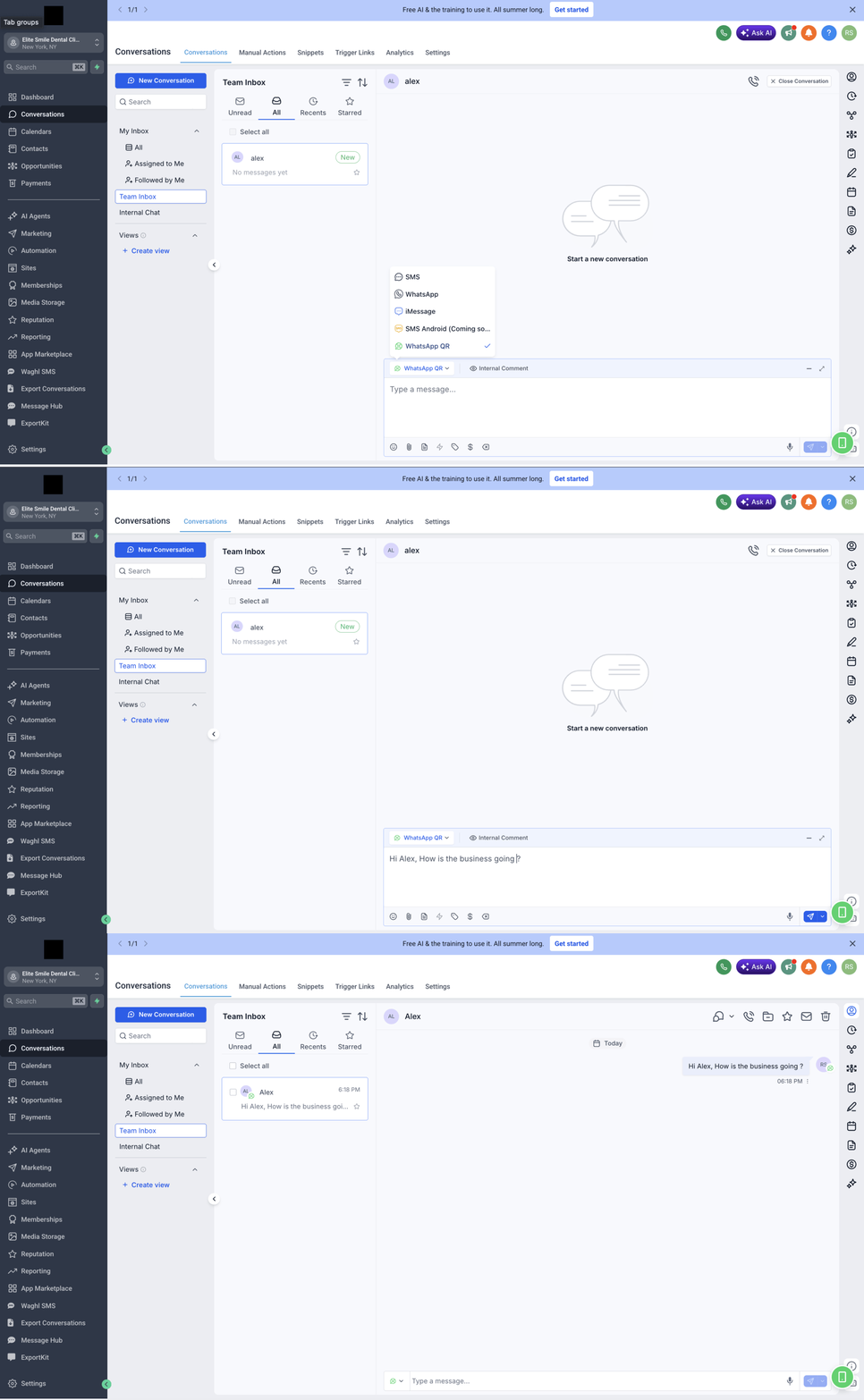
Go to Contacts → select a contact → Send Message.
2
Choose WhatsApp from the message-type dropdown.
3
Type a quick test message and hit Send.
4
Confirm the message sends successfully and the reply is received, both should appear in your CRM Conversations.
Hurray, you’ve completed the setup! Your WhatsApp number is now fully connected to your CRM.
Number Needs a Passkey?
Some numbers now require a passkey to link, so the usual QR scan won’t connect them. If that’s your number, follow the guided browser steps instead.Connect with a Passkey
Link numbers that require a passkey using a short guided script in your browser when the QR scan won’t connect.
Keep Your Number Safe
WhatsApp bans are the #1 reason numbers stop working. Before you start messaging at scale, set up protection:Warm-up Strategy
Gradually ramp up sending on a new number so WhatsApp trusts it.
Drip Mode
Pace your messages automatically to stay under the radar.
Residential Proxy
Route traffic through a location-matched IP to reduce ban risk.
Multiple Instances
Spread volume across several connected numbers per location.
Final Checklist
Keep your WhatsApp connection running reliably:- Phone with the linked WhatsApp account stays online and charged
- You’re following the safety guidelines (warm-up, drip mode)
- Only one WhatsApp account is connected per instance
- The marketplace app is installed on the sub-account you’re messaging from
- WhatsApp is selected as the conversation provider for the location
Troubleshooting
If WhatsApp isn’t connecting or messages aren’t sending, work through these in order:
Start messaging! Your WhatsApp number is now a fully connected channel in your CRM.
Support
If you need help with the setup or onboarding:- Email: support@messagesync.ai